
How to Use eoScribe for Content Creation
Learn how to use eoScribe to generate, improve, and customize marketing content directly within Evolved Office.
Overview
eoScribe helps you create and refine marketing messages using AI.
Whether you're working on an existing eSHOT or adding content to a new structure, you can use eoScribe to help develop messaging that fits your marketing objectives.
Step 1: Open Your Marketing Content
- Log in to your Evolved Office account.
- Open the eSHOT or supported content editor you want to work with.
- Locate the text content you want to create or modify.
- Open the eoScribe AI Generator from the available editing controls.
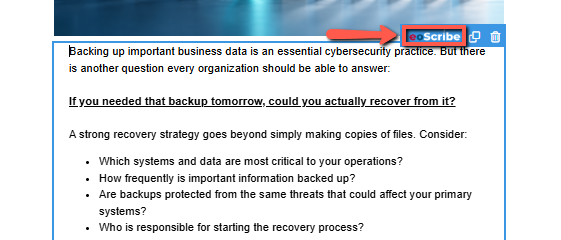
Step 2: Choose What You Want to Do
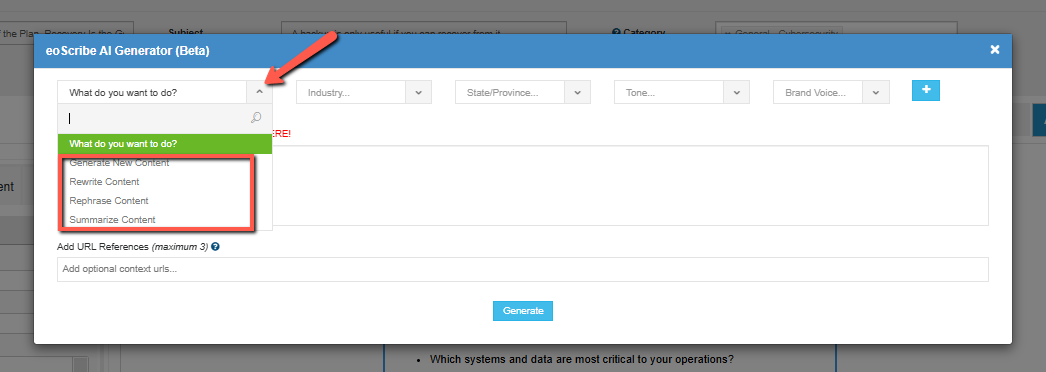
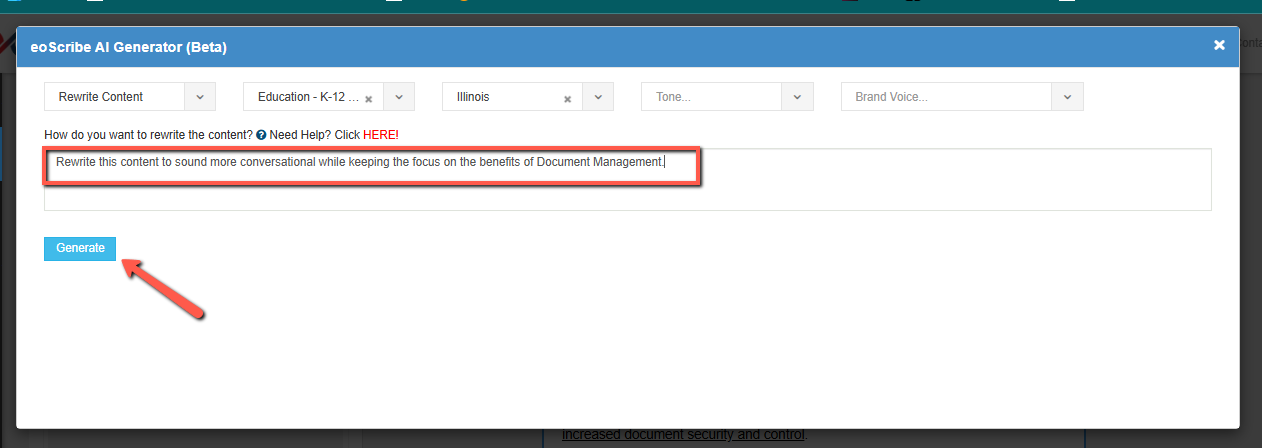
At the top of the eoScribe window, select the action that best matches your goal.
Available content actions include:
- Generate New Content: Create original content based on your instructions.
- Rewrite Content: Produce a new version of existing text.
- Rephrase Content: Express the existing message differently.
- Summarize Content: Create a shorter version highlighting the main points.
If you're working with existing content, eoScribe can use that text as the starting point.
Step 3: Customize Your Settings
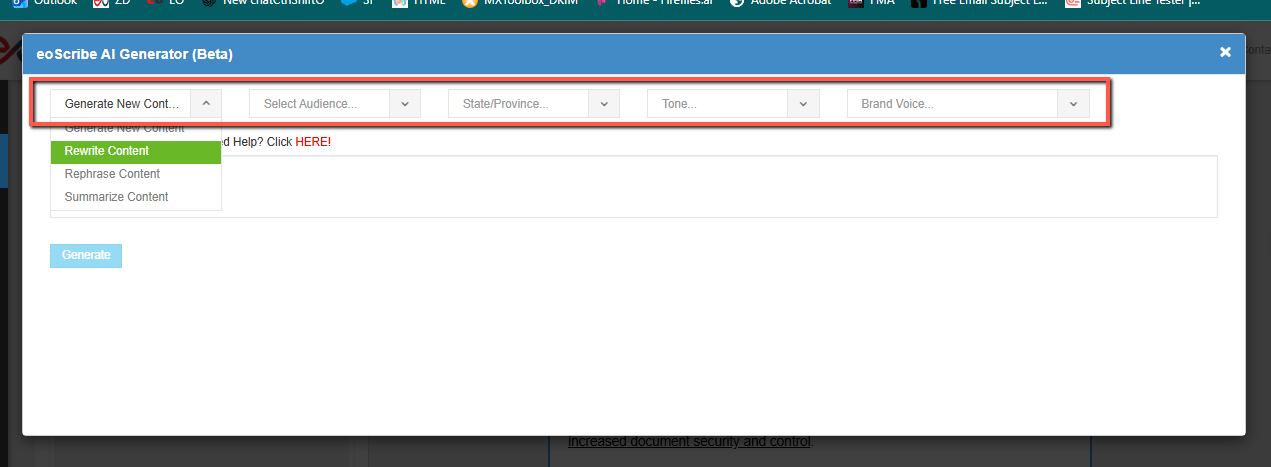
Depending on your goal, you can select additional options to guide the output.
Audience/Industry: Identify the type of business or audience you want to reach.
State/Province: Provide geographic context when location is relevant.
Tone: Choose the communication style you prefer.
Brand Voice: Apply a saved writing profile to help align the content with your company or personal messaging style.
These settings are optional and can be combined with your written instructions.
Step 4: Enter Your Instructions
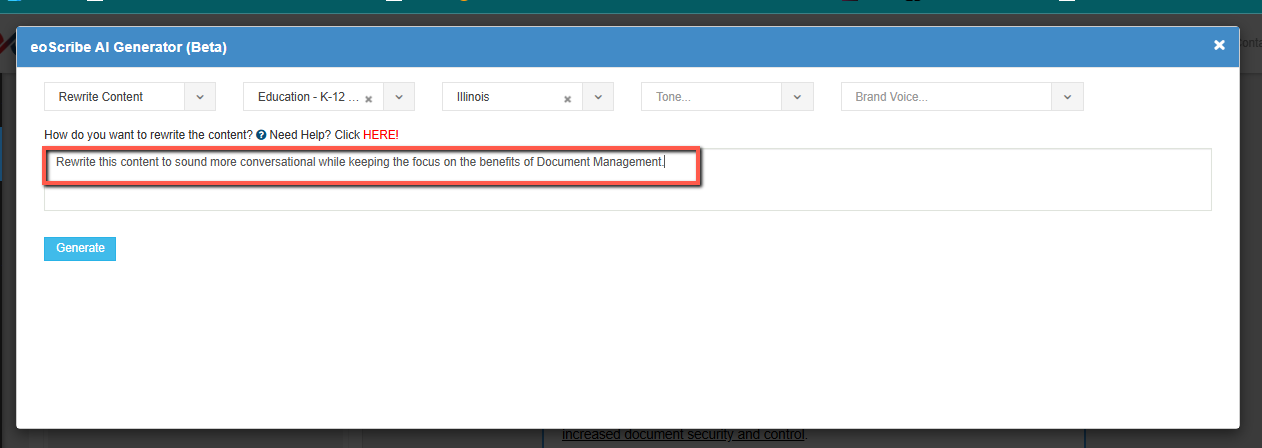
Use the instruction field to explain what you want eoScribe to create or change.
For example:
"Rewrite this content to sound more conversational while keeping the focus on the benefits of Document Management."
If you're generating entirely new content, provide a topic or a clear description of what you need.
For supported rewrite, rephrase, and summarize actions, an additional written instruction may not be required when existing content is already available.
Step 5: Add Website References (Optional)
If you want eoScribe to use additional information about a particular product, service, or topic, locate the Add URL References field below the prompt.
You can provide up to three webpage URLs.
For example, you might add a manufacturer's product page when creating content about a specific copier or printer.
This step is optional.
Step 6: Click Generate
Click Generate to submit your request.
eoScribe will process your selected action, settings, and instructions to produce a response.
Step 7: Review the Generated Content
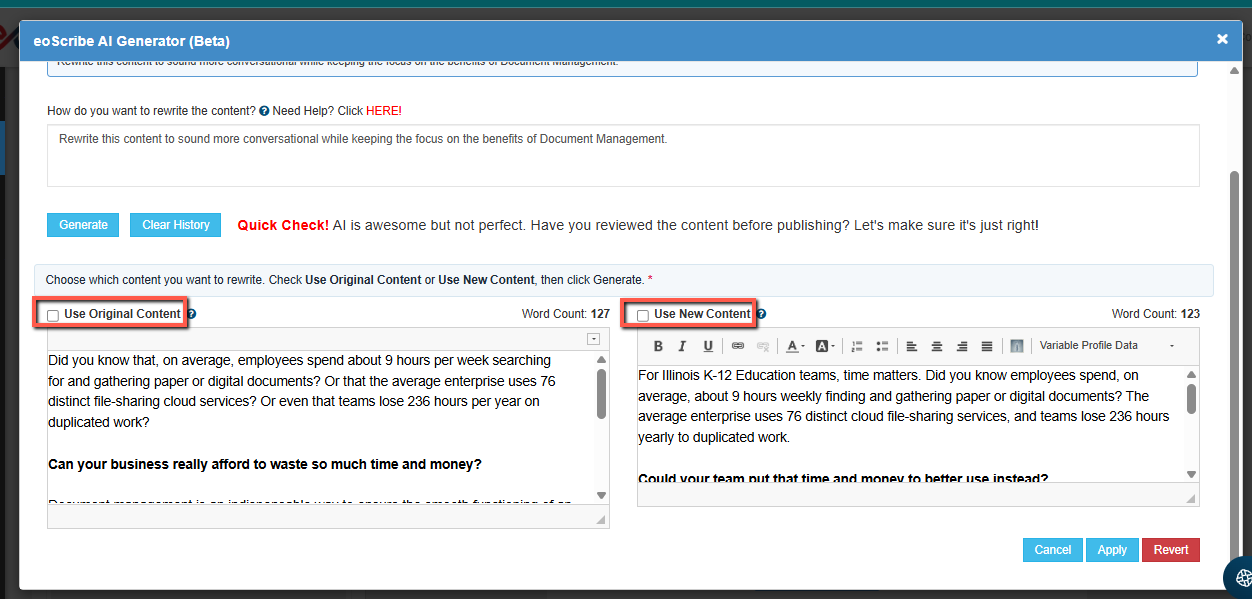
When the result appears, compare it with your original content.
Depending on the action, you may see:
Original Content: The existing text in your marketing material.
New Content: The AI-generated version.
Review the wording, structure, tone, accuracy, and overall readability.
You can also make adjustments to the new text before applying it.
Step 8: Refine or Apply Your Content
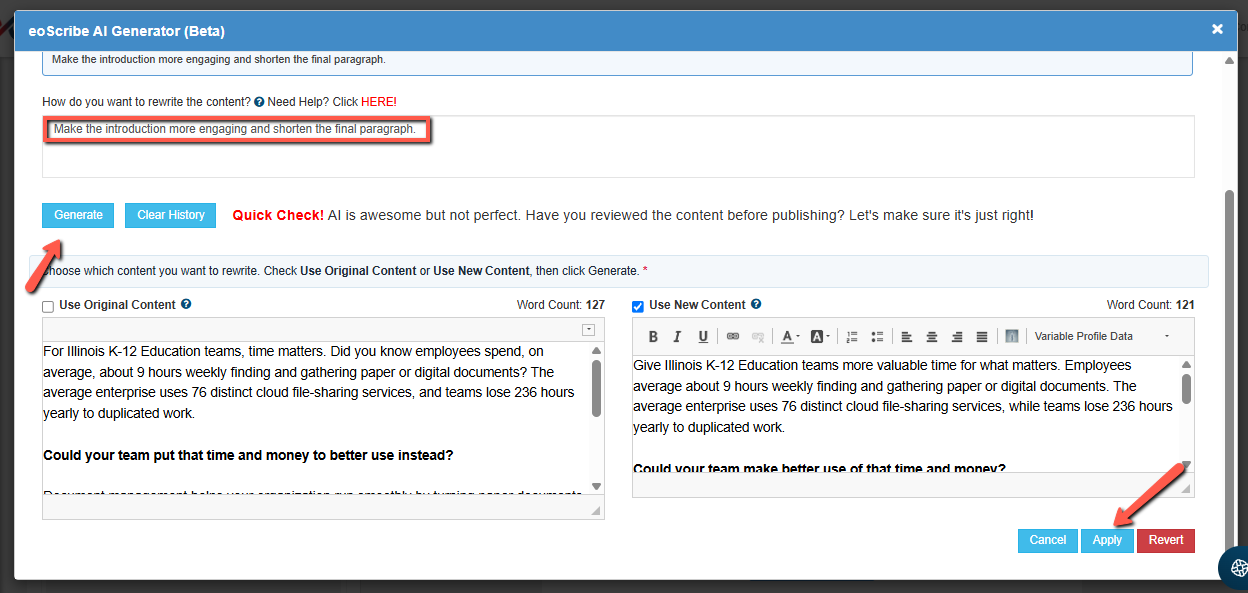
If the output needs improvement, provide another instruction and generate a revised version.
For example:
"Make the introduction more engaging and shorten the final paragraph."
When you're satisfied:
- Select the content version you want to use.
- Click Apply.
- Review the content in your marketing editor.
- Make any necessary formatting adjustments.
- Save or update your work using the editor's normal controls.
Important: eoScribe Works with One Text Structure at a Time
An eSHOT may contain a single text structure or multiple separate text structures.
When you open eoScribe from a particular text structure, it works only with the content in that structure.
For example, if an eSHOT has separate structures for the headline, introduction, and product benefits, you must open eoScribe individually for each structure you want to modify.
Important Reminder
AI-generated content should always be reviewed before publishing.
Check product names, business claims, grammar, formatting, and calls to action to make sure everything is correct.
Related Articles
- How to Write Effective Prompts in eoScribe — [Link to article]
- How to Generate New Content with eoScribe — [Link to article]
- How to Rewrite, Rephrase, and Summarize Content — [Link to article]
- How to Customize Content Using Industry, State/Province, Tone, and Brand Voice — [Link to article]
Back to: Getting Started with eoScribe — [Link to main guide]
Frequently Asked Questions About eoScribe — [Link to FAQ article]
If you have any further questions, feel free to contact our support team at support@evolvedoffice.com. We're here to help!