
How to Create a New Design in Canva with Evolved Office
This article covers creating a brand-new design in Canva, rather than editing an existing image.
Before you start: Make sure you've connected your account to Canva. See Getting Started with Canva Integration in Evolved Office for one-time setup steps.
Steps
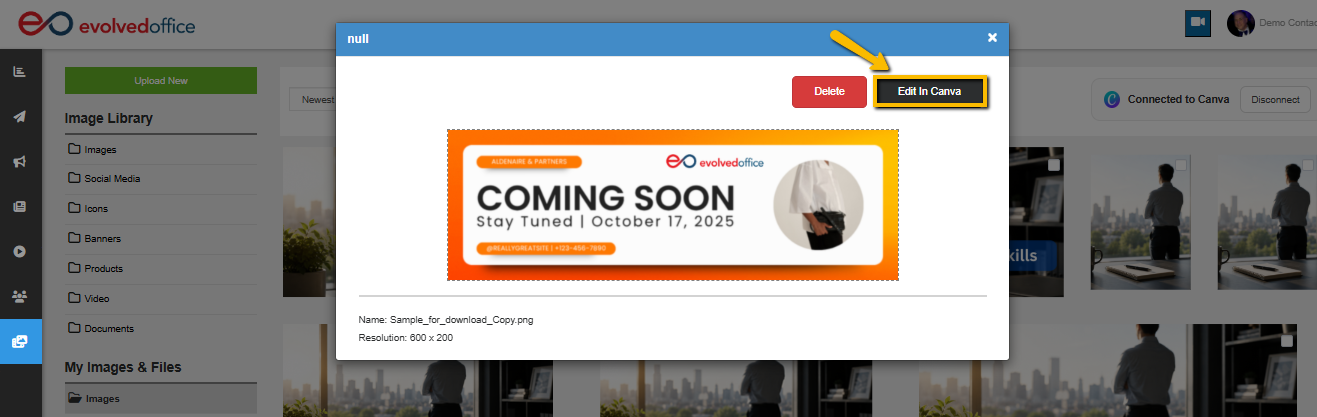
- Open the Canva editor from any Edit in Canva launch point. (Not sure where to find one? See any of the how-to articles — e.g., How to Edit an Image with Canva from the Asset Manager — for examples of where this button appears.)
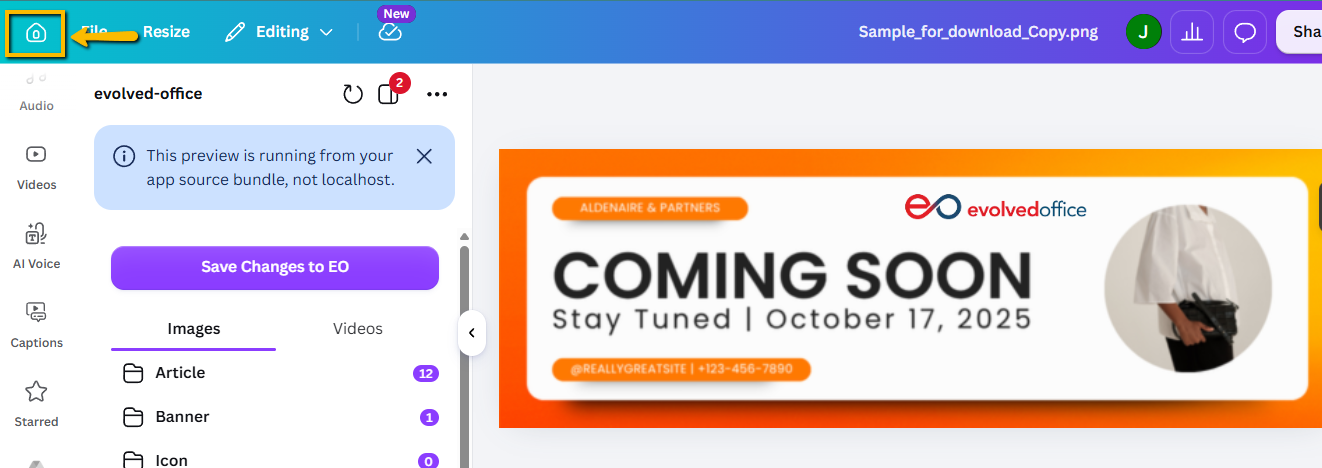
- To start a brand-new design instead, click the Home icon in the top-left corner of the Canva editor.
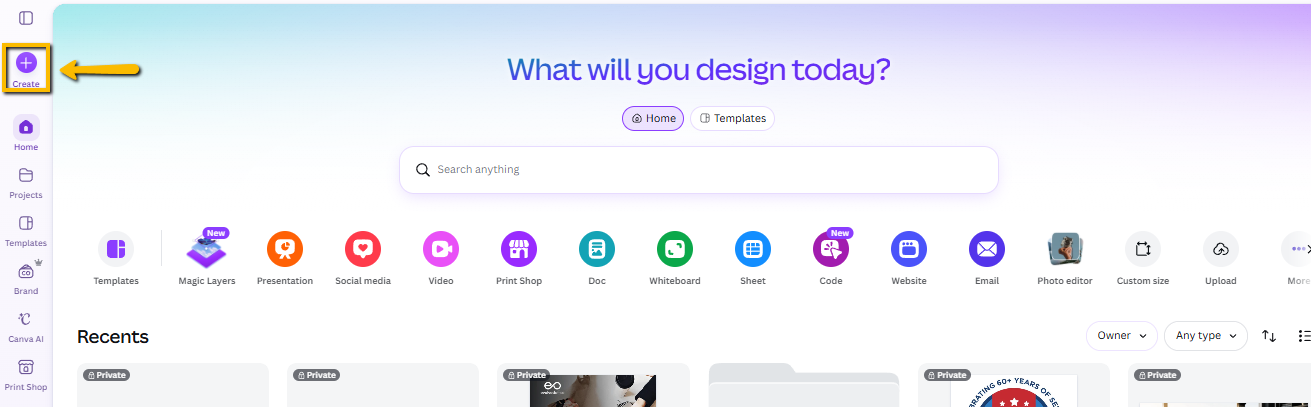
- On the Canva home screen, click Create.
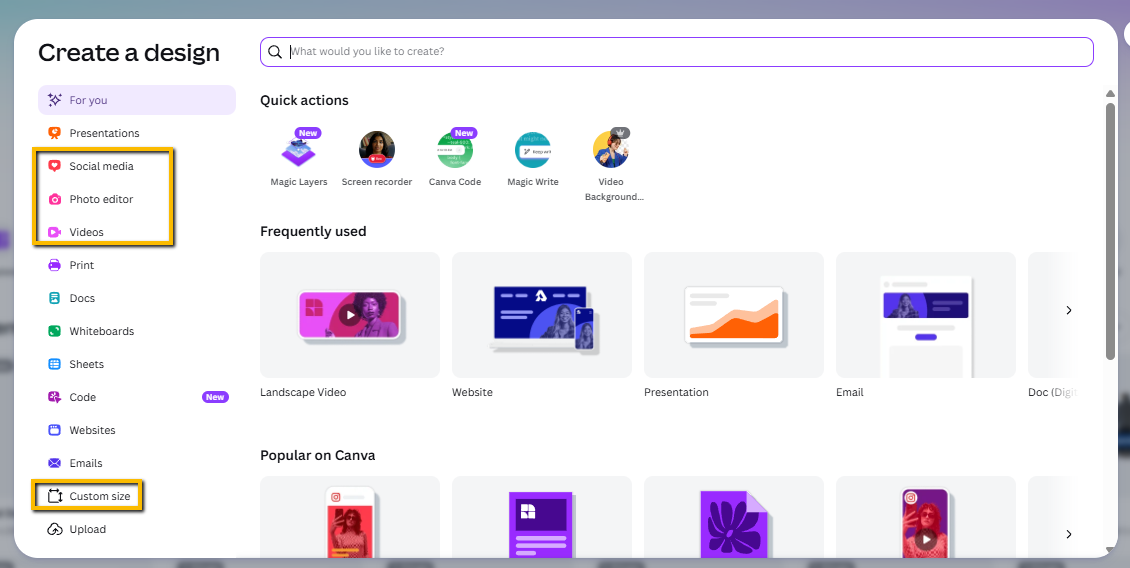
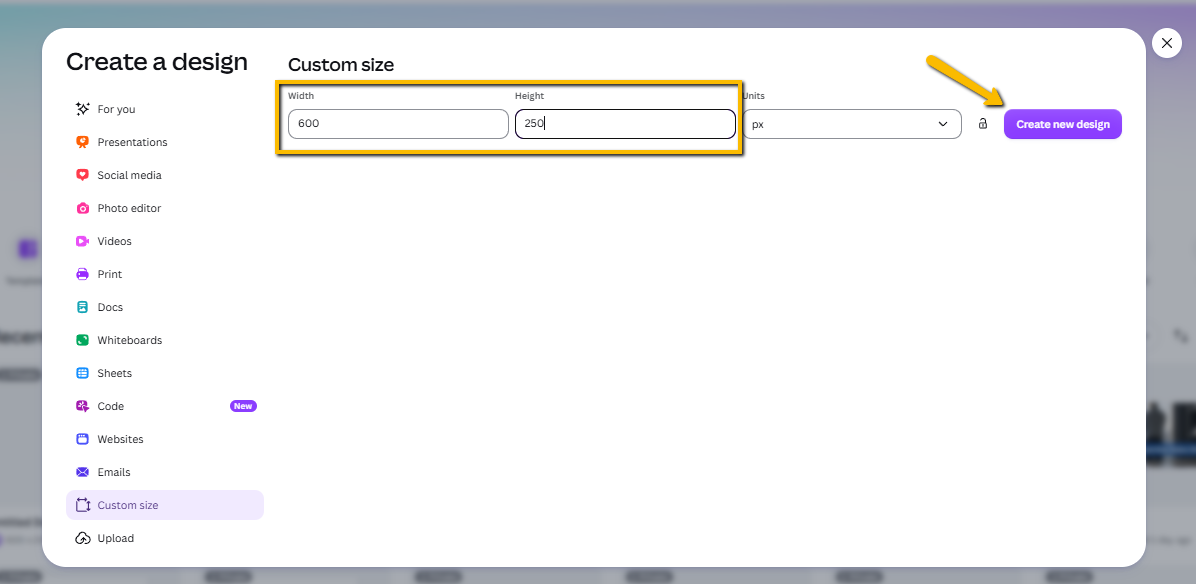
- In the Create a design window, choose a design type (e.g., Presentations, Social media, Photo editor, Videos) — or select Custom size at the bottom of the list to set your own dimensions.
- If you chose Custom size, enter your Width and Height, then click Create new design.
- Make your edits using Canva's tools — add text, logos, graphics, etc.
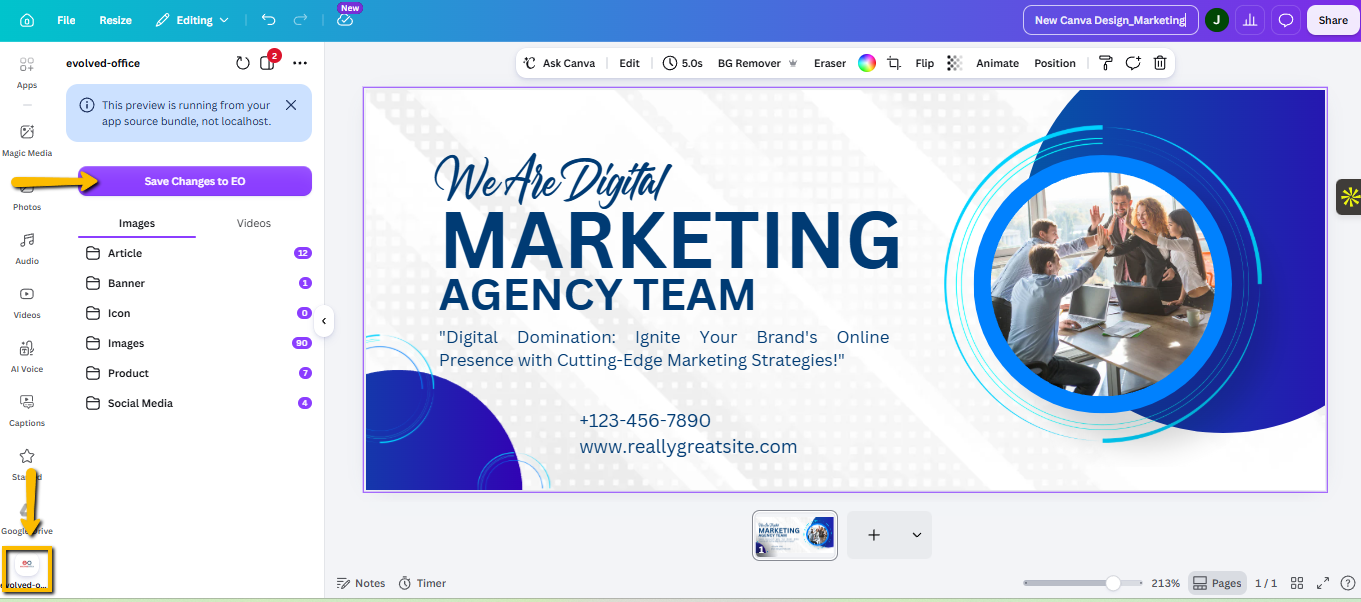
- When you're finished, click the Evolved Office icon at the bottom of the left-hand navigation in Canva, then Save.
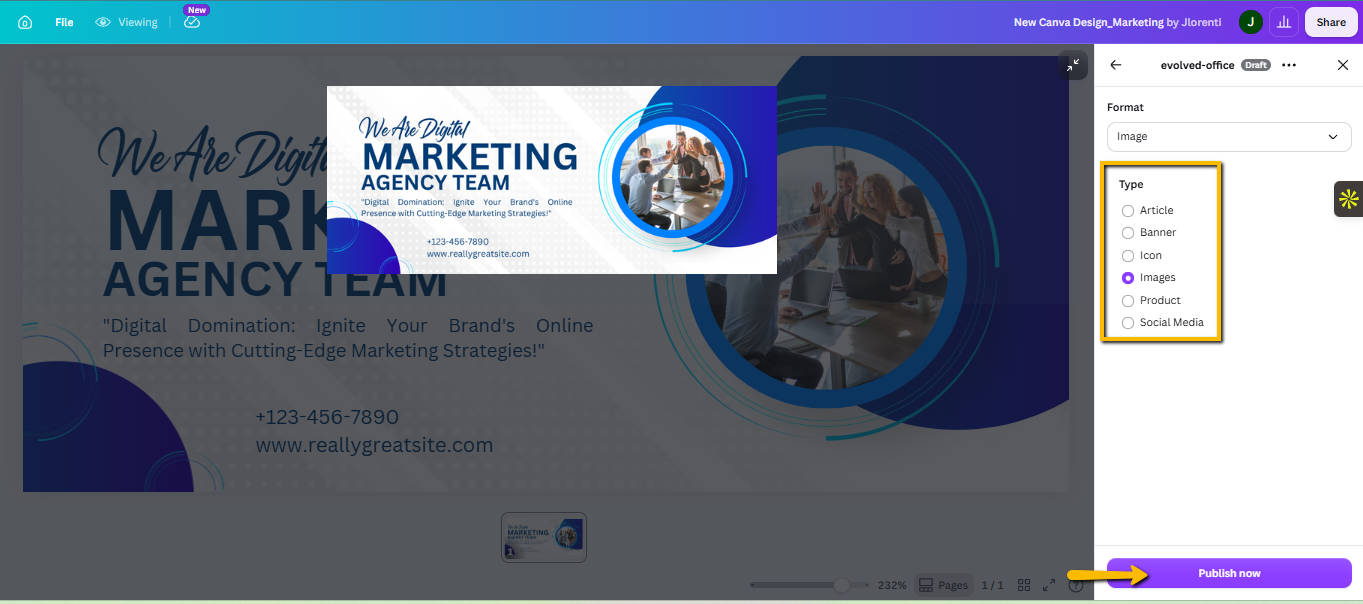
- Since this is a new design (not loaded from an existing Evolved Office image), you'll be asked to choose an image type (Article, Banner, Icon, Images, Product, Social Media, etc.). Each type requires specific dimensions — if your design doesn't match, you'll see a warning like: "Please upload image(s) with valid dimensions." Choose the type that matches your image, or resize your design in Canva to fit. See the table below for valid dimensions by type.
- Once published, your new design will be added to your Asset Manager.
Valid Dimensions by Image Type
Type | Required Dimensions |
|---|---|
Article | 754 x 300 (variable), 360 x 200 (variable), 189 x 253 (variable) |
Banner | 754 x 300 |
Icon | 80 x 80 |
Images | Variable |
Product | 360 x 360 |
Social Media | 1080 x 1080 |
Tips
- If you'd rather start from an existing design instead of a blank one, you can browse your library from within the Canva editor — see How to Browse Your Evolved Office Library from Within Canva.
- Some premium templates and elements are only available on a paid Canva plan.
- Use Custom size with the dimensions above to match the image type you plan to select later, and avoid the dimension warning at publish time.
- Choose "Images" if your design doesn't fit a specific type — it accepts variable/custom sizes.
- New to designing in Canva? See Canva's Editing and Designing Basics guide for an overview of templates, text, and elements.
If you have any further questions, feel free to contact our support team at support@evolvedoffice.com. We're here to help!