
Getting Started with Landing Pages in Evolved Office
Overview
The Landing Pages feature in Evolved Office allows you to create customizable web pages for marketing campaigns, product promotions, lead generation, and other business needs.
With the drag-and-drop editor, you can easily build landing pages using text, images, buttons, forms, videos, and other content elements.
Unlike Video Messaging, which requires recording or uploading a video to get started, Landing Pages can be created without a video. You have the flexibility to build your page around your specific marketing goals and include videos whenever needed.
1. Accessing Landing Pages
- Log in to your Evolved Office account.
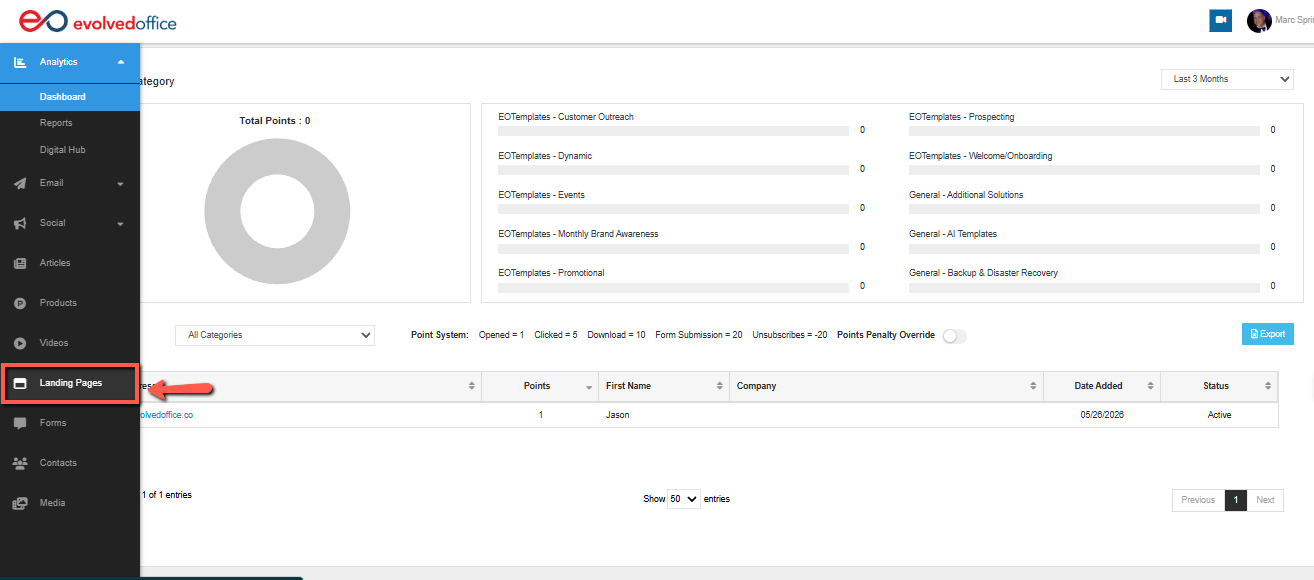
- From the left navigation menu, click Landing Pages.
- You'll be directed to the Landing Pages library, where you can view and manage your existing landing pages.
2. Creating a New Landing Page
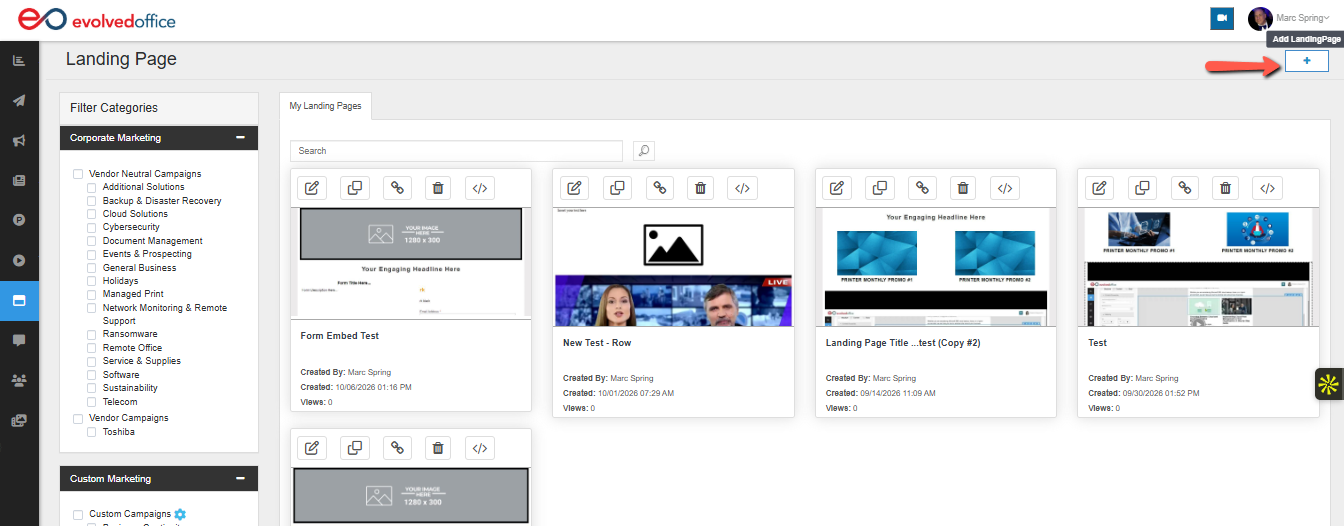
- From the Landing Pages library, click the + (Add LandingPage) button in the upper-right corner.
- The Landing Page Editor will open.
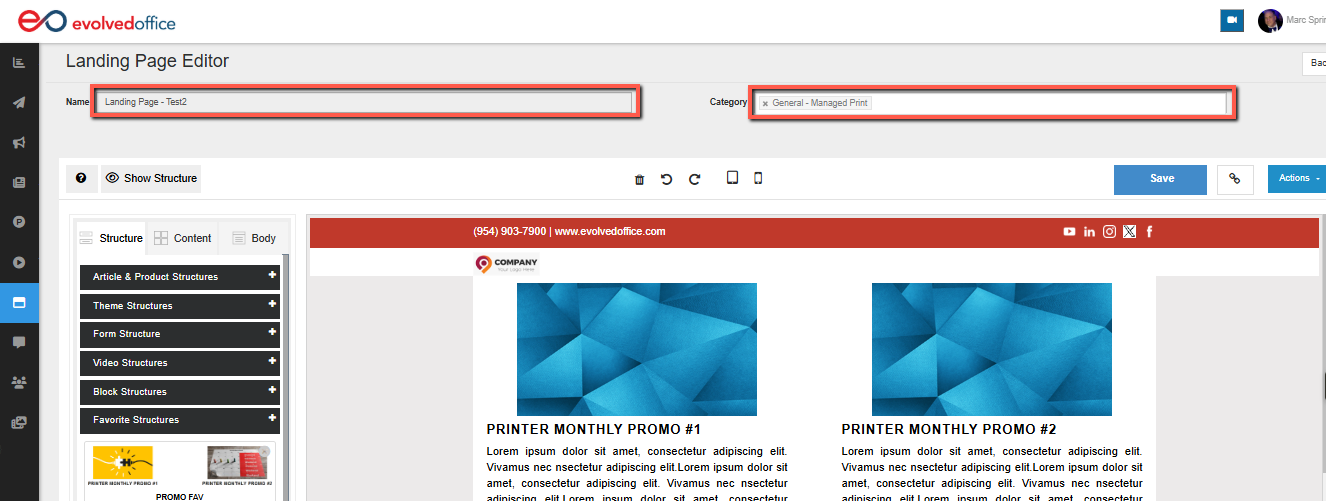
- Enter a name for your landing page in the Name field.
- Select an existing Category or use the + button beside the Category field to add a new one.
- Begin customizing your landing page using the editing tools.
3. Understanding the Landing Page Editor
The Landing Page Editor gives you the flexibility to build and customize your page using different layouts and content.
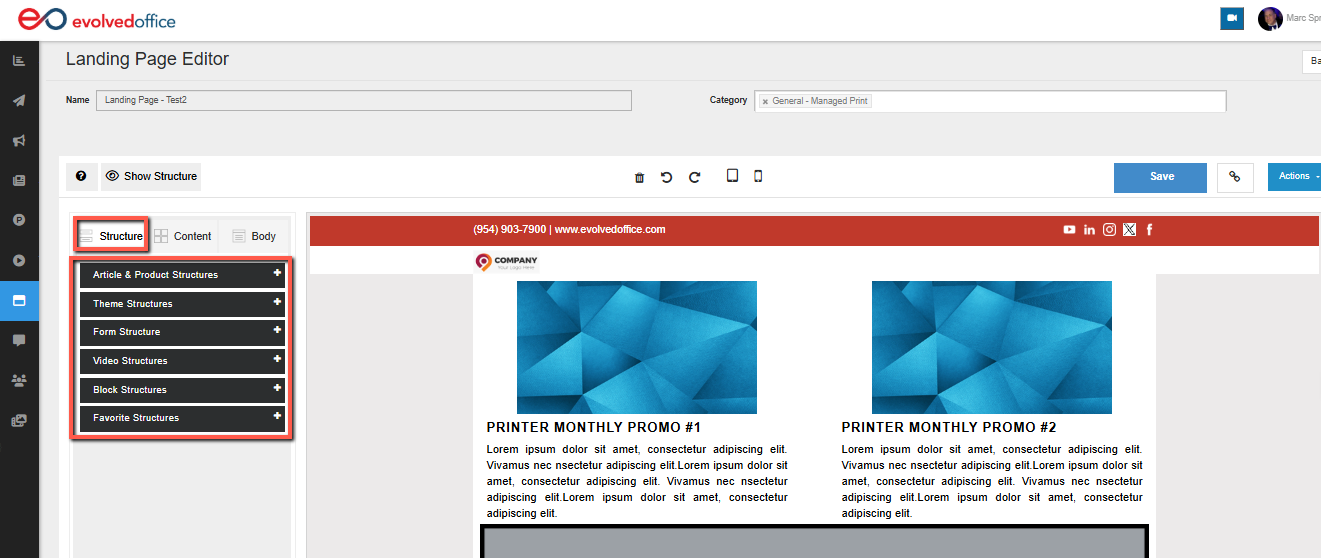
The editor includes three main tabs: Structure, Content, and Body.
Structure Tab
The Structure tab allows you to add predefined layouts and individual content elements to your landing page using drag and drop.
Available structures include:
- Article & Product Structures: Layouts for showcasing articles, products, and informational content.
- Theme Structures: Ready-made sections for banners, headlines, and text.
- Form Structure: Layouts for adding forms to collect visitor information.
- Video Structures: Layouts for including videos on your landing page.
- Block Structures: Individual elements such as text, images, buttons, dividers, social media links, and HTML code.
- Favorite Structures: Quick access to your saved favorite structures.
To add a structure:
- Click the Structure tab.
- Expand the structure category you want to use.
- Browse the available layouts.
- Drag your preferred structure onto the landing page.
- Position it where you want it to appear.
You can combine multiple structures to create a page that fits your needs.
Related Article: How to Add and Customize Content Structures
Content Tab
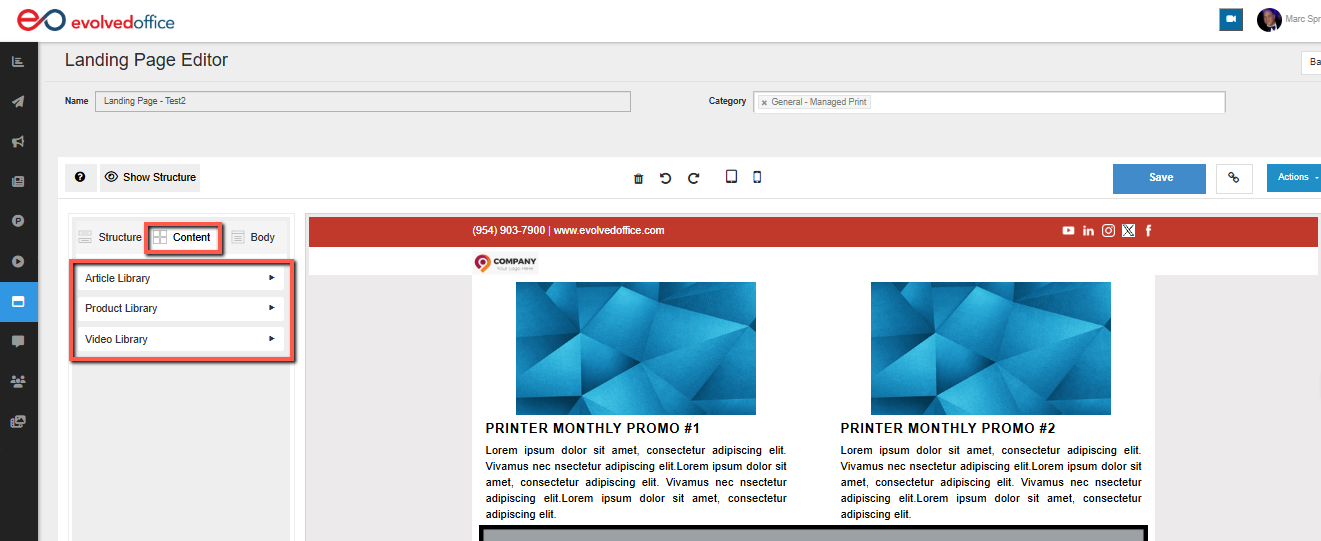
The Content tab gives you access to existing materials from your Evolved Office content libraries, making it easier to reuse content when building your landing page.
Available libraries include:
- Article Library: Browse existing articles.
- Product Library: Access available product content.
- Video Library: Browse existing videos.
Click the desired library to view its available content.
Related Article: How to Add Existing Library Content to a Landing Page
Body Tab
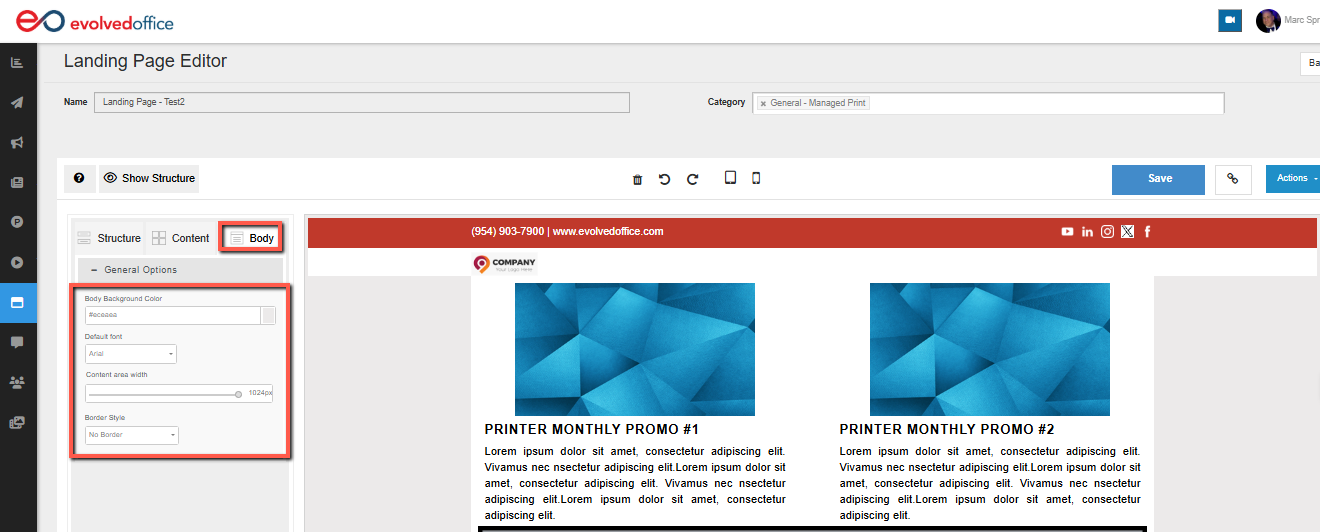
The Body tab allows you to adjust the overall appearance and layout of your landing page.
Under General Options, you can customize:
- Body Background Color: Set the background color of your landing page.
- Default Font: Choose the default font for your page.
- Content Area Width: Adjust the width of your main content area using the slider.
- Border Style: Select a border style or choose No Border.
These settings help you maintain a consistent design that aligns with your company's branding.
Related Article: How to Customize Your Landing Page Design
4. Adding Forms and Videos
You can make your landing page more interactive by adding forms and videos.
Adding Forms
Forms allow you to collect information from visitors, such as contact details, inquiries, or other responses.
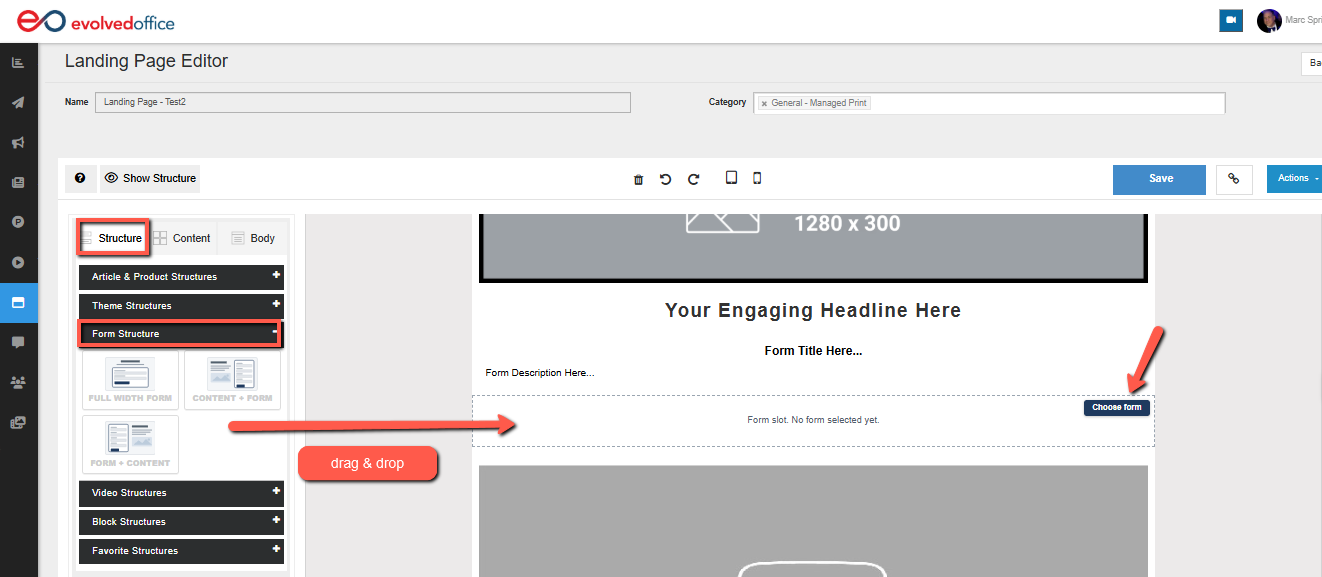
- Open the Structure tab.
- Expand Form Structure.
- Select a preferred form layout.
- Drag the structure onto your landing page.
- Click Choose form to select an existing form.
Related Article: How to Add Forms to a Landing Page
Adding Videos
Videos can help showcase your products, explain your services, or provide additional information to visitors.
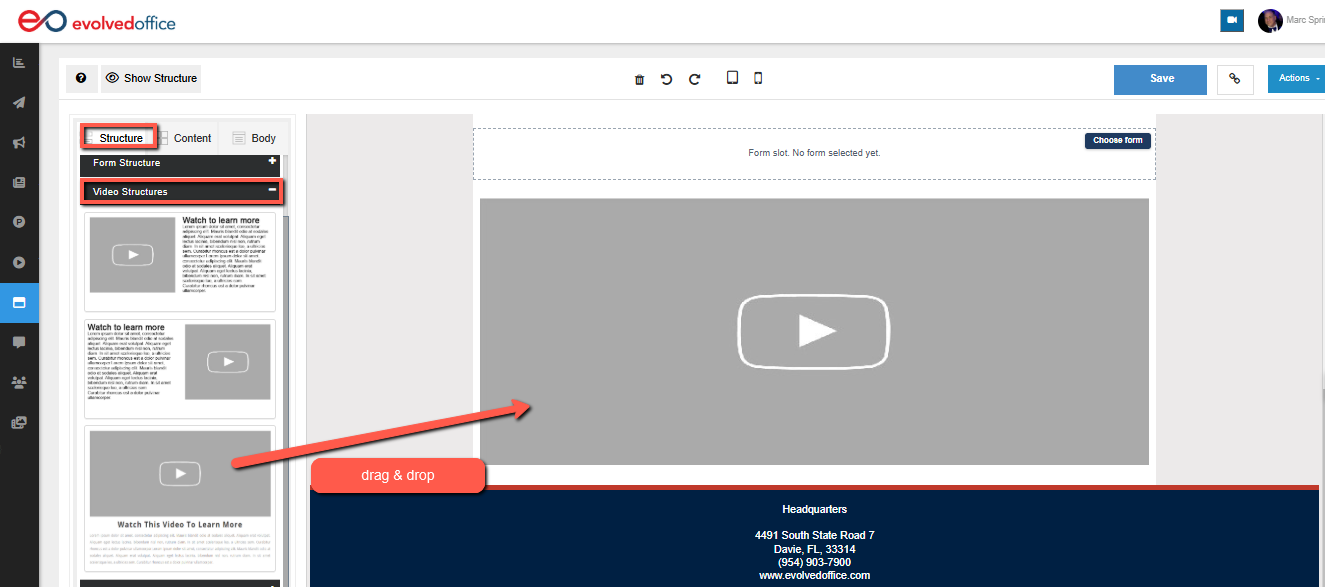
- Open the Structure tab.
- Expand Video Structures.
- Select your preferred video layout.
- Drag the structure onto your landing page.
Related Article: How to Add Videos to a Landing Page
Note: Adding a video is optional. You can create and share a landing page without including any video content.
5. Previewing Your Landing Page
Before sharing your landing page, review its appearance to make sure everything looks correct.
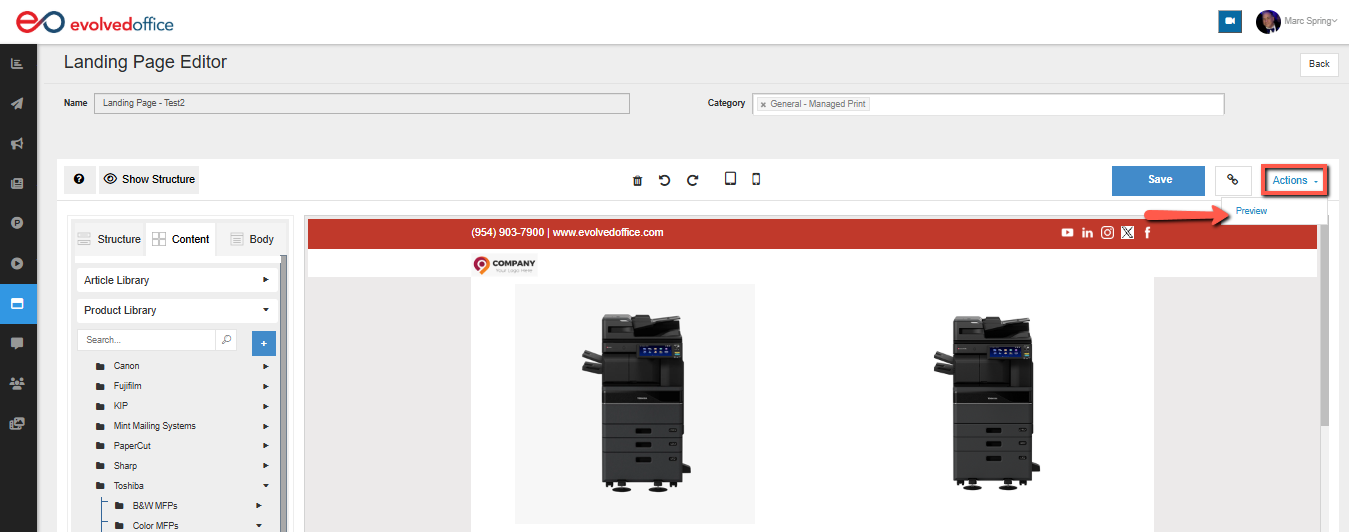
- In the Landing Page Editor, click Actions in the upper-right corner.
- Select Preview.
- Review your page, including its text, images, videos, forms, and overall layout.
6. Saving Your Landing Page
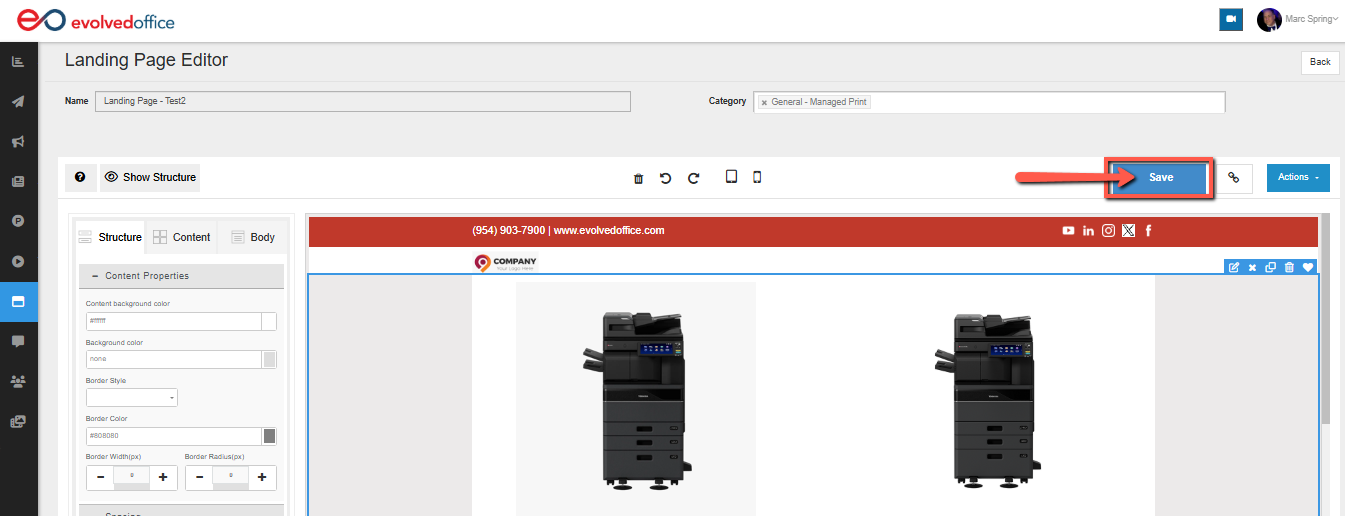
Once you're satisfied with your changes, click Save in the upper-right corner of the editor.
Remember to save your changes regularly as you build or update your landing page.
7. Copying and Sharing Your Landing Page Link
Each landing page has its own unique URL, allowing you to share it with your audience.
- Open your landing page in the editor.
- Click Save to save your latest changes.
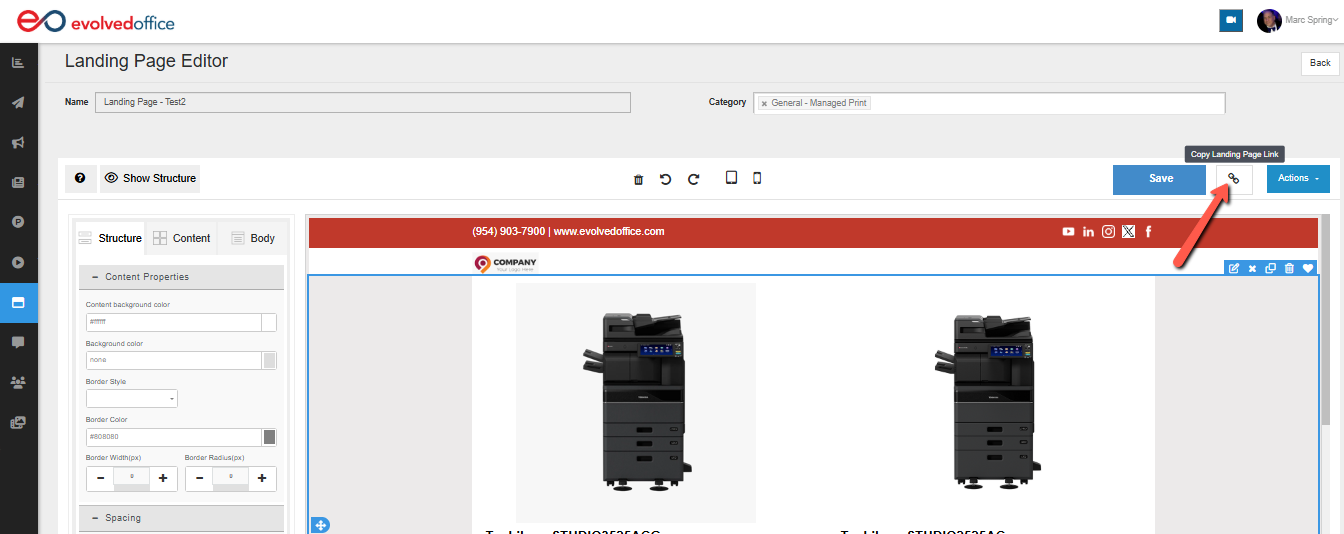
- Click the link icon (Copy Landing Page Link) next to the Save button.
- Paste the copied link into an email, social media post, or other marketing material.
Tip: Open the copied URL in a separate browser tab to check how the page appears to visitors before sharing it.
8. Managing Existing Landing Pages
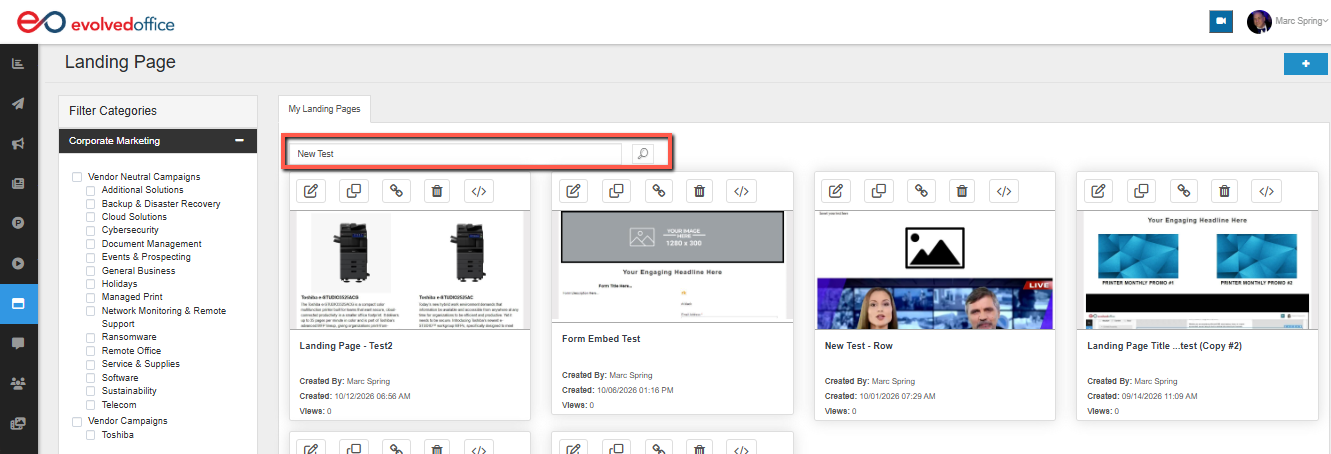
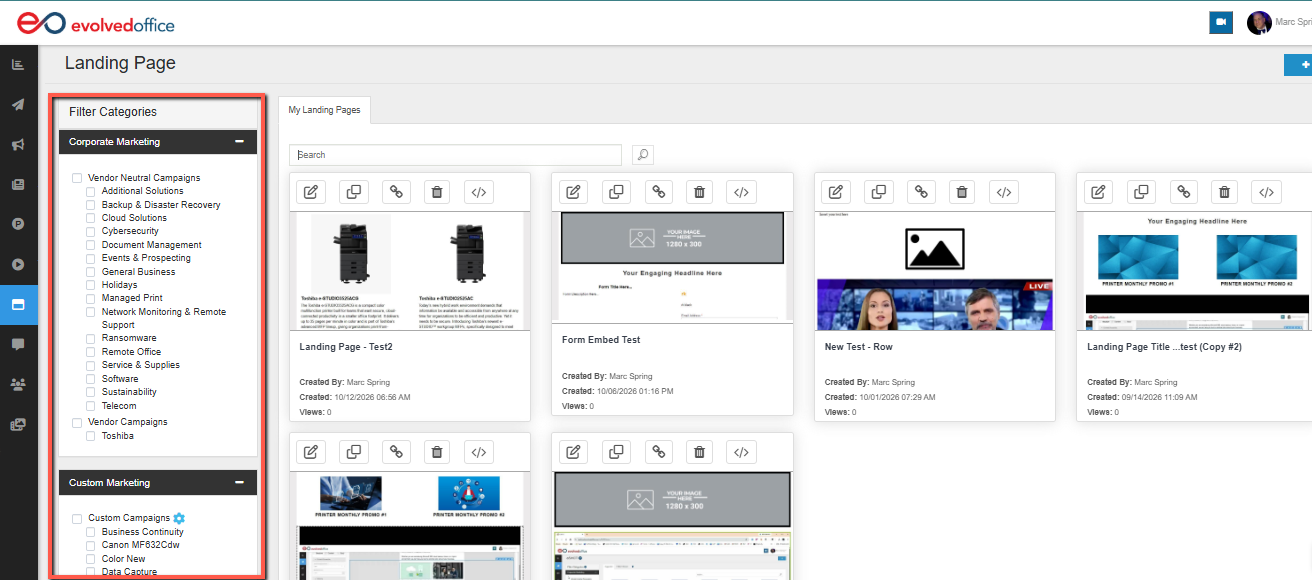
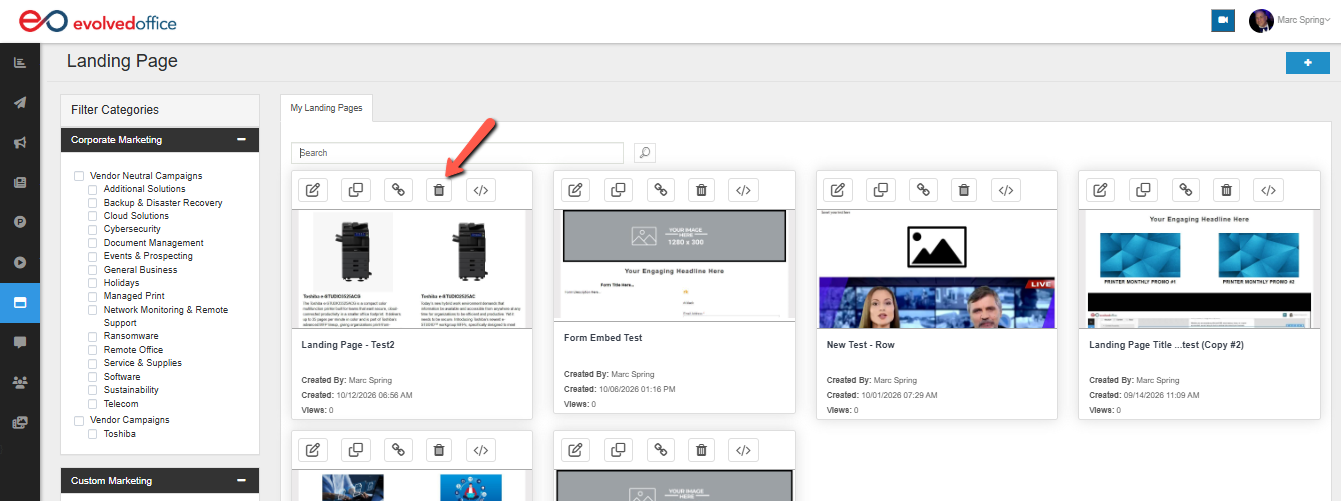
You can access your existing landing pages from the Landing Pages library.
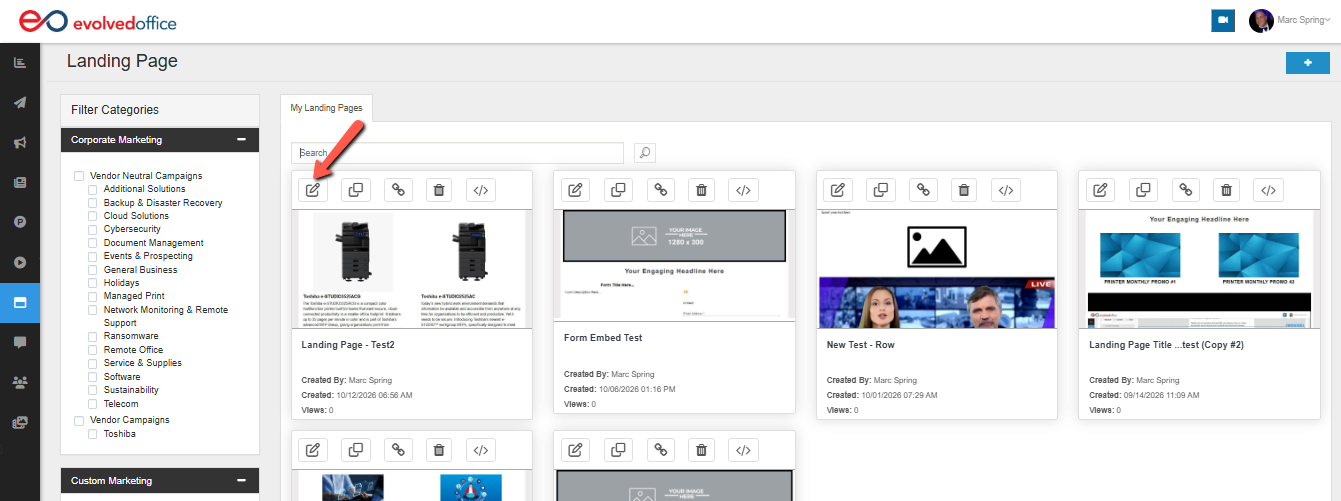
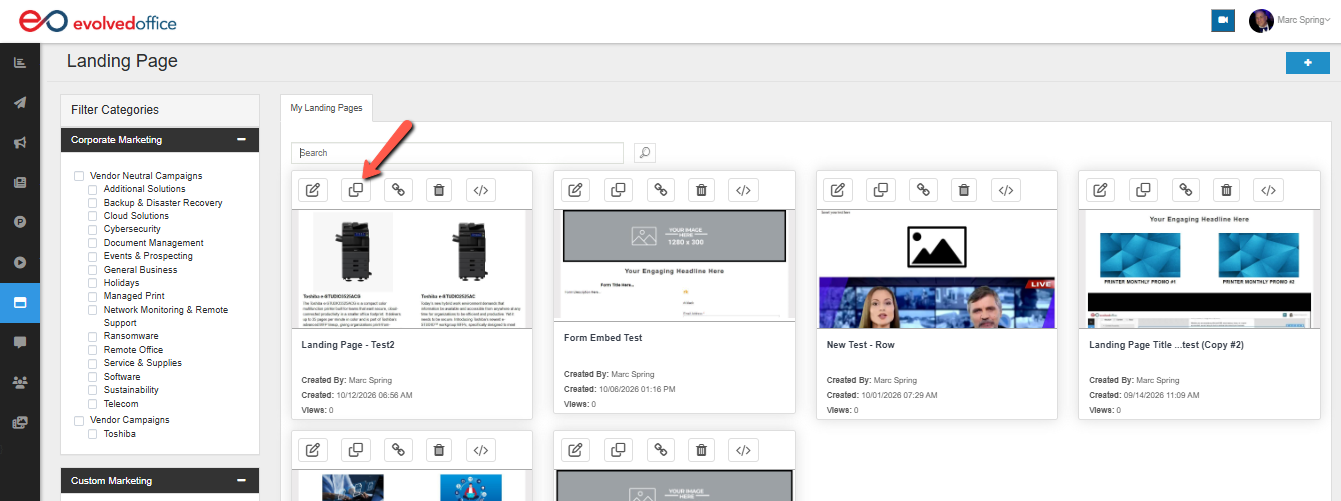
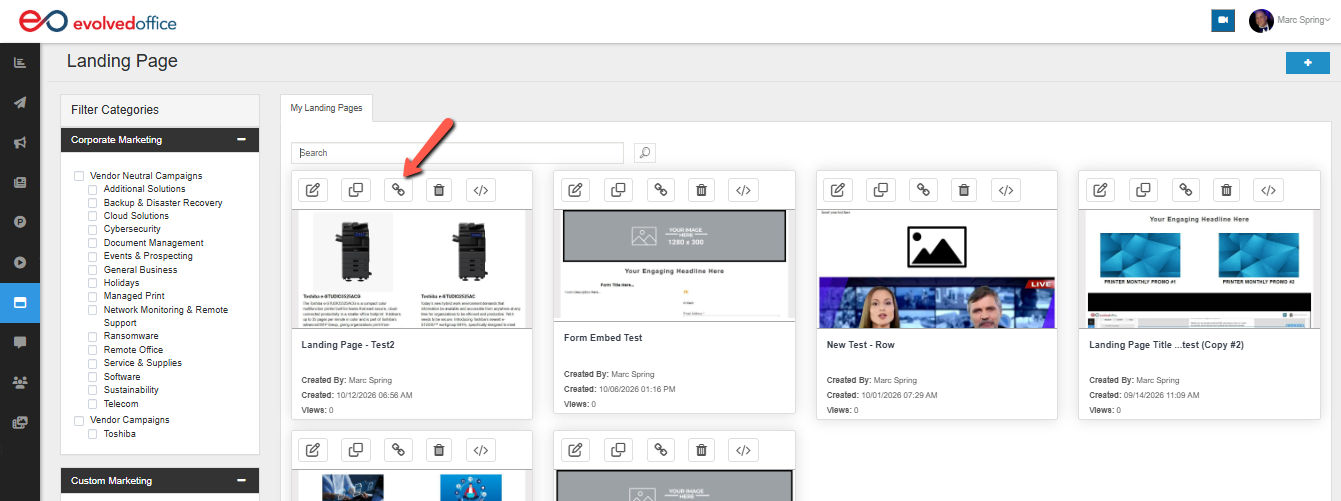
From the library, you can:
- Search for a specific landing page.
- Filter landing pages by category.
- Edit an existing landing page.
- Duplicate a landing page.
- Copy a landing page link.
- Delete a landing page.
Related Article: How to Manage Existing Landing Pages