
How to Use Campaign Reports in eoSocial
Campaign Reports in eoSocial help you review the performance of your social media campaigns.
By looking at key campaign metrics, you can better understand how your campaign posts are performing, which content is getting the most engagement, and how your audience changed during the campaign.
Things to Know
- Find Campaign Reports under eoSocial > Reports > All Reports.
- Campaign Reports help you review the effectiveness of posts grouped under a Campaign.
- You can monitor important campaign metrics from one report.
- Reporting data may vary depending on the social networks connected to your account.
- Campaign Reports may not be available on every plan.
Campaign Overview
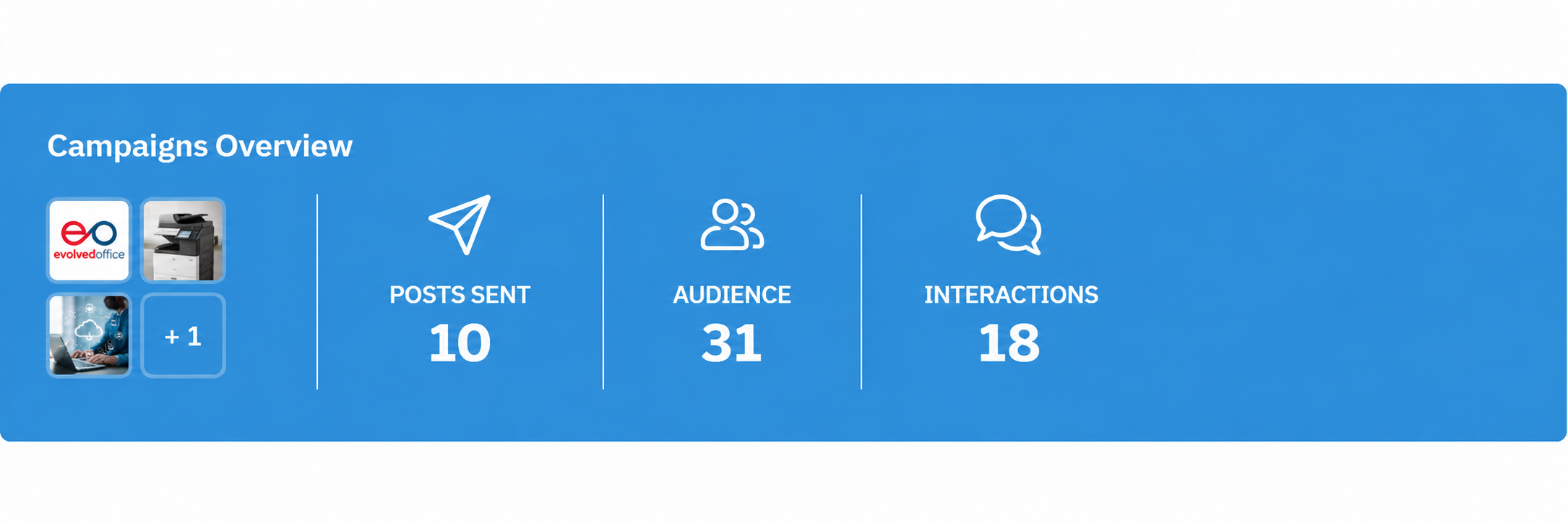
The Campaign Overview provides a quick summary of important activity across the posts and social profiles connected to the Campaign.
Depending on the available reporting data, you may see metrics such as:
Posts Sent
Shows the total number of posts published across the social profiles associated with the Campaign.
Audience
Shows the combined number of fans and followers across supported connected profiles during the Campaign.
Interactions
Shows engagement with Campaign posts, including actions such as likes and comments across supported profiles.
Important
Reporting data is not available in the same way for every social network.
Because of this, some connected profiles may not be included in every Campaign Report metric.
Audience Split
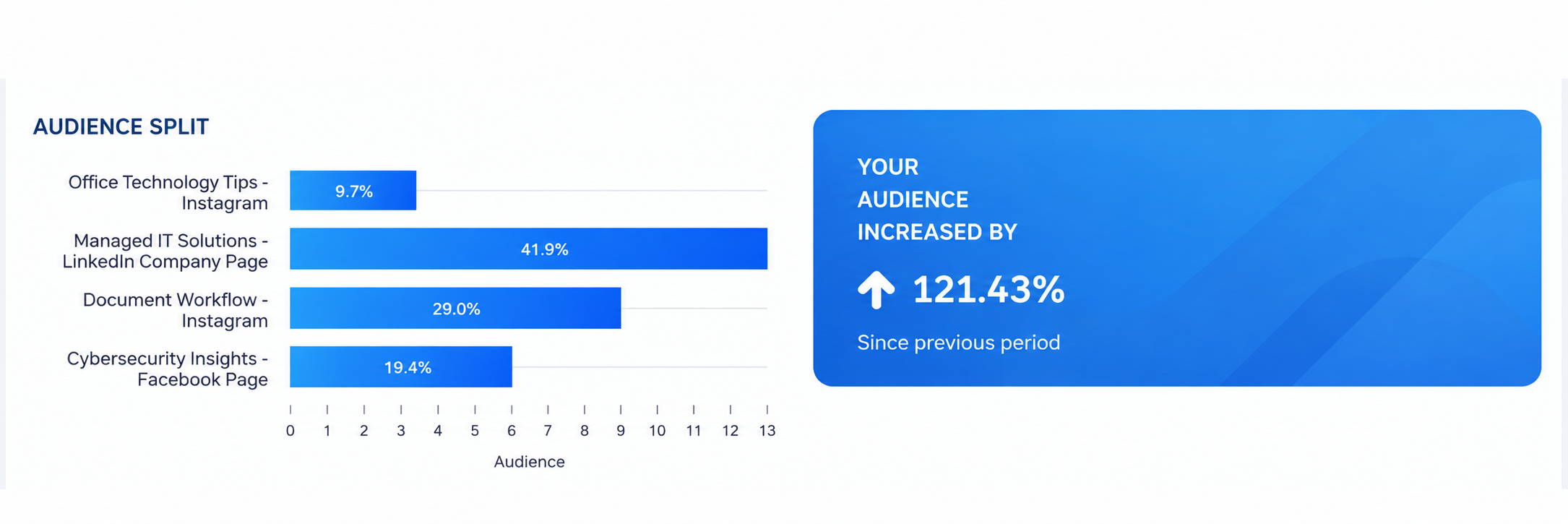
The Audience Split section helps you review the audience size across the connected social profiles included in the Campaign.
This can help you understand:
- Which social networks have the largest audience
- How your audience is distributed across networks
- Which profiles gained followers during the Campaign
Use this section to get a clearer picture of where your Campaign audience is coming from.
Top Posts
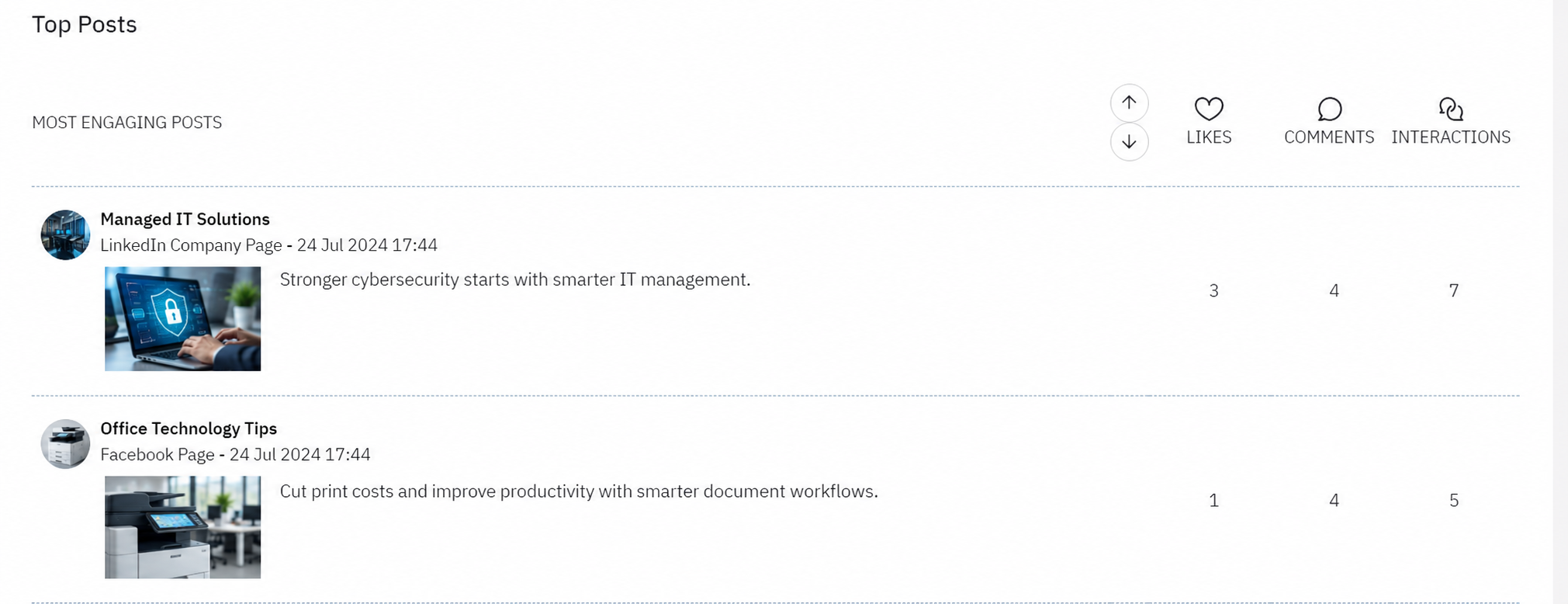
The Top Posts section highlights Campaign posts that received the most interactions.
This makes it easier to identify the types of content that generated the strongest response from your audience.
Interactions may include engagement such as:
- Likes
- Comments
The report can provide a snapshot of popular Campaign content from supported networks such as Facebook, Instagram, and LinkedIn.
How Campaign Reports Can Help
Campaign Reports can help you understand which social media content is performing well and where there may be opportunities to improve future campaigns.
For example, if you are running a Managed IT Campaign, your Campaign may contain posts about:
- Cybersecurity
- Cloud services
- Data backup
- Network security
- IT support
- Business continuity
After the Campaign has been running, you can use the report to see which posts received the most engagement and which social networks contributed the largest audience.
You can then use those insights when planning future content.
Using Campaigns and Campaign Reports Together
Campaign Reports work best when related posts are consistently assigned to the correct Campaign.
For example:
Campaign: Managed Print Solutions
Possible posts:
- Reduce unnecessary printing
- Improve printer security
- Track printing costs
- Automate supply replenishment
- Upgrade outdated office equipment
When these posts are assigned to the same Campaign, you can review their combined Campaign results more easily.
For more information about setting up Campaigns, see How to Use Campaigns in eoSocial.
Need Help?
If you need assistance using Campaign Reports in eoSocial, please contact support@evolvedoffice.com.