
Add UTM tracking to links
Custom parameters can be added to links to track their activity using Google Analytics. This is particularly useful when running campaigns, as it allows you to show the ROI to your business or clients. For more information about UTM parameters in your links, see 'How to use UTM parameters to prove social media ROI'.
Custom URL parameters
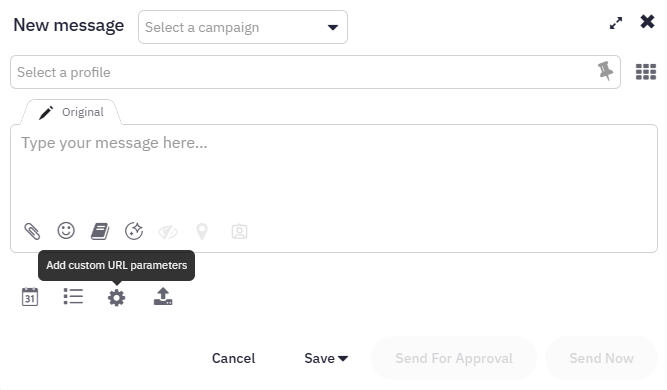
- In the Compose Box, click the cog icon under the message editing box.
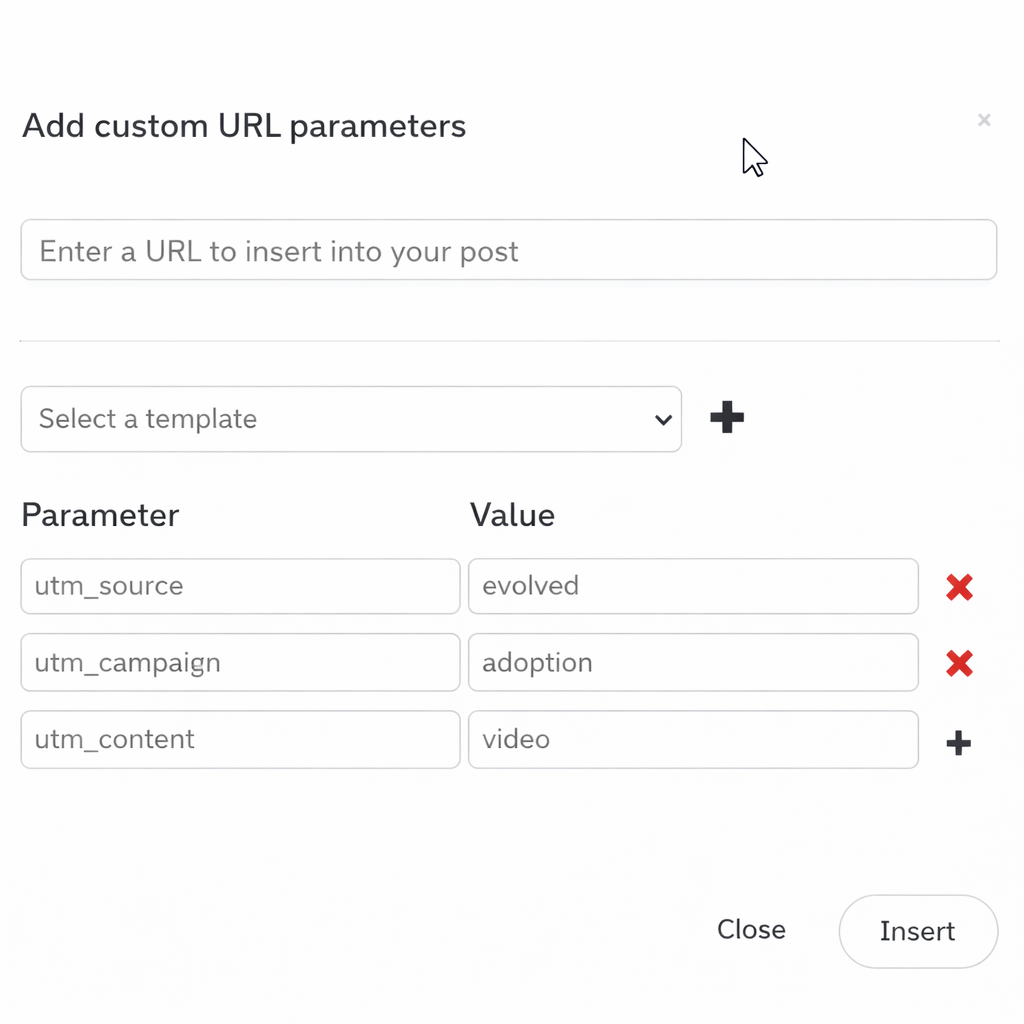
- Add the URL you want to insert into your post. The UTM parameters will be added to this URL.
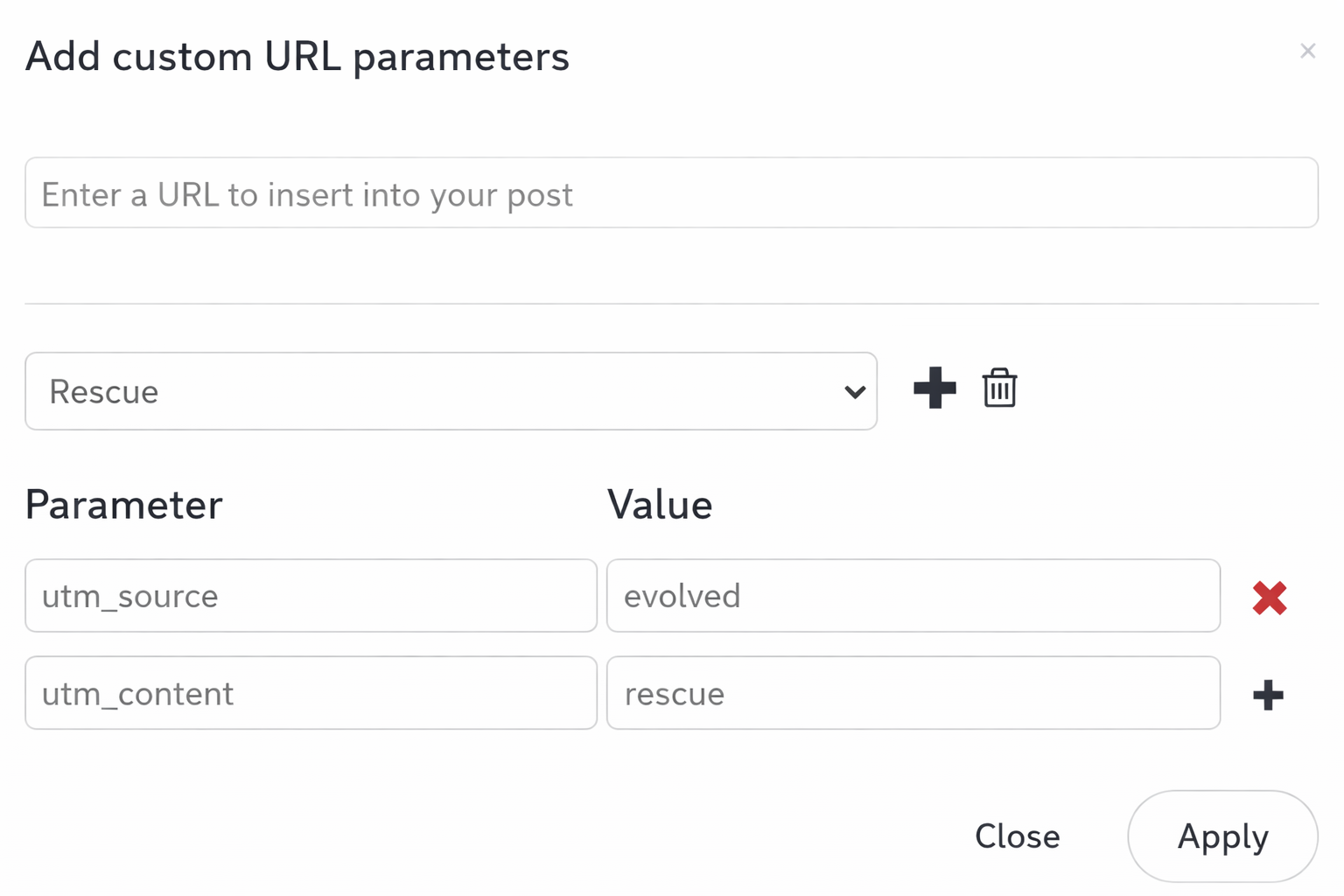
- Enter the parameters and values you'd like to add to the URL. You can use whatever you like, but common ones are utm_source (eg., evolved), utm_campaign (eg., adoption), and utm_content (eg., video).
- Click Insert.
Note: The URL and parameters will be shortened based on the link shortener you’ve selected to use on your account.
Custom URL templates
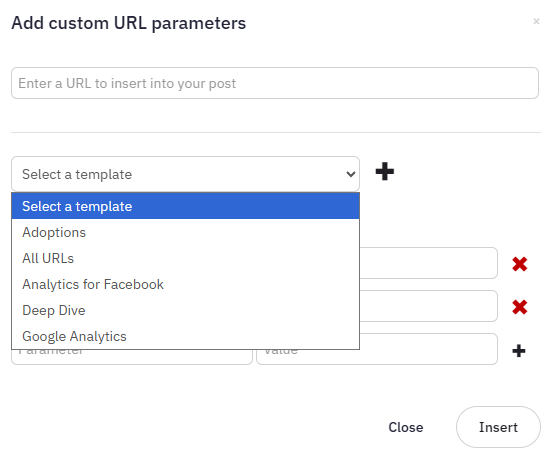
- To use an existing template, select it from the drop-down menu.
- To add a new template, click the + (add template) icon. This will copy the parameters and values from the template you chose.
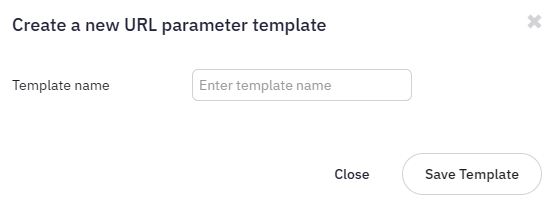
- To create a new template, enter a name for your template, then click Save Template.
- To delete a template, choose the template from the drop-down list, then click the trash bin icon.
Note: You cannot delete the Google Analytics template.
- To add a parameter, click the + (add) icon. To delete a parameter, click the x (delete) icon to the right of the parameter.
- To save your template, click the Apply button.
Tip: You can save a template without applying it to a specific URL. You can then add the URL each time you choose the template.
Have more questions?
We’d be happy to help.
Please submit a support ticket with your questions. If you can include screenshots or a short video showing what you expected, wanted, or experienced, that will help us assist you more quickly.