
99 Reasons to Use eoSocial
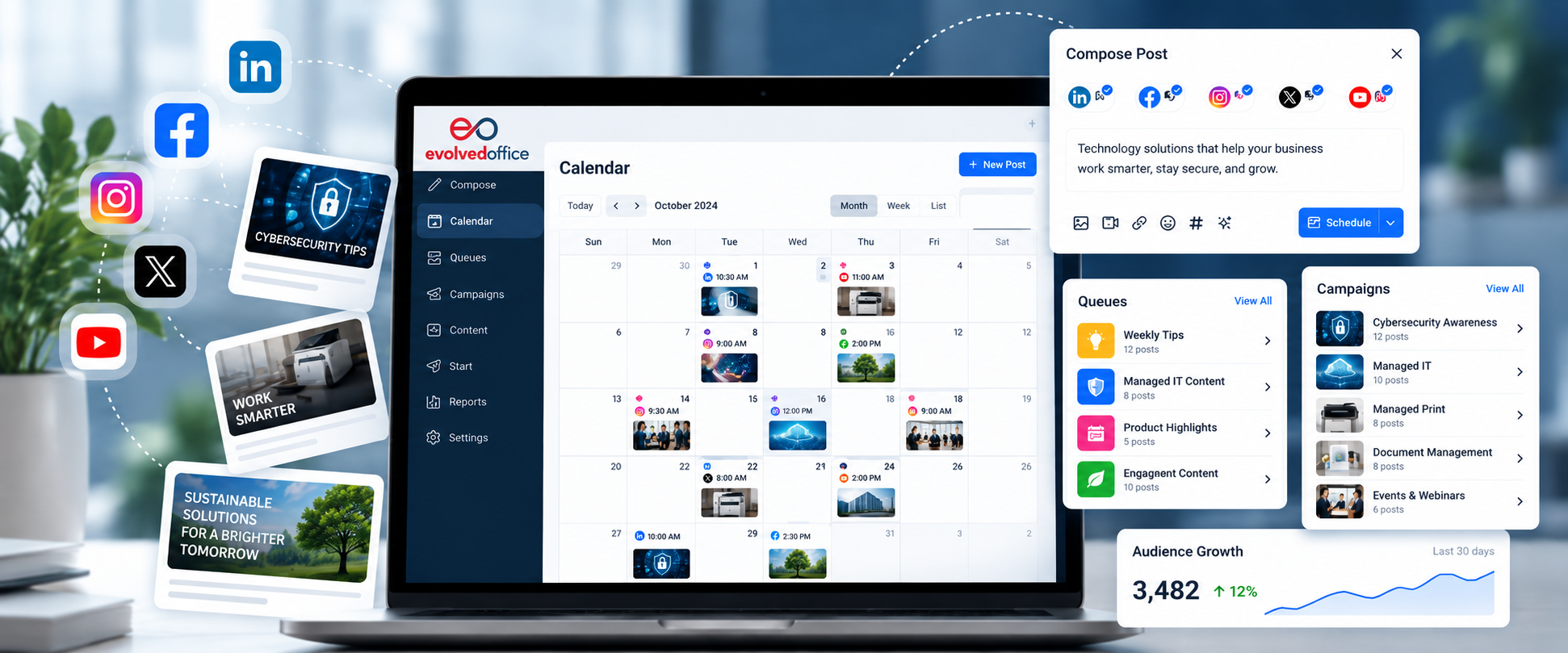
Social media is more than a place to post company updates. It can help prospects discover your business, learn what you offer, understand your expertise, and stay connected with your brand.
For office technology dealers, MSPs, managed print providers, document management companies, telecom providers, and other business technology organizations, eoSocial brings social media management into your Evolved Office workflow.
Here are 99 reasons to put it to work.
Why Social Media Matters
#1 — Your content can keep working after it is published
A useful cybersecurity tip, managed print article, or workflow recommendation can continue providing value after the day it was originally posted.
#2 — Prospects use social media to research businesses
Potential customers may check your LinkedIn, Facebook, or other profiles before they ever contact your team.
#3 — Your social presence contributes to your digital footprint
Active social profiles give prospects another place to discover your business, services, and expertise.
#4 — Helpful content can differentiate your business
Sharing useful information about real customer challenges can help your company stand apart from businesses that only post promotions.
#5 — Consistency makes social media easier
A clear posting schedule reduces the pressure to constantly figure out what to publish next.
#6 — Every social profile represents your company
An active, current profile can give visitors a better picture of who you are and what you provide.
#7 — Your team can help expand your reach
Employees and subject-matter experts can support your company’s social presence by contributing ideas and useful content.
#8 — Social proof can happen before a sales conversation
Prospects may see your posts, activity, and expertise before speaking with anyone on your team.
#9 — Social media supports more than marketing
Social content can support awareness, customer education, recruiting, events, thought leadership, and ongoing client communication.
Manage Social Media More Easily
#10 — Manage connected social profiles from one place
eoSocial helps reduce the need to move between multiple social platforms just to manage routine publishing.
#11 — Keep your social workflow inside Evolved Office
eoSocial is part of Evolved Office, so social media management can live alongside the other marketing tools your team already uses.
#12 — See upcoming content in one place
Your publishing views make it easier to see what is planned and what is coming next.
#13 — Reduce repetitive work
Create content once, select the appropriate social profiles, and manage the publishing process from a central location.
#14 — Keep different types of content organized
Scheduled Posts, Queues, Campaigns, Drafts, and Sent content give you different ways to manage your social activity.
#15 — Spend less time jumping between tabs
Centralized social management can make day-to-day publishing more efficient.
#16 — Keep your publishing process more consistent
A defined workflow makes it easier for your team to manage social media regularly instead of only when someone remembers.
#17 — See what has already been published
Reviewing sent content can help prevent unnecessary duplication.
#18 — Keep unfinished ideas as Drafts
Not every post needs to be completed immediately. Drafts give you a place to continue working later.
#19 — Manage social activity without relying on memory
Use the platform to keep track of upcoming, queued, drafted, and published content.
Plan Ahead
#20 — Schedule posts in advance
Prepare content ahead of time and choose when it should publish.
#21 — Use specific dates for time-sensitive content
Schedule posts for holidays, events, webinars, office closures, promotions, and other date-specific messages.
#22 — See scheduled content before it goes live
Reviewing upcoming posts helps you catch timing or content issues before publishing.
#23 — Plan around holidays
Prepare holiday messages in advance instead of creating them at the last minute.
#24 — Plan event promotion over time
Schedule announcements, reminders, and follow-up posts around webinars, open houses, trade shows, and other events.
#25 — Build a more balanced content calendar
Mix educational content, product information, company news, and service-related posts throughout the month.
#26 — Avoid posting too much at once
Planning ahead can help distribute content more evenly.
#27 — Keep quieter weeks active
Scheduled content can maintain your presence even when your team is busy with other priorities.
#28 — Prepare content before busy seasons
Build posts ahead of seasonal campaigns, year-end promotions, cybersecurity awareness initiatives, or major events.
Use Queues for Recurring Content
#29 — Set recurring posting times
Queues let you define regular days and times for content that does not need a specific publishing date.
#30 — Keep evergreen content moving
Add reusable content to a Queue and let eoSocial use the next available time slot.
#31 — Reduce repetitive scheduling
You do not need to select a new date and time every time you add another evergreen post.
#32 — Create a Weekly Tips Queue
Use recurring time slots for educational content such as IT tips, print tips, or productivity ideas.
#33 — Create a Managed IT Queue
Maintain a regular stream of cybersecurity, backup, cloud, network, and IT-support content.
#34 — Create a Managed Print Queue
Share content about printing costs, printer security, supplies, equipment, and document workflows.
#35 — Create a Product Highlights Queue
Keep products and solutions visible without manually scheduling every post.
#36 — Recycle evergreen content when appropriate
Reusable posts can return to the Queue after they publish when recycling is enabled.
#37 — Pause a Queue without deleting it
Temporarily stop recurring content while keeping the Queue and its posts available.
#38 — Shuffle content to change the order
Changing the sequence can help keep recycled content from repeating in exactly the same pattern.
Organize Content With Campaigns
#39 — Group related posts together
Campaigns help organize social content connected to the same initiative.
#40 — Create a Cybersecurity Campaign
Keep cybersecurity education, promotions, and awareness posts grouped together.
#41 — Create a Managed IT Campaign
Organize posts about IT support, cloud services, backup, business continuity, and network security.
#42 — Create a Managed Print Campaign
Group posts about printing, equipment, workflow, costs, and device management.
#43 — Create a Document Management Campaign
Keep digital forms, workflow automation, secure fax, document storage, and related content together.
#44 — Organize event-related posts
Create a Campaign for a webinar, trade show, customer event, or product launch.
#45 — Use Campaign names that make content easier to find
Clear names help users recognize the purpose of each Campaign quickly.
#46 — Assign posts to Campaigns as you create them
Organizing content from the beginning makes later review easier.
#47 — Filter content by Campaign
Focus on the posts connected to a particular initiative instead of reviewing everything at once.
#48 — See Campaign activity in one place
Review the status of content associated with a Campaign.
Create Better Content
#49 — Compose social posts from one workspace
Use the post composer to prepare content for your connected social profiles.
#50 — Publish to more than one profile
Choose multiple profiles when the same message is appropriate across networks.
#51 — Customize posts for individual networks
Adjust content when a different message or format works better for a particular platform.
#52 — Keep your message aligned across channels
Start from the same core content while tailoring it when needed.
#53 — Use images to make posts more engaging
Visual content can help information stand out in busy social feeds.
#54 — Build graphics with Canva
When available in your eoSocial workflow, Canva can help create social graphics without starting from scratch in another design process.
#55 — Reuse approved media
Keeping useful images and assets available makes content creation faster.
#56 — Build a reusable content library
Evergreen tips, service education, and product posts can become resources for future publishing.
#57 — Turn common customer questions into posts
Questions your team hears regularly can become useful educational social content.
#58 — Turn blog articles into social posts
Use articles from your website as starting points for social content.
#59 — Promote helpful resources more than once
Good educational resources do not have to be shared only once.
#60 — Mix promotional and educational content
Your feed can include product messages alongside tips, education, company updates, and industry information.
Create Content for the Services You Sell
#61 — Share cybersecurity education
Post about phishing, MFA, ransomware, password security, backups, and other security topics.
#62 — Explain managed IT services
Help prospects understand what managed IT includes and why businesses use it.
#63 — Educate customers about business continuity
Share practical information about backup, recovery, downtime, and resilience.
#64 — Talk about cloud services
Use social content to explain cloud storage, collaboration, security, and remote-work solutions.
#65 — Promote managed print
Share ways businesses can reduce waste, control costs, and improve device management.
#66 — Explain printer security
Remind customers that printers and multifunction devices are part of their technology environment.
#67 — Highlight document workflows
Show how digital processes can reduce manual steps and improve productivity.
#68 — Talk about digital forms
Explain how electronic forms can make information easier to collect, route, and manage.
#69 — Promote secure fax solutions
Educate customers about modern alternatives to traditional fax workflows.
#70 — Highlight office technology
Keep equipment, software, services, and business technology solutions visible throughout the year.
Understand Performance
#71 — Review social media performance
Reporting can help you see how your published content is performing.
#72 — Track audience activity
Understand how the audience associated with your supported profiles changes over time.
#73 — Review interactions
See how audiences are engaging with supported social content.
#74 — Identify your most engaging posts
Top-post reporting can help show which content generated the strongest response.
#75 — Learn what topics attract attention
Compare the performance of cybersecurity, managed IT, print, product, event, and educational content.
#76 — Use performance data to guide future posts
Past results can help inform what your team creates next.
#77 — Review Campaign performance
Campaign Reports let you look at a group of related posts instead of evaluating each one separately.
#78 — See Campaign audience information
Review the audience associated with a Campaign across supported profiles.
#79 — See Campaign interactions
Campaign reporting can help summarize engagement connected to the initiative.
#80 — Review Top Posts within a Campaign
Identify which Campaign content generated the most engagement.
Improve Your Workflow
#81 — Reduce last-minute posting
Planning and scheduling give your team more time to review content before publication.
#82 — Make recurring content easier to manage
Queues take repetitive scheduling out of the process.
#83 — Make campaigns easier to review
Campaign grouping helps organize related content before and after publication.
#84 — Keep your publishing history available
Sent content provides a record of what has already gone live.
#85 — Find content more quickly
Filters and organized publishing areas make it easier to narrow down what you need.
#86 — Search within your workflow
Search options can help locate posts or Campaign-related content more efficiently.
#87 — Rearrange queued content when priorities change
Change the order of upcoming Queue posts instead of rebuilding the Queue.
#88 — Pause content when circumstances change
Temporarily stop a Queue when a message is no longer appropriate for the moment.
#89 — Resume publishing when you are ready
A paused Queue can continue without requiring you to recreate it.
#90 — Keep social media manageable as your content grows
Organization becomes increasingly valuable as you add more posts, Campaigns, Queues, and profiles.
Help Your Team Stay Consistent
#91 — Use clear naming conventions
Names such as Managed IT Campaign, Weekly Tips, and Product Highlights make the workspace easier to understand.
#92 — Give different content types a clear purpose
Separating evergreen, scheduled, promotional, and campaign content helps users know how each post should be managed.
#93 — Make it easier for multiple users to understand the plan
A structured calendar and organized Campaigns can make the publishing strategy easier to follow.
#94 — Keep your brand active even when your team is busy
Scheduling and Queues can continue supporting your social presence during busy periods.
#95 — Build repeatable social media processes
Once your team develops a workflow that works, you can use it again for future campaigns and content.
#96 — Spend more time improving content instead of managing logistics
Reducing repetitive publishing tasks gives your team more room to focus on message quality.
#97 — Keep learning from what performs
Reporting gives you information you can use to continually refine your social strategy.
#98 — Connect planning, publishing, organization, and reporting
eoSocial brings several parts of social media management together instead of treating each one as a separate task.
#99 — Make social media a natural part of your Evolved Office workflow
The biggest reason to use eoSocial is simplicity: create, organize, schedule, publish, and review social media from within the Evolved Office environment your team already uses.
Ready to Get Started?
Put eoSocial to work by connecting your social profiles, creating content, scheduling posts, and exploring the tools available in your Evolved Office account.