
AgentDealer Integration: Verify Your Evolved Office Setup
Before using the Evolved Office integration with AgentDealer, please verify that the required Evolved Office tabs and buttons are visible in your AgentDealer account.
These items confirm that the integration has been properly enabled for your user.
1. Open Evolved Office in AgentDealer
From AgentDealer:
- Click the 9-dot App Launcher in the upper-left corner.
- In the search box, type Evolved Office.
- Select Evolved Office from the results.
This opens the Evolved Office area within your AgentDealer organization.
Once selected, review the navigation menu at the top of the screen.
You should see the Evolved Office-related navigation options, including:
- EO Campaigns
- Filter Contacts
- Evolved Office
- EO Workflow Setting
You should also have access to the standard Contacts tab.
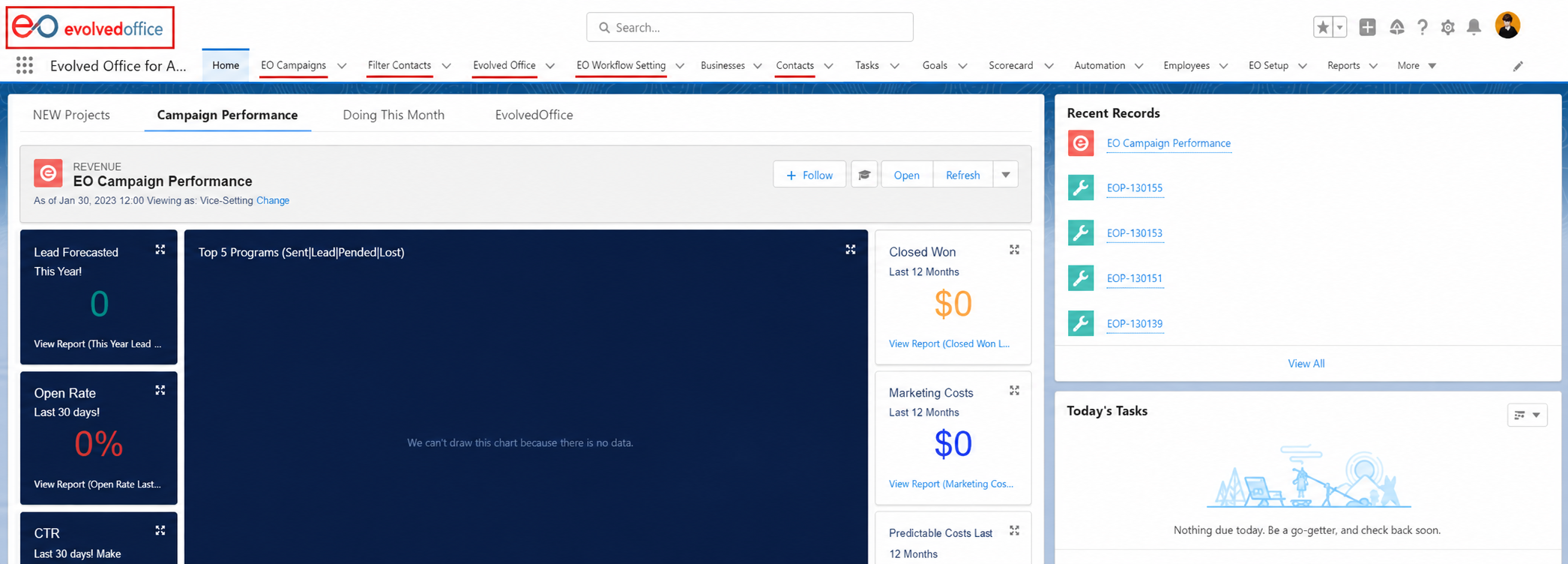
What Each Tab Does
EO Campaigns
Provides access to Evolved Office campaign-related tools within AgentDealer, allowing users to work with and manage campaign activity connected to the Evolved Office integration.
Filter Contacts
Provides tools to create and save pre-set object and field filters. These filters can be used to build specific contact sets that can then be added to Evolved Office campaigns.
Evolved Office
Provides direct access to the Evolved Office Webtools portal without leaving your AgentDealer organization. If you are already logged into AgentDealer, the integration will automatically log you into the corresponding Evolved Office rep user account.
EO Workflow Setting
Provides access to trigger settings that can automatically create a Deal and/or Task based on campaign engagement activity, including:
- Category and point thresholds
- Email open counts
- Email click counts
These triggers can be set for individual broadcasts or configured as broader, longer-term category thresholds.
Contacts
The standard AgentDealer Contacts area where you can view and manage individual contact records. As part of the Evolved Office integration, this area should also include the ability to add contacts to Evolved Office campaigns.
EO Setup
For administrator use only. This area is used to configure the Evolved Office integration, including primary and rep user license keys as well as standard and custom field mapping from Salesforce/AgentDealer to Evolved Office for campaign synchronization.
Important: If you do not see the required options, your AgentDealer account may not yet have the necessary Evolved Office integration permissions.
2. Check the "Filter Contacts" Tab
Click Filter Contacts from the top navigation.
Within this section, confirm that you see a button labeled:
Add to EO Campaign
This button allows contacts selected through AgentDealer's filtering tools to be added to an Evolved Office campaign.
If the Add to EO Campaign button is not visible, please make note of this before proceeding with onboarding.
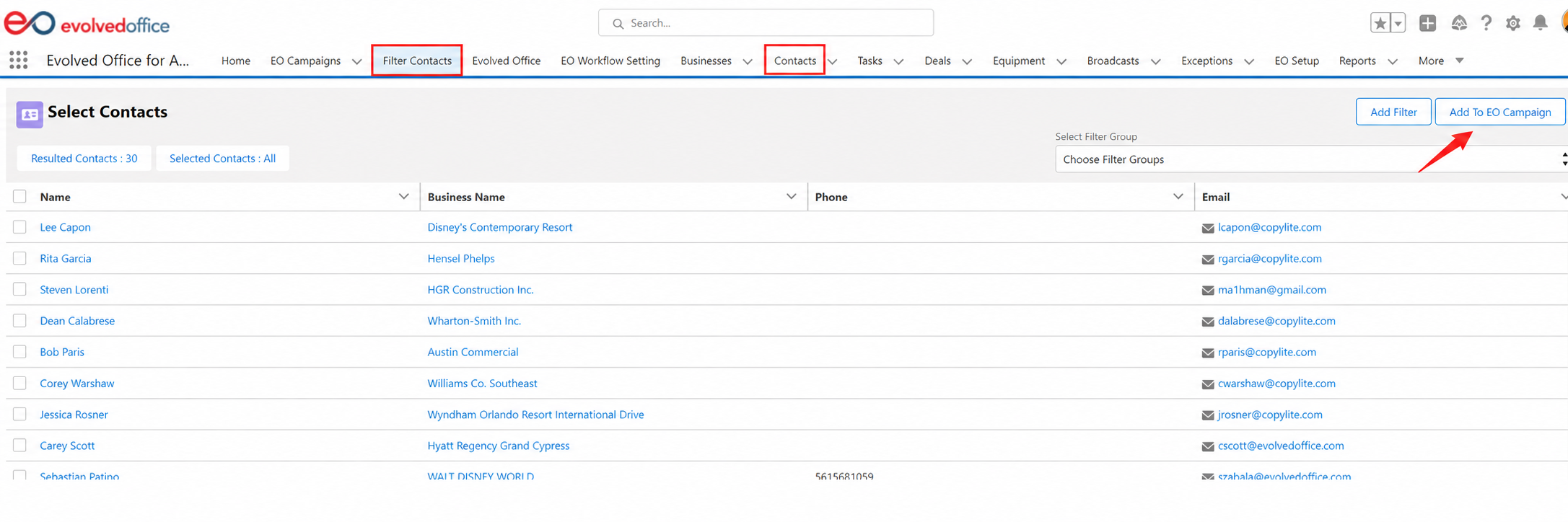
3. Check the "Contacts" Tab
Next, click Contacts from the main navigation.
Confirm that the following button is available:
Add to EO Campaign
The button should be available when working with contacts so that contacts can be added directly to an Evolved Office campaign.
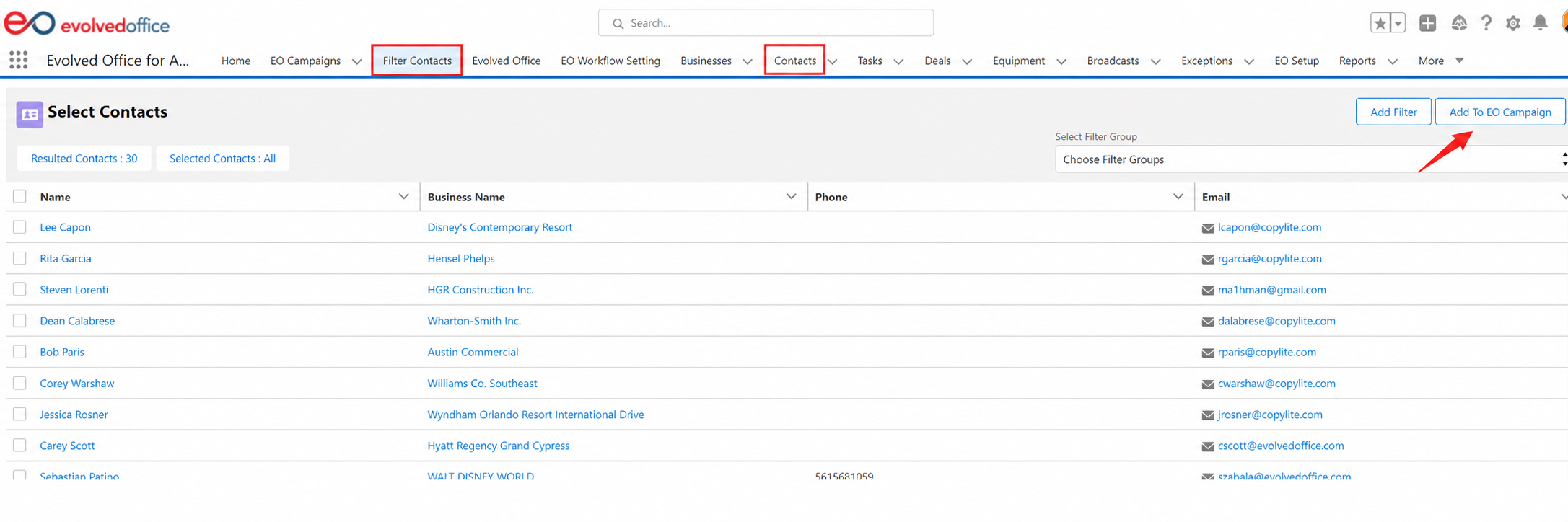
4. Check an Individual Contact Record
From the Contacts tab:
- Open any contact record.
- Review the tabs or sections available within the contact.
- Confirm that you see an Evolved Office tab.
The Evolved Office tab on the contact record is the Rep Window for the integration. Seeing this tab confirms that the Evolved Office integration has been properly enabled for that user.
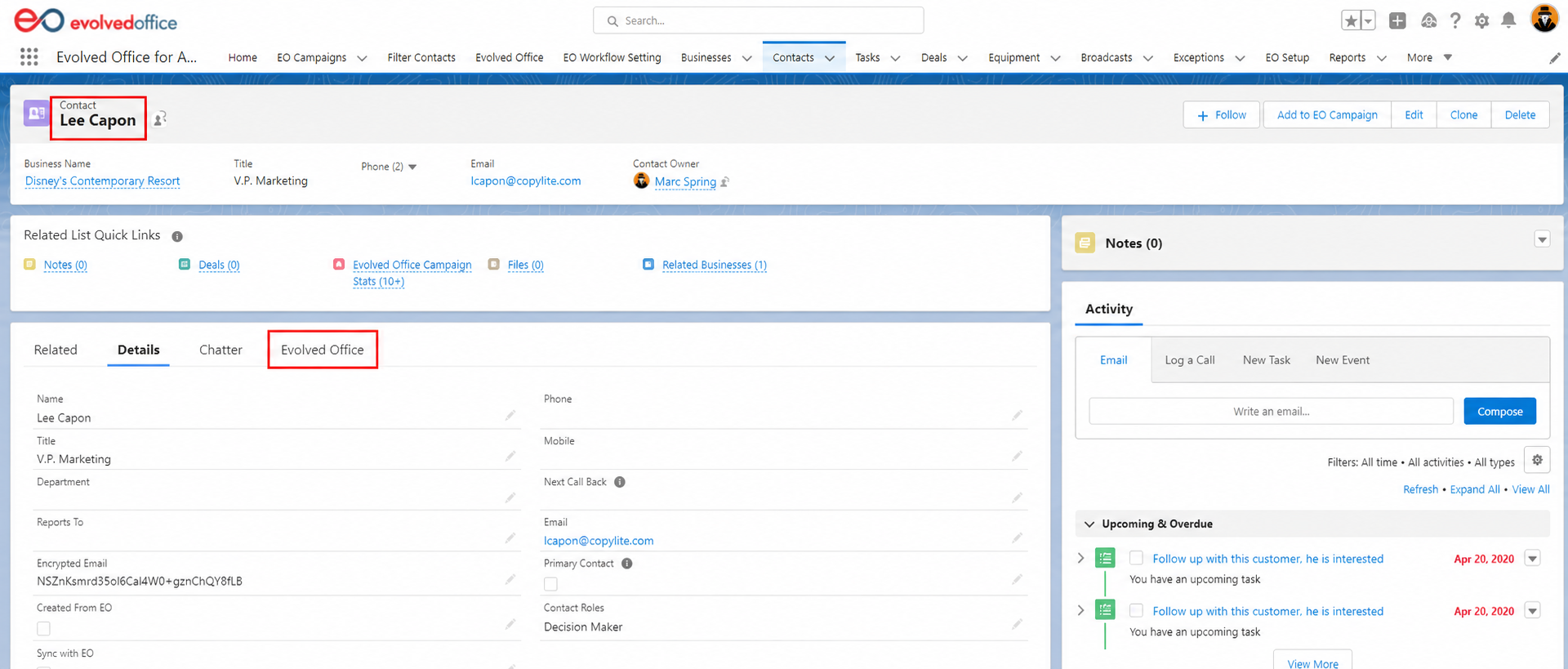
To learn more about how the Rep Window works and how it can be used at the contact level, see:
The Rep Window (Contact Level) — Newest Feature
Your Integration Checklist
Before continuing with Evolved Office onboarding, please confirm all of the following:
- I opened the 9-dot App Launcher, searched for Evolved Office, and selected it.
- I can see the EO Campaigns tab.
- I can see the Filter Contacts tab.
- I can see the Evolved Office tab.
- I can see the EO Workflow Setting tab.
- I can see the Contacts tab.
- I see Add to EO Campaign under Filter Contacts.
- I see Add to EO Campaign when working from the Contacts section.
- When I open an individual contact, I see the Evolved Office Rep Window.
What If Something Is Missing?
If any of the tabs, buttons, or contact-level options above are missing, please take a screenshot of what you see in AgentDealer and send it to your Evolved Office onboarding representative.
Please include:
- Your dealership/company name
- Your AgentDealer username or user name
- Which tab, button, or option is missing
- A screenshot of your AgentDealer screen
The Evolved Office team can then work with you to determine whether additional permissions or integration settings need to be enabled.
Once Everything Is Confirmed
If all of the items above are visible, your Evolved Office and AgentDealer integration is working as expected and you are ready to begin using the integration.
For step-by-step instructions on using Evolved Office with AgentDealer, visit: