
How to Use Campaigns in eoSocial
Campaigns in eoSocial help you organize social media posts and review how content connected to a specific campaign is performing.
You can assign posts to a Campaign, use start and end dates when needed, and view Campaign-related posts across different publishing views. Campaigns can also help you quickly identify and evaluate content connected to a particular marketing effort.
Things to Know
- Find Campaigns under eoSocial > Publish > Campaigns.
- Campaigns help you organize posts by grouping related content together.
- You can add a start and end date to a Campaign if needed.
- You can create multiple Campaigns to organize different marketing efforts.
- Campaigns can be used to review the status and performance of related posts.
Create a New Campaign
From your Evolved Office account:
- Go to eoSocial.
- Select Publish.
- Select Campaigns.
- Select New Campaign.
Set Up Your Campaign
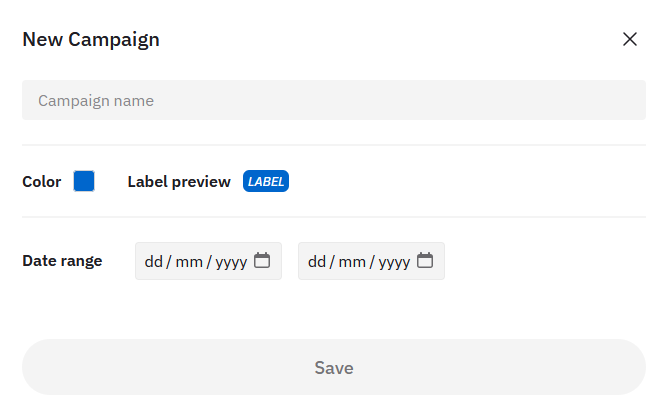
Enter a name for the Campaign.
You can also choose a display color to make posts associated with the Campaign easier to identify.
If needed, select a Start Date and End Date for the Campaign.
If you do not select dates, the current date may be used as the Campaign start date.
When finished, select Save.
Campaign Name Examples
Depending on the type of content you manage, Campaign names might include:
- Cybersecurity Awareness Month
- Managed IT Promotion
- Product Spotlight
- Customer Education
- Holiday Campaign
- Webinar Promotion
Using clear Campaign names makes it easier to find and review related posts later.
Add a Campaign to a Post
Once a Campaign has been created, you can assign it to a social post.
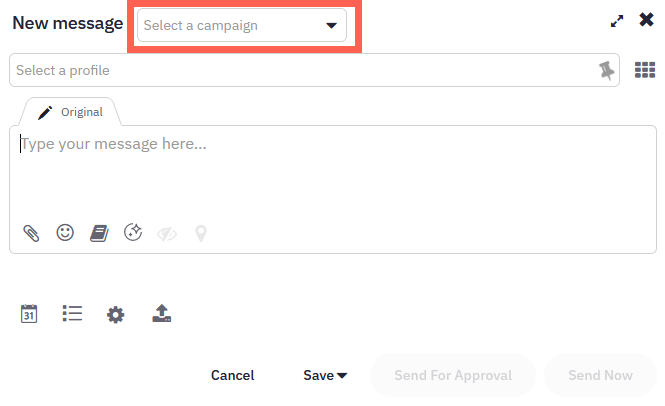
- Open the Compose box in eoSocial.
- Create your post as usual.
- Locate the Campaign option.
- Select the Campaign you want to associate with the post.
- Continue composing and scheduling or publishing the post.
The post will now be associated with that Campaign.
Adding a Campaign to an Existing Post
Campaigns can also be applied to posts that have already been created.
Depending on the post status, you may be able to edit the post and assign a Campaign from areas such as:
- Scheduled
- Queues
- Drafts
- Failed posts when reposting
- Bulk Compose
This allows you to organize existing content even if the Campaign was not selected when the post was originally created.
Using Campaigns With Your Team
Campaigns are associated with the user who created them.
A Campaign itself cannot currently be shared with another user. To view a Campaign or assign posts to it, you may need to switch to the user who originally created that Campaign.
Important
If several team members manage social content, consider who should create the Campaign before posts begin being assigned to it.
This can make it easier to manage Campaign content consistently.
View a Campaign
Campaigns give you a quick overview of the content associated with a particular marketing effort.
To view a Campaign:
- Go to eoSocial > Publish > Campaigns.
- Select the Campaign you want to review.
The Campaign summary can show the number of posts in different statuses, including:
- Sent
- Scheduled
- Drafted
- Queued
- Failed
- Pending approval
- Approved
- Rejected
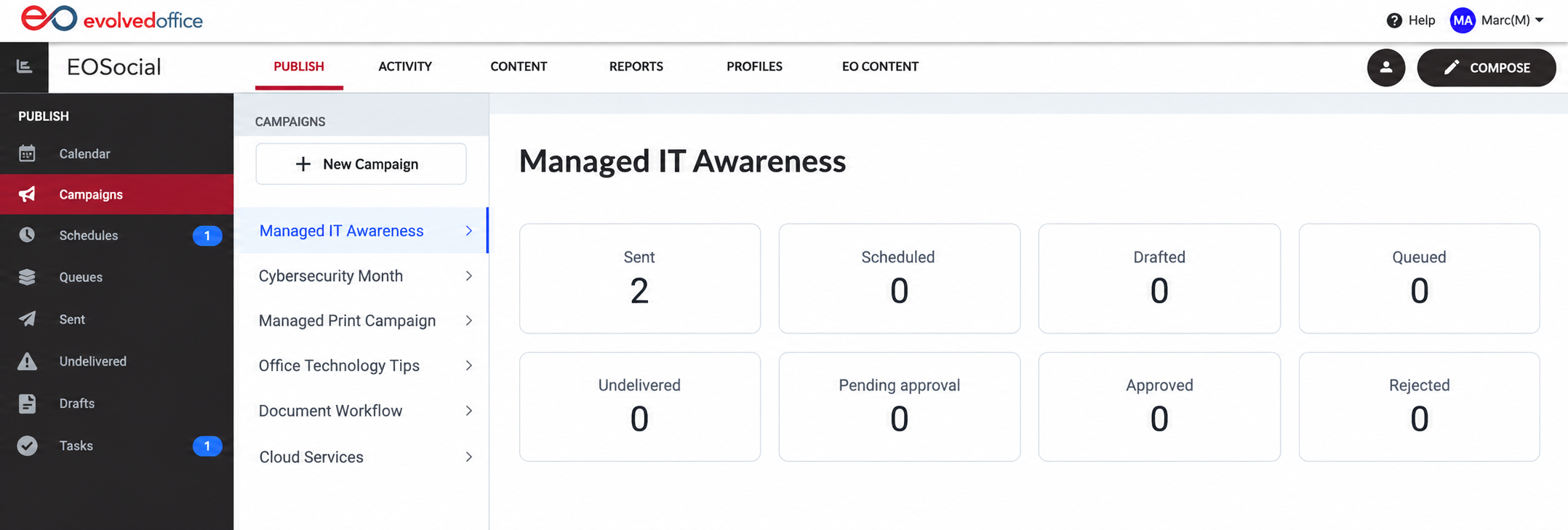
This makes it easier to see where Campaign-related content currently stands without reviewing each post individually.
View Campaigns in the Calendar
You can also use the Calendar view to see posts associated with a particular Campaign.
From the Calendar:
- Open the filter options.
- Select one or more Campaigns.
- Apply the filter.
The Calendar will then show posts associated with the Campaigns you selected.
Campaign filters may also be available in other views, including:
- Queued
- Sent
- Overview
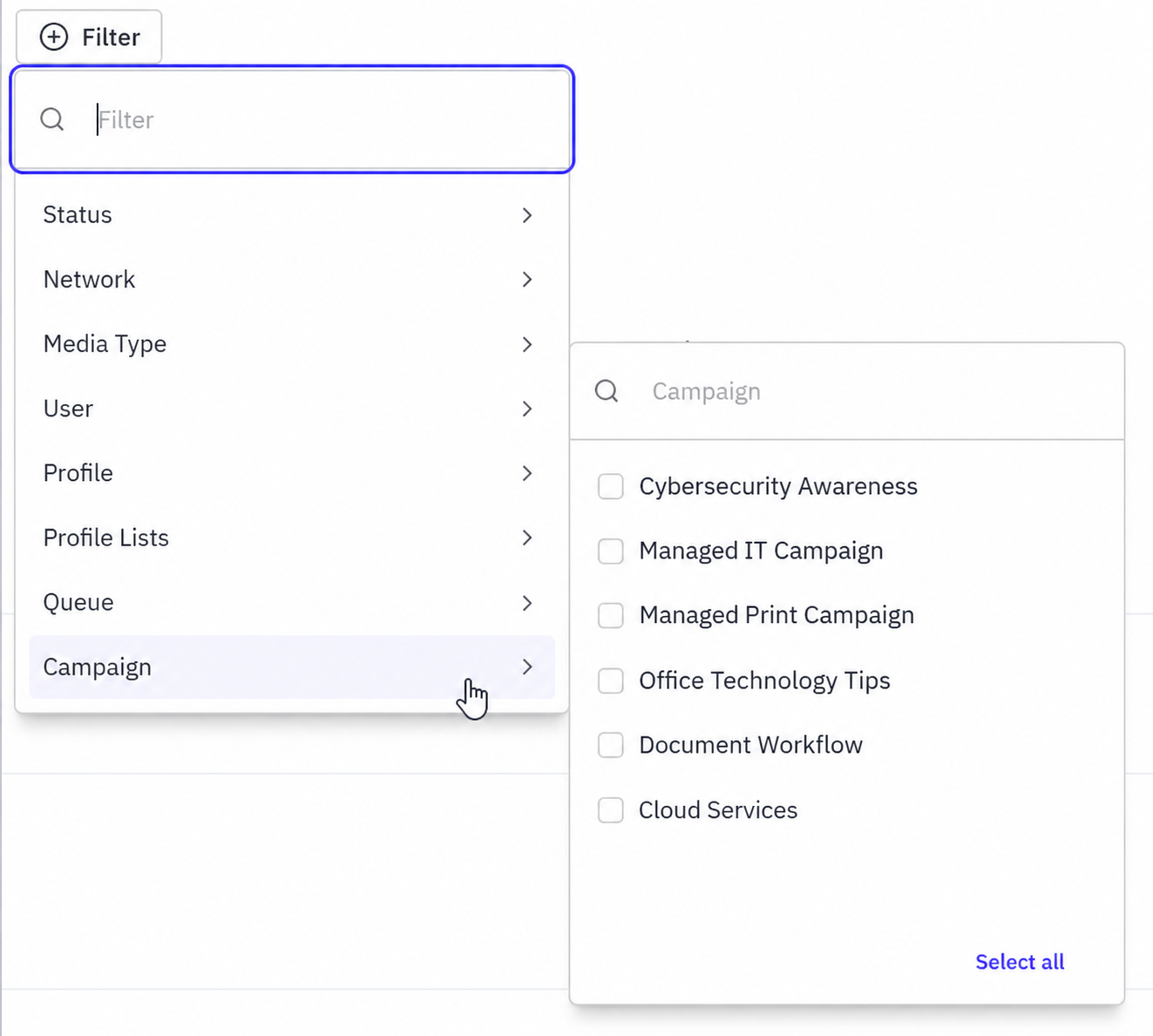
This can be especially helpful when you are managing several campaigns at the same time and only want to view content associated with a particular initiative.
Why Use Campaigns?
Campaigns can help keep related social content organized.
For example, if you are running a month-long cybersecurity campaign, you may have:
- Educational posts
- Product or service promotions
- Blog articles
- Tips
- Event announcements
Instead of locating each post separately, you can associate all of them with the same Campaign.
You can then filter and review that Campaign to get a clearer picture of the content associated with the initiative.
Best Practices for Campaigns
- Give each Campaign a clear and recognizable name.
- Use start and end dates for time-specific campaigns.
- Use display colors to make Campaign content easier to recognize.
- Assign the Campaign while creating the post whenever possible.
- Review Campaign summaries to monitor the status of your content.
- Use Calendar filters when reviewing posts from a specific Campaign.
- If multiple users manage eoSocial, determine who should create and manage the Campaign before publishing begins.
Need Help?
If you need assistance using Campaigns in eoSocial, please contact support@evolvedoffice.com.