
How to Set Up Email Authentication in Evolved Office (SPF, DKIM)
Email authentication is the first required step when onboarding a new Evolved Office client or activating a trial account.
The system will not allow your account to be activated until this step is completed. Once authentication is finished, we will proceed with the next steps of onboarding.
This process ensures your domain is set up as a trusted sender, improves inbox placement, and protects your brand reputation. It is required before any emails — including account activation emails — can be sent from the platform.
Please share this document with your IT provider or whoever manages your business domain.
Why Authentication Is Required
To optimize your email delivery results, it’s important to set up authentication with your business domain provider. This process establishes your domain as a trusted sender, improves inbox placement, and helps protect your brand reputation.
Please share this document with your IT provider or whoever manages your business domain.
Required CNAME Records
Please provide these records to your IT team or DNS manager. Setup should only take a few minutes.
a. Delivery Record (SPF)
Type: CNAME
Host Name: delivery
Value: eapi.sslworld.netcorecloud.net
b. Domain Key Record (DKIM)
Type: CNAME
Host Name: nc2048._domainkey
Value: dkim2048.world.netcorecloud.net
Once these are added, allow time for DNS propagation (usually within a few hours, sometimes up to 24–48 hours).
Not sure how to add these records? Select your DNS provider below for step-by-step instructions:
- How to Add DNS Records in GoDaddy
- How to Add DNS Records in Microsoft 365 (Admin Center)
- How to Add DNS Records in Cloudflare
- How to Add DNS Records in Namecheap
What These Records Do
Delivery Record (SPF): Basically a filter that, when attached to your business domain, specifies who can and cannot send through your business email. It adds additional protection from a potential spam sender from using your email domain to send unwanted emails to contacts (sometimes your own customer contacts). These emails can contain misinformation and, in some cases malware.
Here is a page explaining it more completely:
https://www.proofpoint.com/us/threat-reference/spf
Domain Key Record (DKIM): Basically DKIM (Domain Key Identified Mail) is a way to digitally sign an email. This tells the customer you are sending to that your email is authentic and has been sent on your behalf via our services.
Here is a page explaining it more completely:
https://www.proofpoint.com/us/threat-reference/dkim
DMARC (Recommended)
What is DMARC?
DMARC (Domain-based Message Authentication, Reporting & Conformance) is an additional security layer that works alongside SPF and DKIM. It tells receiving servers how to handle emails that fail authentication checks.
Policies include: do nothing, quarantine, or reject.
Reports: DMARC lets you receive detailed reports showing how your domain is being used, helping you identify misuse or attacks.
Here is a page with a complete explanation: Proofpoint – DMARC Reference
You can generate a record here: MXToolbox DMARC Generator
Email Warm-Up: What to Expect After Authentication
When a new sending domain is activated — or when deliverability-related changes are made — email providers require a gradual, consistent sending pattern to establish trust.
This process is called the email warm-up phase, and it’s designed to protect your sending reputation and improve inbox placement.
How Warm-Up Works
During the warm-up period:
- Emails are sent in controlled daily volumes
- Your sending limit increases gradually (about 30% per day)
- Consistency matters more than speed
- Large gaps between sends can pause progression and slow your ramp-up
👉 This behavior is expected and is part of maintaining strong deliverability.
Timeline & Volume Expectations
- Sending begins at a low daily volume
- Volume increases incrementally each day
- Full sending capacity is typically reached within 3–4 weeks, assuming healthy engagement
Starting with your most engaged contacts (recent openers and clickers) helps speed up trust-building.
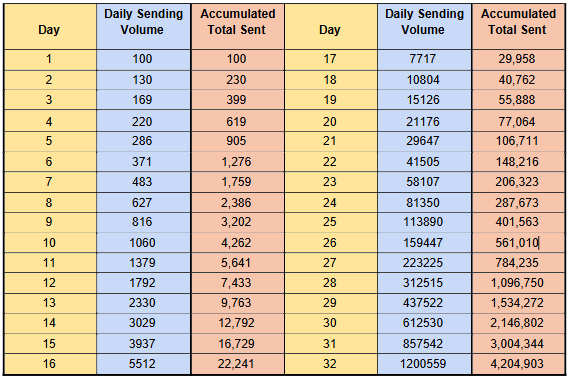
Fully Automated — No Manual Work Required
Once your DNS records are verified, the email warm-up process begins automatically.
You do not need to:
- Manually segment contact lists
- Create special warm-up campaigns
- Adjust delivery settings
The platform automatically manages:
- Email pacing
- Daily sending limits
- Gradual volume increases
You can continue creating and scheduling campaigns as usual while delivery is handled in the background.
What’s Included in Warm-Up Automation
Warm-up applies to both bulk email campaigns and Journeys (drip campaigns):
- Bulk Campaigns: Newsletters and eSHOTs are automatically throttled to match your daily warm-up limits.
- Journeys: Active and newly launched Journeys continue sending based on your configuration — no manual changes required.
Scheduling Time-Sensitive Campaigns
💡 Pro Tip
If your campaign needs to land within a specific timeframe (such as holiday promotions, event reminders, or deadlines), consider scheduling it after the warm-up period (about 2–3 weeks in).
For non-urgent campaigns, you can continue scheduling as normal — the system will automatically manage pacing and delivery to optimize inbox placement.