
How to Change or Edit an Email (eShot) in the Journey Manager
If you need to update the email tied to a campaign inside the Journey Manager, you can easily edit the existing eShot, create a new one, or swap it out entirely — all without leaving the Journey Builder.
This guide walks you through each option.
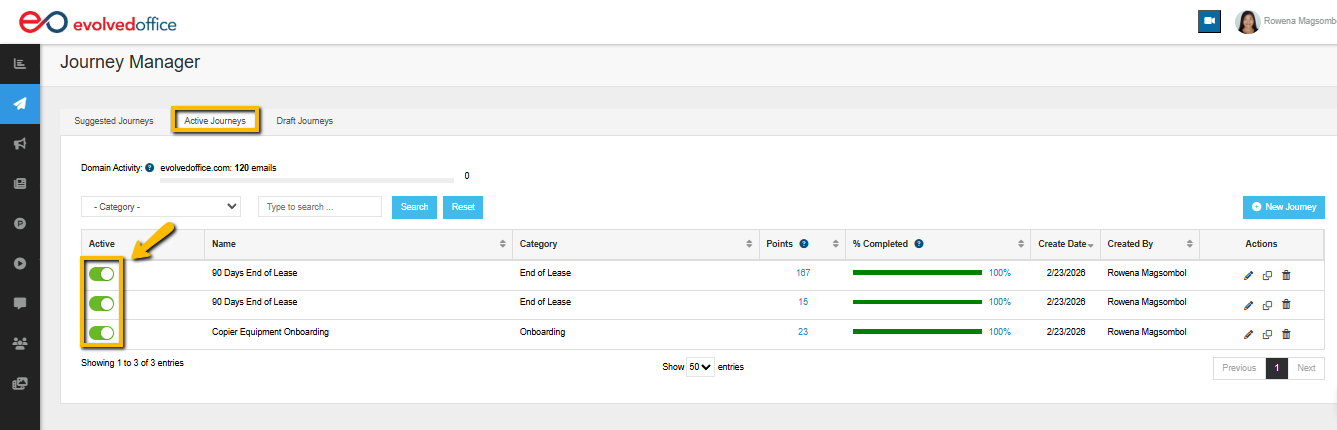
⚠️ Before You Begin: Deactivate the Journey (If Active)
If your Journey is currently active, you must deactivate it before making any changes to ensure your edits are saved and applied correctly.
To deactivate your Journey:
- Go to Journey Manager.
- Locate the Journey you want to edit.
- Click the toggle or status button to set the Journey to Inactive.
- Once deactivated, proceed with the steps below.
💡 Note: Don't forget to reactivate your Journey when you're done editing to resume sending to contacts.
🔁 Will My Journey Pick Up Where It Left Off?
Yes! Deactivating a Journey to fix an error is safe — here's what happens behind the scenes:
- All progress is preserved. When you deactivate a Journey, any future flow pauses, but the full history for every contact is maintained. Each contact will resume from exactly where they left off once the Journey is reactivated.
- Corrections are flagged automatically. If you edit and save an email (making sure to hit Save in both the email editor and the Send Email journey edit window), the system places a flag on that corrected email.
- The fix applies on the next send. When you reactivate the Journey, the corrected email will update itself before going out — applying your changes for both existing and new contacts going forward.
💡 In short: You can safely stop a Journey mid-flight, fix a mistake, and restart it. It will continue right where it left off and automatically apply your correction before the next send.
Important reminder when saving edits:
Make sure you click Save in both places:
- Inside the Email Editor
- Inside the Send Email journey edit window
Skipping either step means the correction flag won't be set properly.
✏️ Option 1: Edit the Existing Email (eShot)
You can edit the email directly from the Journey step where it’s attached.
Step 1: Open Your Journey
- Go to Journey Manager.
- Open the campaign you want to edit.
- Locate the Email step in your Journey flow.
- Click the pencil (edit) icon on the Email action.
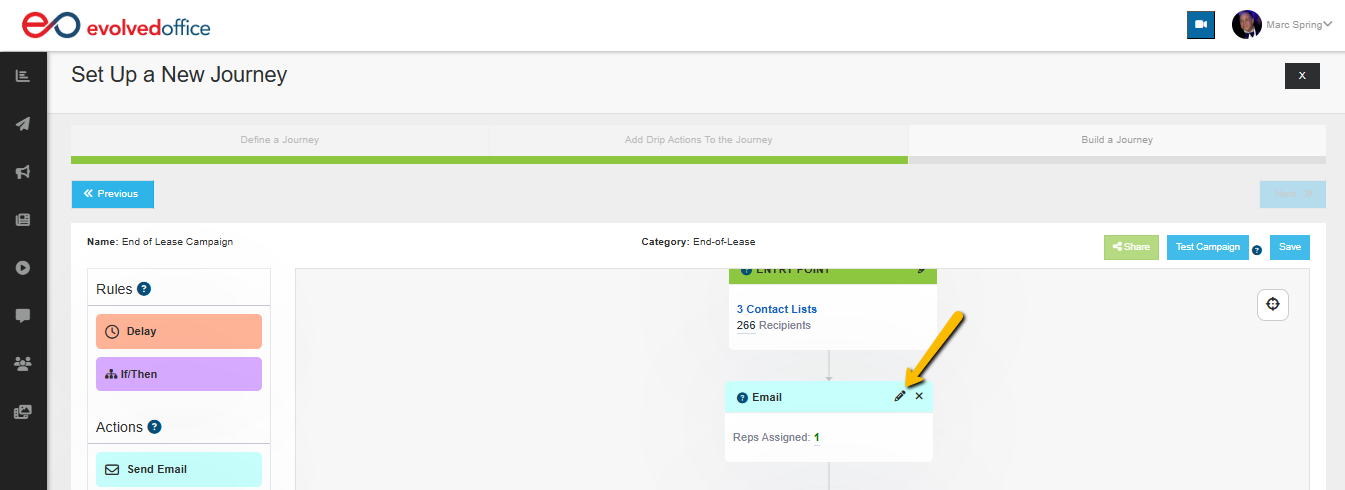
This will open the Email Template Chooser.
Step 2: Click “Edit”
Inside the Email Template Chooser:
- Locate your selected template.
- Click Edit.
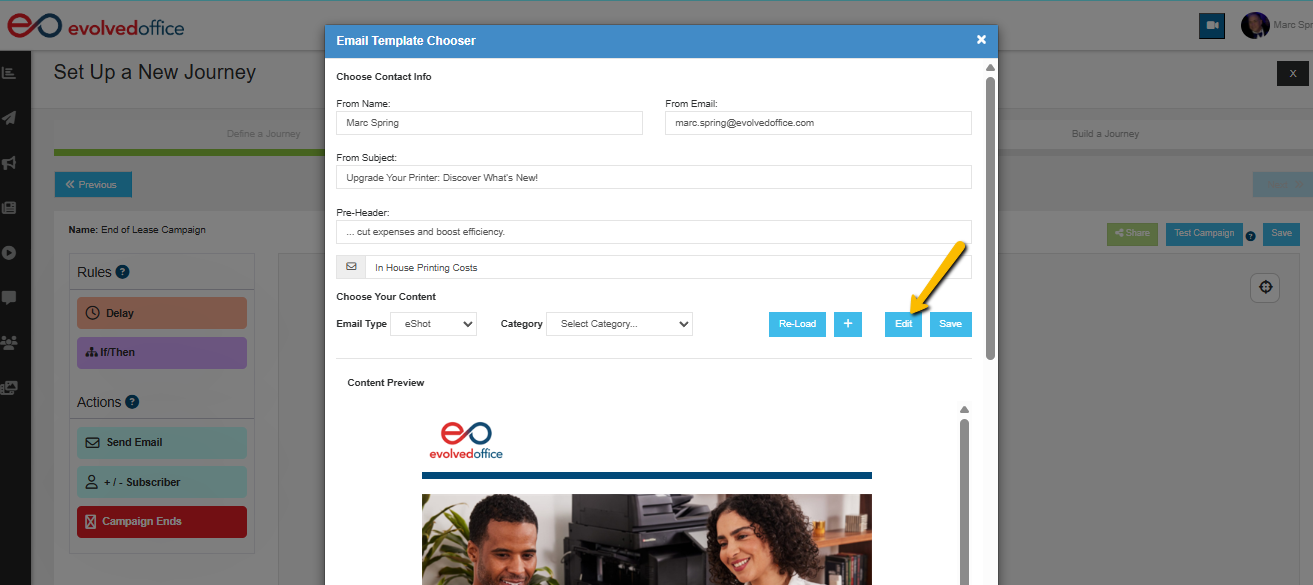
This opens the email in the full Email Editor.
Step 3: Make Your Changes
Inside the editor, you can:
- Replace images
- Update text
- Add new sections or structures
- Modify subject lines and preheaders
- Adjust layout and formatting
When finished:
- Click Save
- Click Use Template
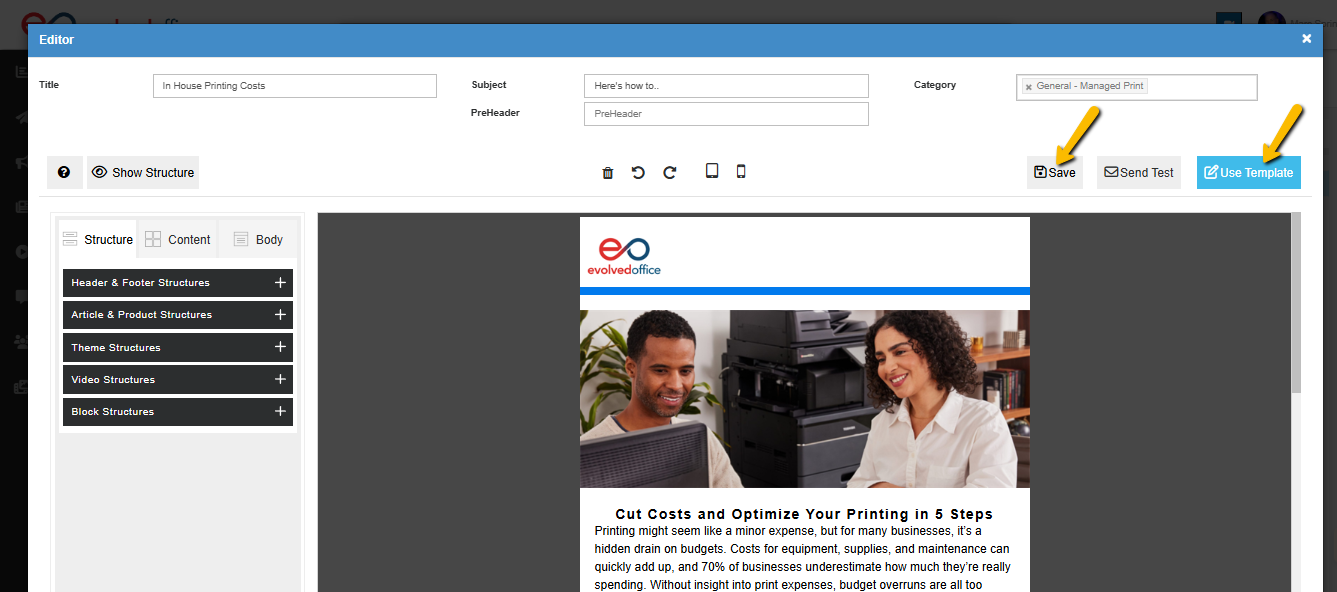
This updates the email inside your Journey.
Important reminder when saving edits:
Make sure you click Save in both places:
- Inside the Email Editor
- Inside the Send Email journey edit window
Skipping either step means the correction flag won't be set properly.
📚 Learn More About Building eShots
For a complete walkthrough of creating and designing emails, read:
👉 The Complete Guide to Creating an eSHOT in Evolved Office (Step-by-Step)
➕ Option 2: Create a New Email Directly in the Journey
You can build a brand-new email without leaving the Journey Builder.
Step 1: Open the Email Template Chooser
- Click the pencil icon on the Email step.
- In the Email Template Chooser, click the “+” (plus) button.
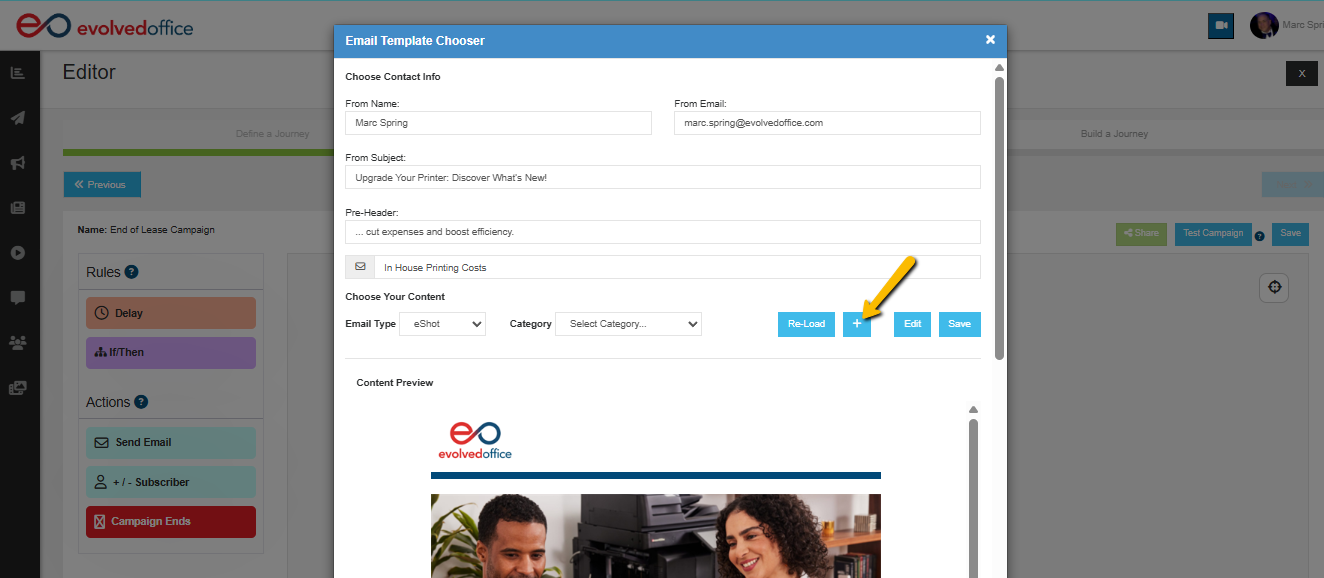
This opens the Layout Selector.
Step 2: Choose Your Layout
You can:
- Select a responsive template
- Use a pre-built layout
- Start from a blank canvas
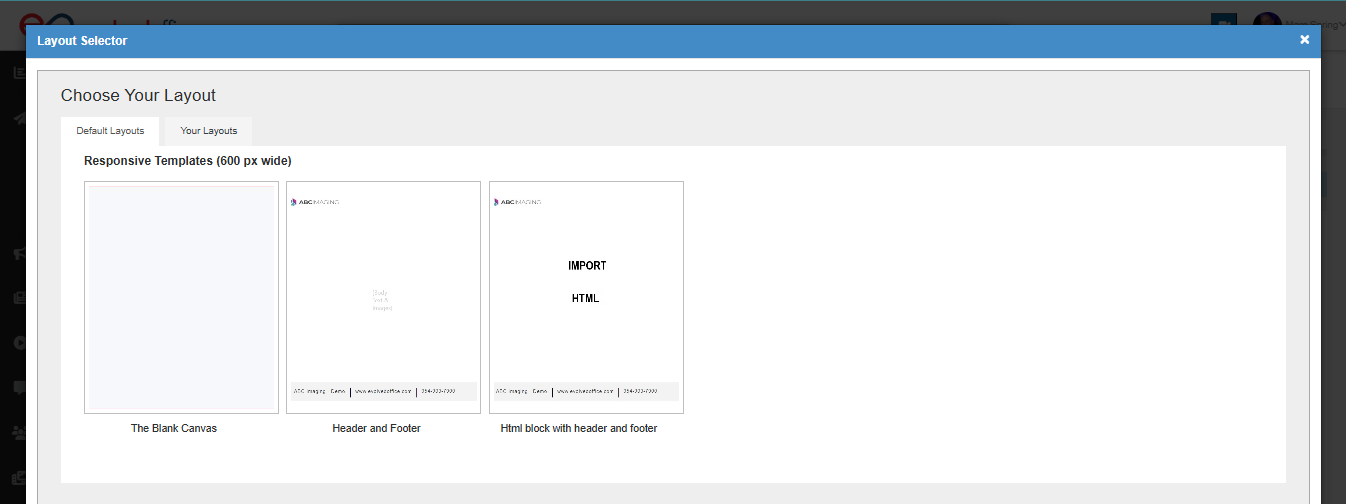
After selecting a layout, you’ll enter the Email Editor.
Step 3: Build Your Email
- Add your content (text, images, buttons, etc.).
- Set your subject line and preheader.
- Click Save
- Click Use Template
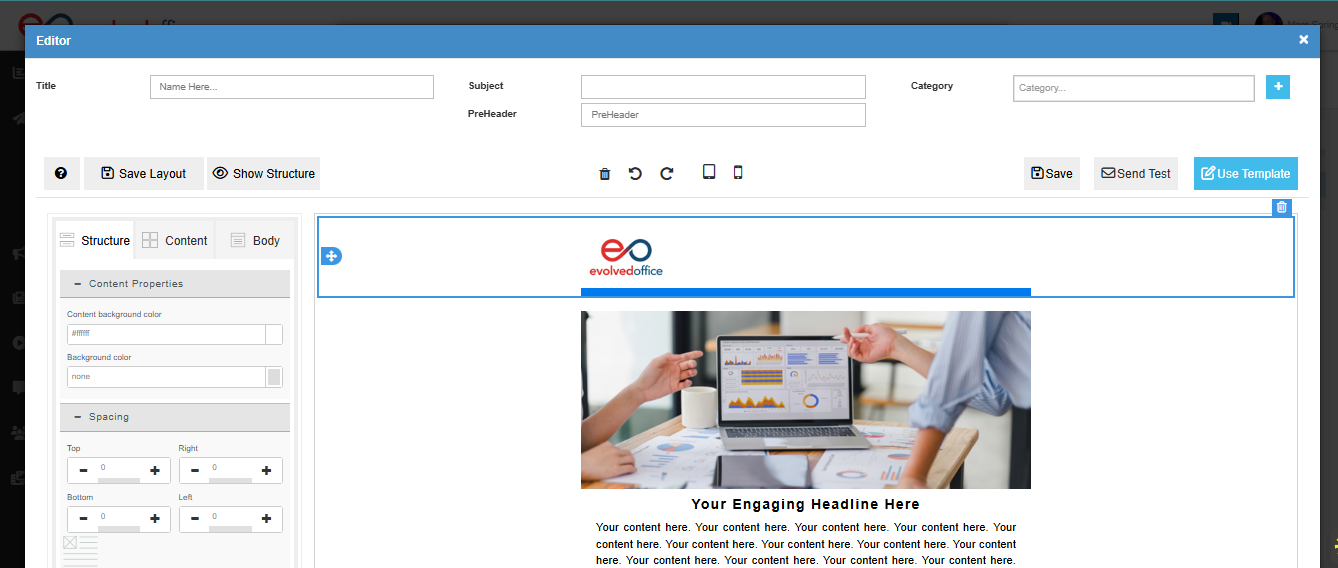
Your new email is now tied to the Journey.
Important reminder when saving edits:
Make sure you click Save in both places:
- Inside the Email Editor
- Inside the Send Email journey edit window
Skipping either step means the correction flag won't be set properly.
📚 For detailed design guidance, visit:
👉 The Ultimate Guide to Creating an eShot with Evolved Office
🔄 Option 3: Change the Email Attached to the Journey (Re-Load)
If you'd like to swap the current email for a different saved template:
- Click the pencil icon on the Email step.
- Click Re-Load
- In the Email Template Chooser, use the:
- Email Type dropdown
- Category dropdown
- Choose from the Suggested or Edited tab
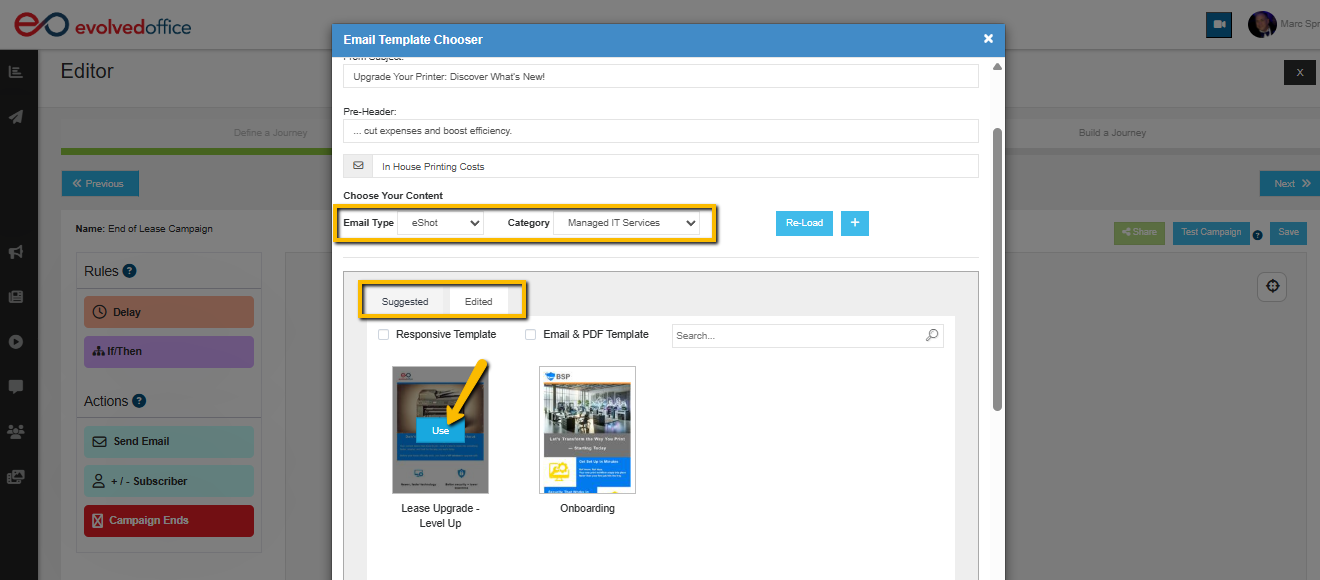
This refreshes the template list based on your filters.
- Select a different template.
- Click Save
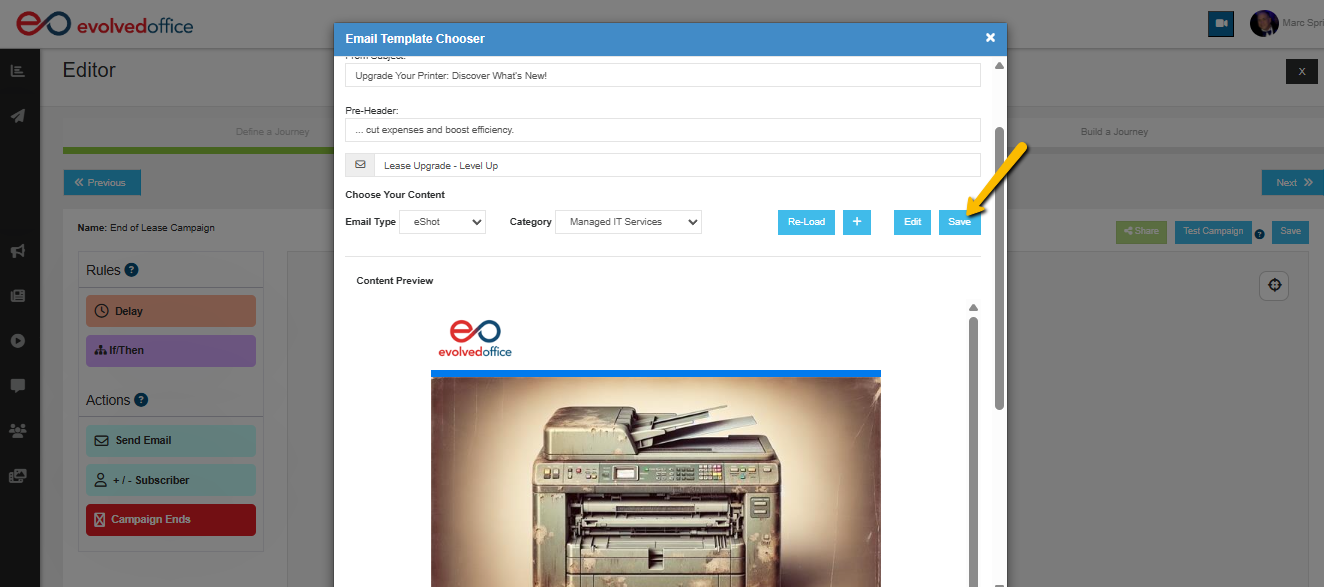
Your Journey will now use the newly selected email.
✅ Final Tip
After making changes:
- Use Send Test to preview the email.
- Click Test Campaign from the Journey screen to confirm everything works as expected.
- Click Save on the Journey to ensure updates are applied.
Summary of Your Options
Action | How |
|---|---|
Edit current email | Pencil icon → Edit → Save → Use Template |
Create new email | Pencil icon → "+" → Choose layout → Save → Use Template |
Change email template | Pencil icon → Filter → Re-Load → Select → Save |
Managing your campaign emails directly inside the Journey Manager keeps everything centralized and efficient — no need to navigate away from your workflow.
If you need help designing high-performing emails, don’t forget to check out the full eShot guide here.
If you have any questions or need clarrification, reach out to support@evolvedoffice.com.