
How to Edit a Video with Canva from the Asset Manager
This article covers editing a video stored in your Asset Manager using Canva.
Before you start: Make sure you've connected your account to Canva. See Getting Started with Canva Integration in Evolved Office for one-time setup steps.
Steps
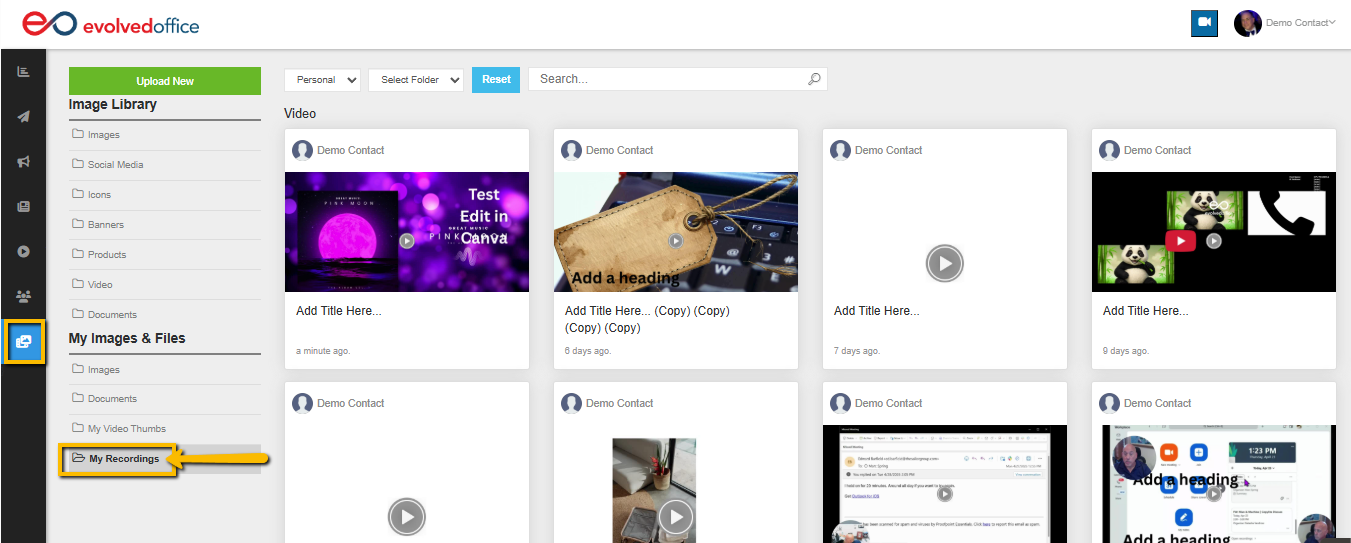
- Go to your Asset Manager.
- Open the My Recordings folder.
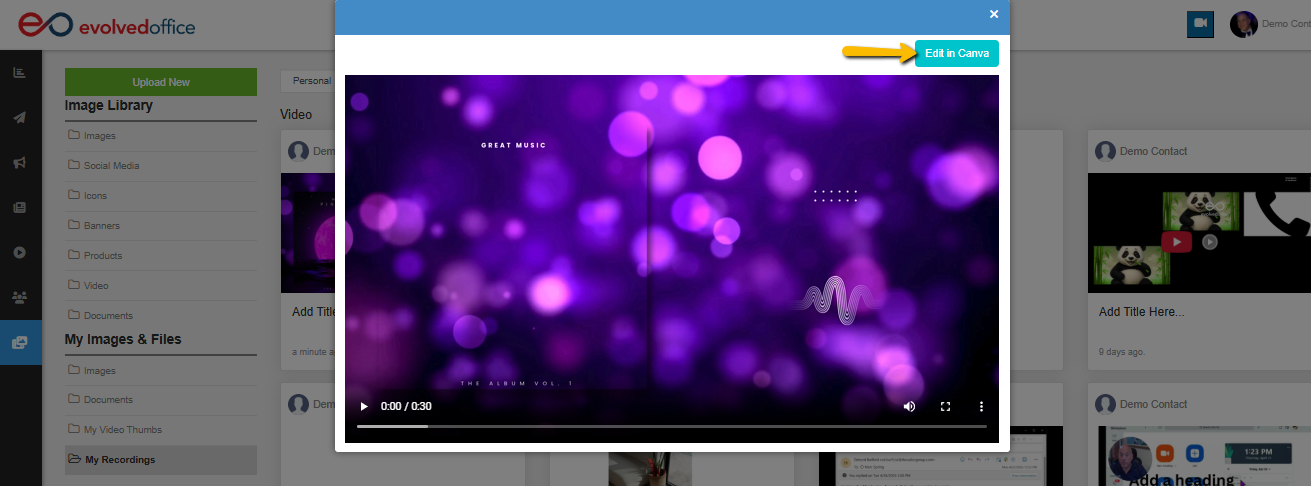
- Click the video you want to edit.
- Click Edit in Canva.
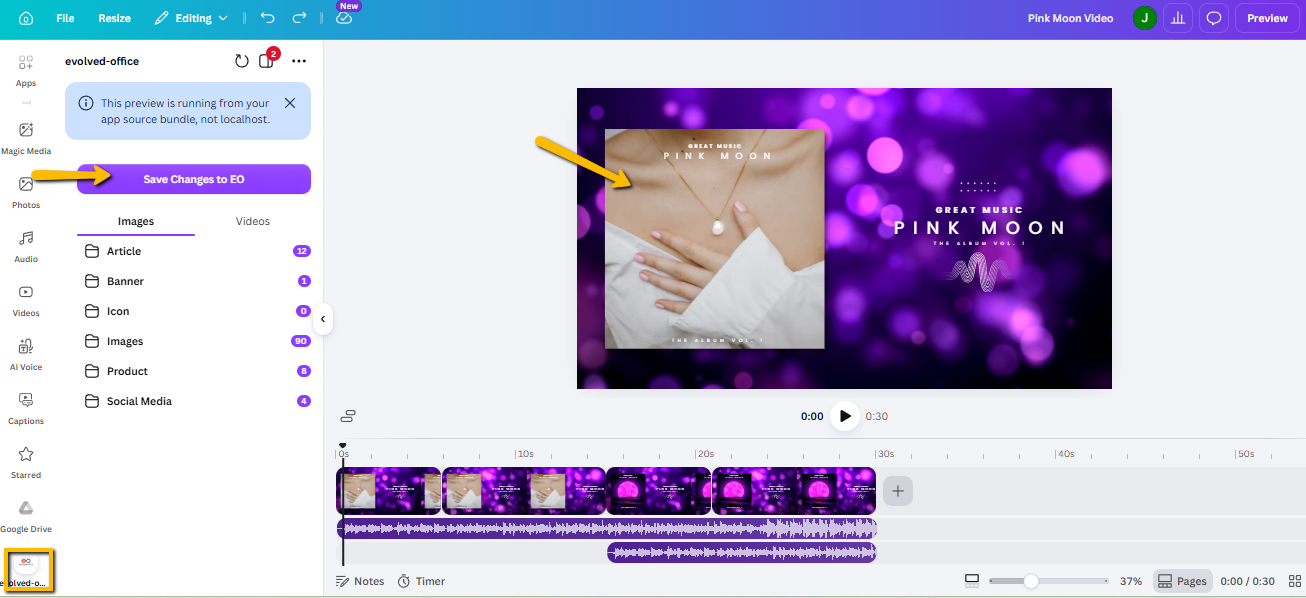
- The Canva editor will open with your video loaded. Make your edits — trim the video, add a logo, or make other changes.
- When you're finished, click the Evolved Office icon at the bottom of the left-hand navigation in Canva.
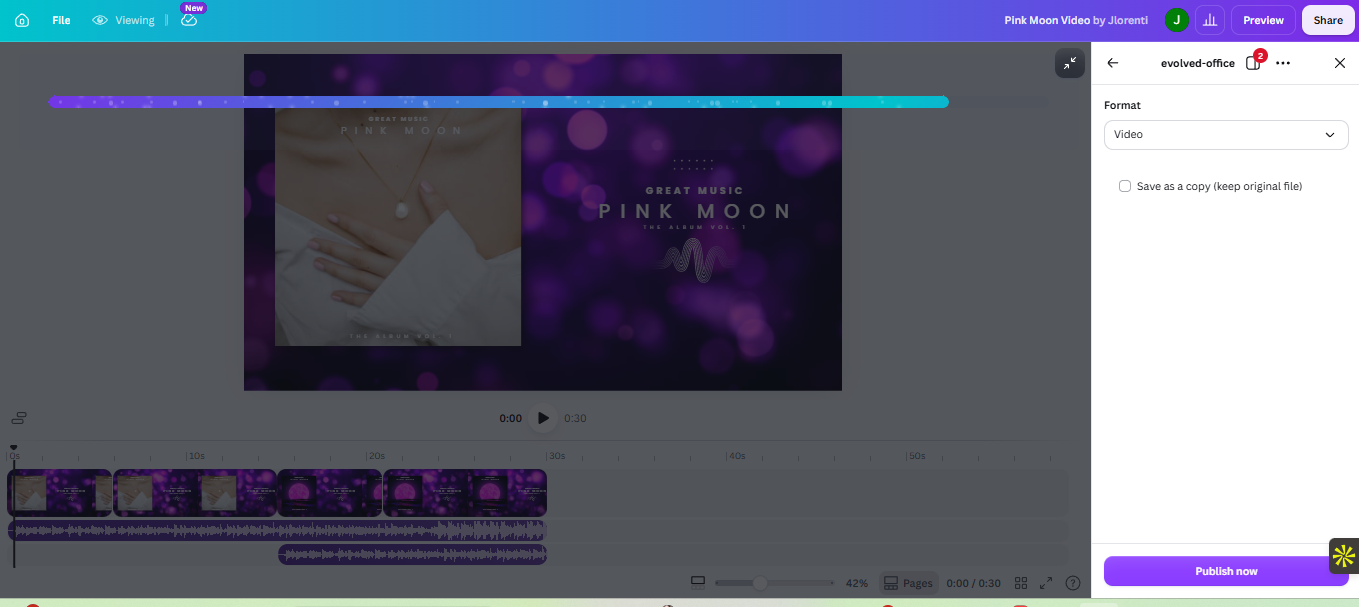
- Click Save, then select Video from the dropdown to publish it as a video.
Choose whether to:
Save as a copy — check this box to keep your original image untouched and create a new version, or
Overwrite original — leave the box unchecked to replace the existing image with your edits. - Evolved Office will process your edited video. Once complete, the updated version will appear in your Asset Manager.
Tips
- Video processing may take a moment after publishing — give it time to finish before checking the Asset Manager.
- Works with both free and paid Canva accounts. Some advanced video tools may be limited on a free plan.
- For help with Canva's video editing tools (trimming, adding audio, timeline basics), see Canva's Create and Edit Videos guide.
If you have any further questions, feel free to contact our support team at support@evolvedoffice.com. We're here to help!