
How to Browse Your Evolved Office Library from Within Canva
While inside Canva, you can switch to a different image or design from your Evolved Office library without leaving the Canva editor.
Before you start: Make sure you've connected your account to Canva. See Getting Started with Canva Integration in Evolved Office for one-time setup steps.
Steps
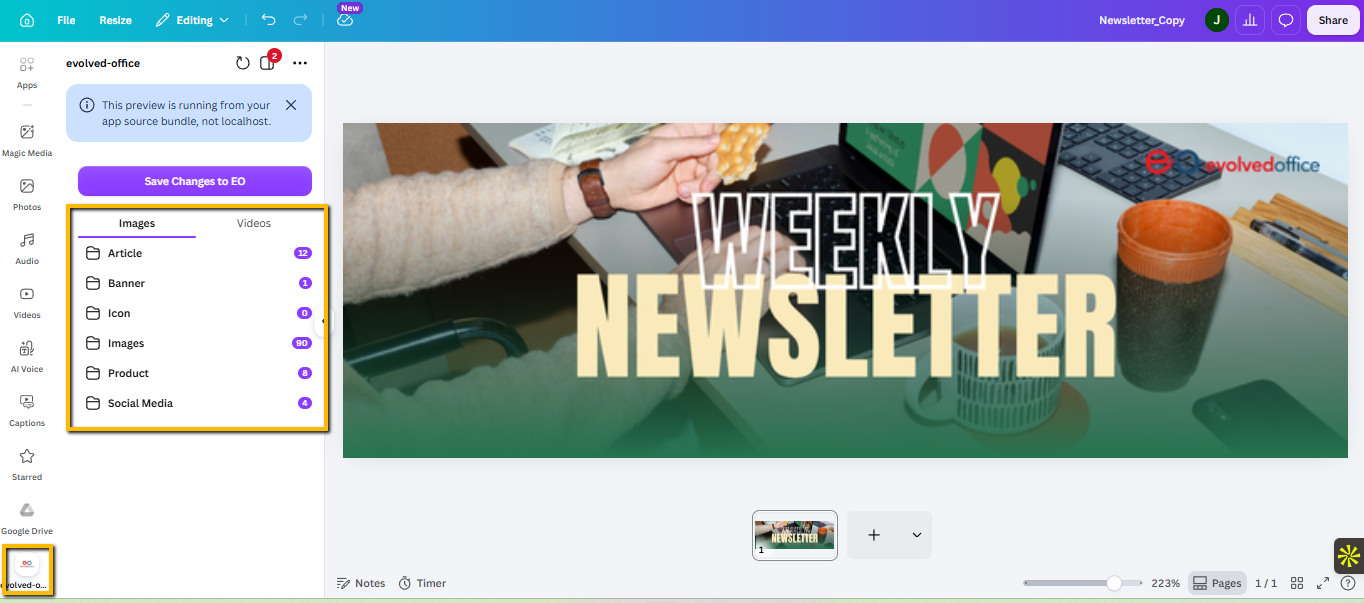
- While inside Canva, click the Evolved Office (EO) icon at the bottom of the left-hand navigation.
- Your Evolved Office library will open inside Canva, organized by type: Article, Banner, Icon, Images, Product, and Social Media — each showing how many items are in that category.
- Click a category, then browse and select the design or image you want to load.
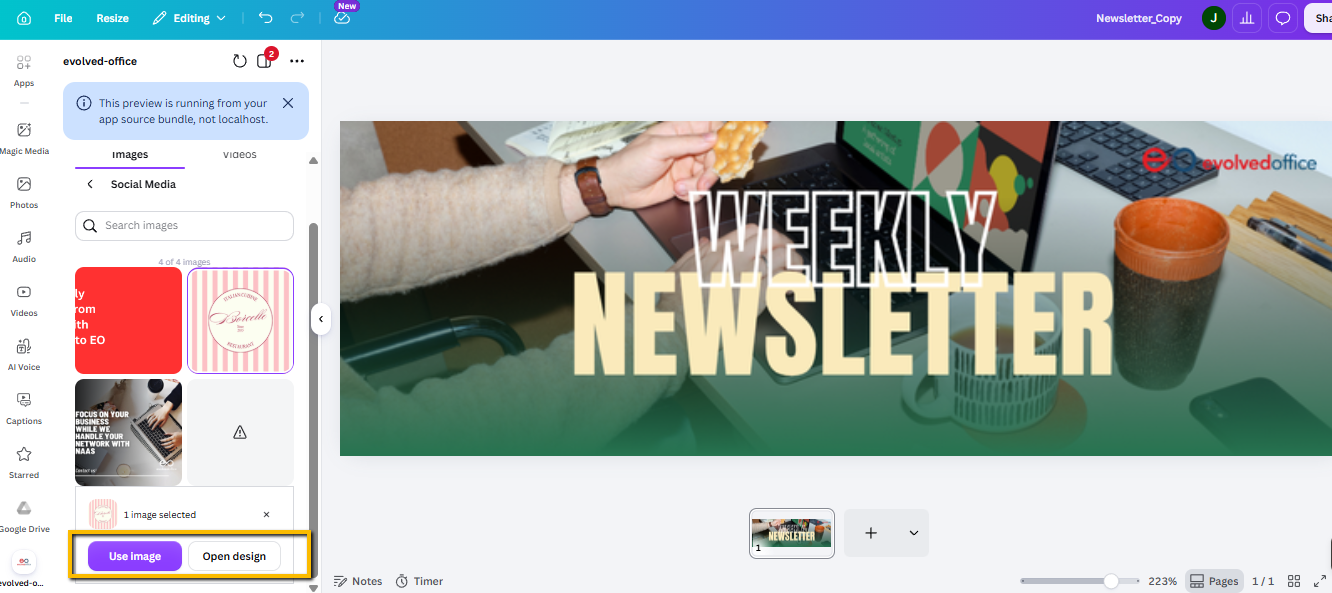
- Once selected, choose how you want to use it:
Use Image — adds the selected image into your current design (e.g., as a layer or element on the page you're already working on).
Open Design — if you want to work on your chosen image instead, simply hit Open Design and it will open up that design to work on.
Tips
- This is useful if you started editing one image but realize you actually want to work on a different one — no need to close Canva and start over.
- Category counts (e.g., "Article (11)") reflect how many items of that type currently exist in your Evolved Office library.
- Works with both free and paid Canva accounts. A few advanced photo tools (like background remover) require a paid plan.
- For help with specific photo tools (cropping, filters, background removal, etc.), see Canva's Photo Editor guide.
If you have any further questions, feel free to contact our support team at support@evolvedoffice.com. We're here to help!