
How to Allow Microphone/Camera Access for eoVideo Recording
Why this happens
For eoVideo to record, your browser must be allowed to use your microphone (and camera if you’re recording video).
Normally, the first time you open the recorder, your browser shows a prompt like:
“Allow webtools.evolvedoffice.com to use your microphone/camera?”
If that prompt was dismissed, blocked, or never appeared, eoVideo can’t access your devices—so the mic/camera selection may look greyed out.
Google Chrome (fastest steps)
- Open eoVideo on webtools.evolvedoffice.com
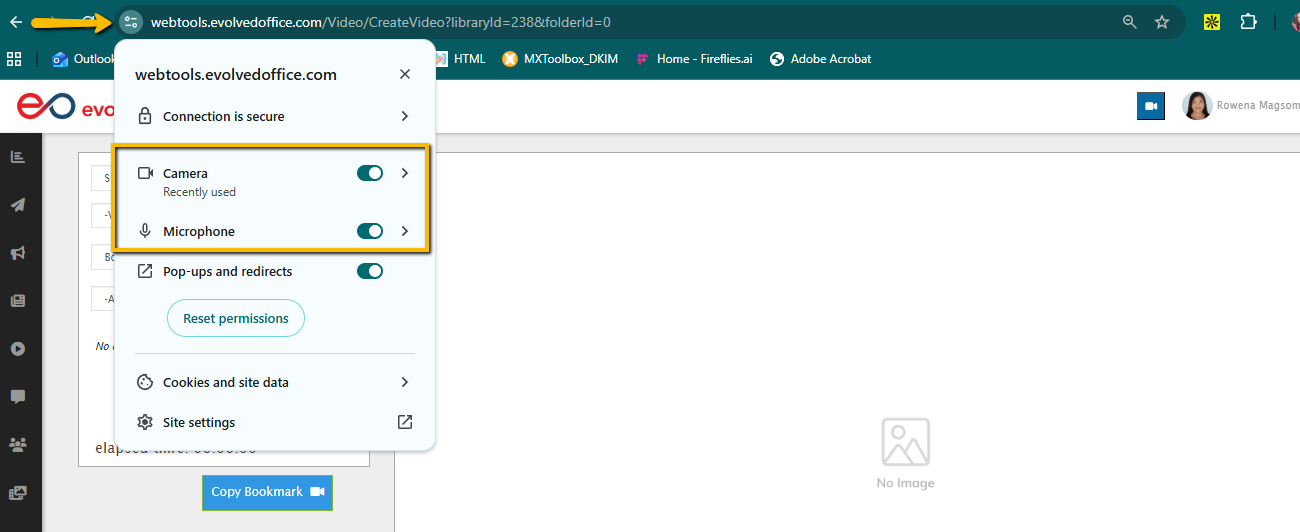
- Click the tune/settings icon to the left of the URL
- Set:
- Microphone: Allow
- Camera: Allow
- Refresh the page
- Re-open eoVideo and try again
If Microphone/Camera aren’t listed
Sometimes Chrome won’t show Microphone/Camera directly in the small permissions panel. In that case:
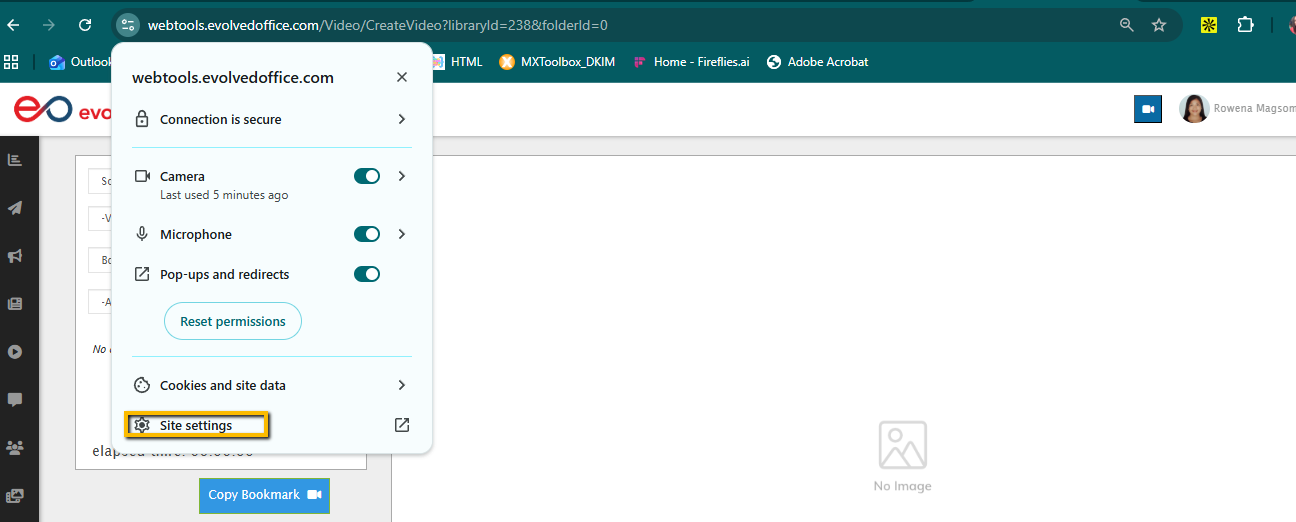
- Click the tune/settings icon to the left of the URL
- In the pop-up, click Site Settings
- A new Chrome settings tab will open for webtools.evolvedoffice.com
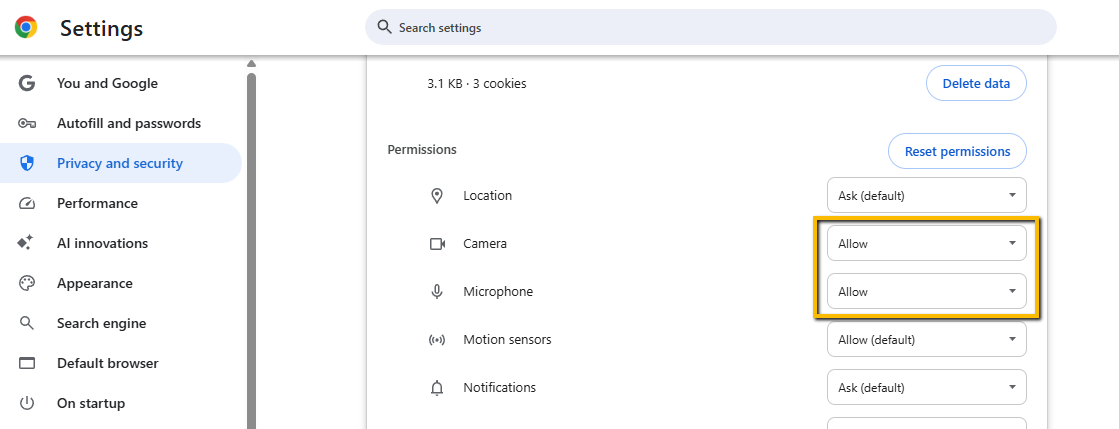
- Scroll to Permissions and set:
- Camera: Allow
- Microphone: Allow
- Go back to the eoVideo tab and refresh the page
- Re-pen the eoVideo recorder and try again
If it’s “stuck”
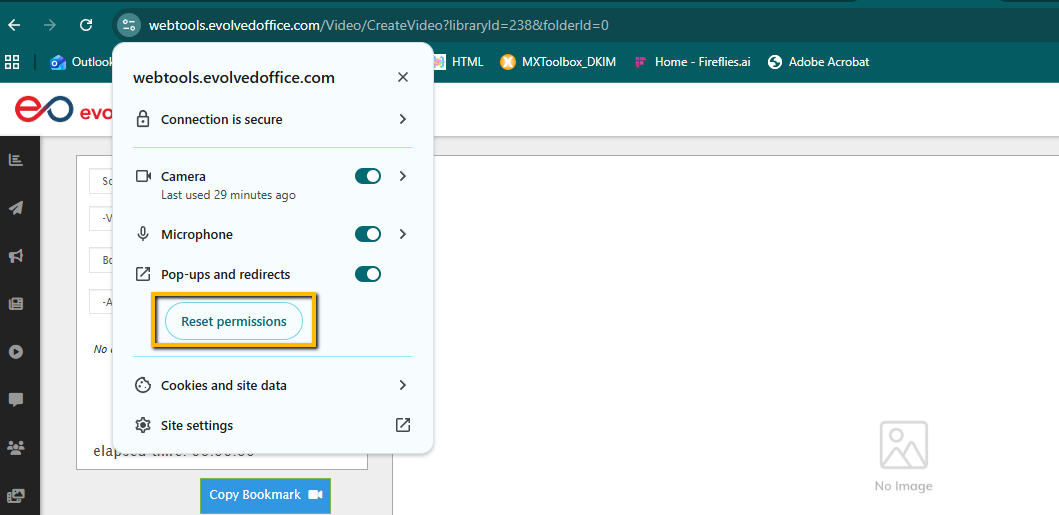
- Click the icon next to the URL → Reset permissions
- Refresh → reopen eoVideo (you should be prompted again)
Microsoft Edge
- Open eoVideo on webtools.evolvedoffice.com
- Click the lock icon (or permissions icon) next to the URL
- Set:
- Microphone: Allow
- Camera: Allow
- Refresh and try again
If you don’t see those options
- Go to Settings → Cookies and site permissions → Microphone / Camera
- Make sure webtools.evolvedoffice.com is allowed (not blocked)
Safari (Mac)
- Open eoVideo on webtools.evolvedoffice.com
- In the top menu, click Safari → Settings (or Preferences)
- Go to Websites tab
- Click Microphone and Camera (left side)
- Find webtools.evolvedoffice.com and set both to Allow
- Refresh the page and try again
Firefox
- Open eoVideo on webtools.evolvedoffice.com
- Click the microphone/camera icon in the address bar (if visible) or the lock icon
- Allow access (or remove the block), then refresh and try again
Alternative
- Go to Settings → Privacy & Security → Permissions
- Under Microphone and Camera, click Settings…
- Find webtools.evolvedoffice.com → set to Allow (or remove any block)
- Refresh and try again
Quick Checks (any browser)
- Refresh the page after changing permissions
- Close and re-open the eoVideo recorder
- Make sure you’re using the correct input device in your OS (if you have multiple mics/cameras)
- If you’re on a managed computer, your organization may restrict mic/camera access via policy