
Work with videos in the Compose Box
How to adjust video settings
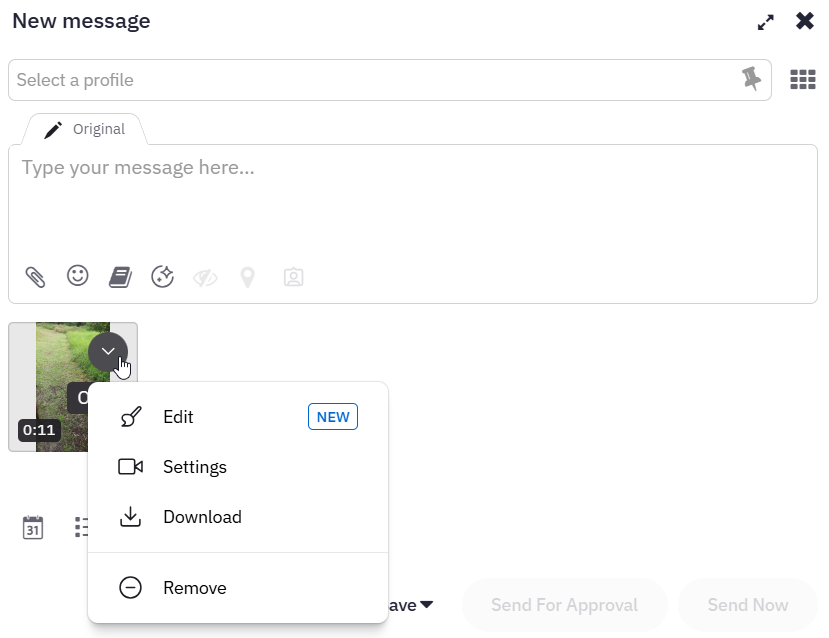
To access the video settings, click the Options icon on the video and select Settings.
You can add a title, include details such as tags and a category, and control visibility by choosing Private, Unlisted, or Public. From here, you can select a thumbnail using the slider
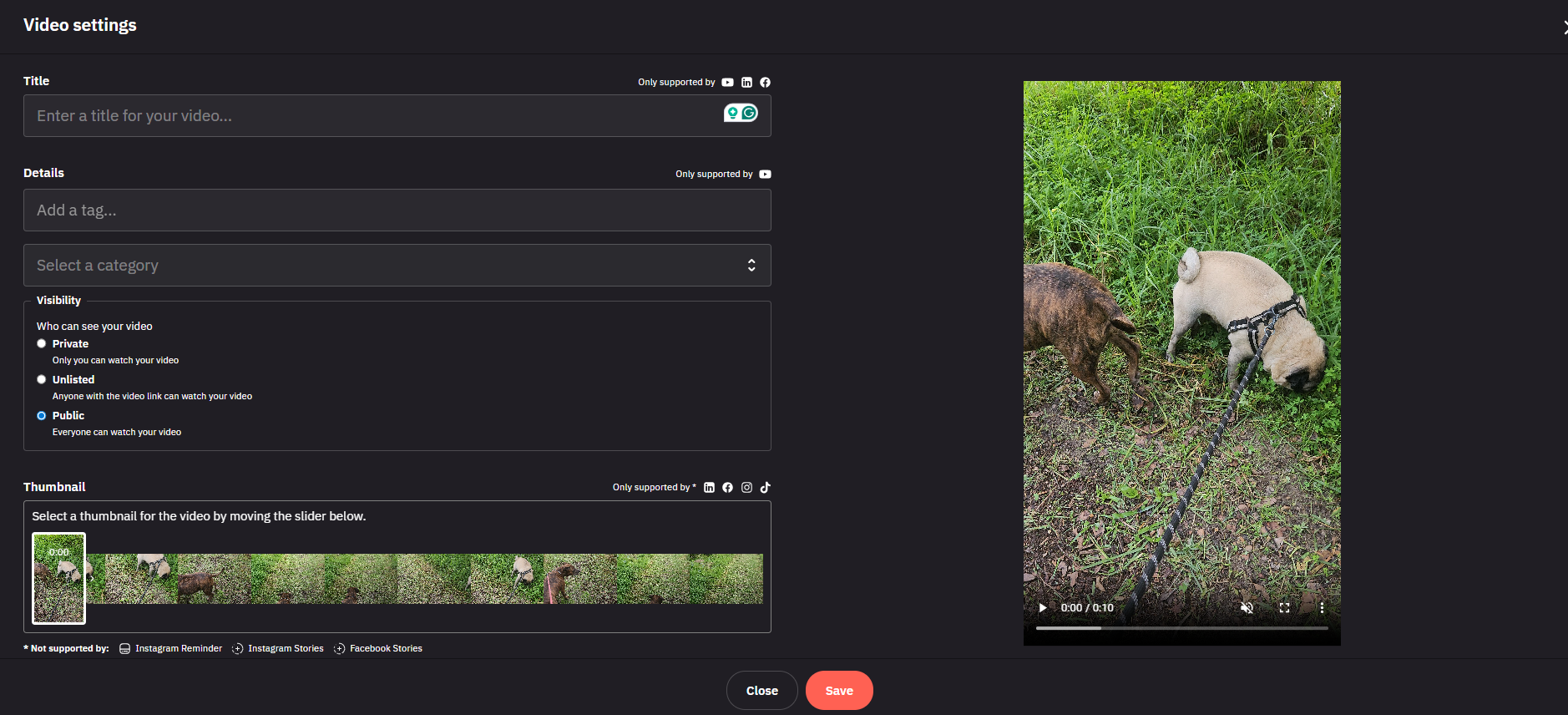
Thumbnails can only be edited for LinkedIn, TikTok, Facebook and Instagram.
Important: Editing thumbnails is not supported for Instagram Reminder or Instagram/Facebook Stories
Tip: Thumbnails will not display on Facebook Page or Instagram feeds when autoplay is turned on. Check the profile rather than the feed to see the thumbnails.
How to edit videos
Important: The video editor can only be used on Chrome, Safari and Edge
Tip: If there is a problem with a video, an error will appear and clicking on the icon will provide more information. Select Edit from the menu to make the needed adjustments.
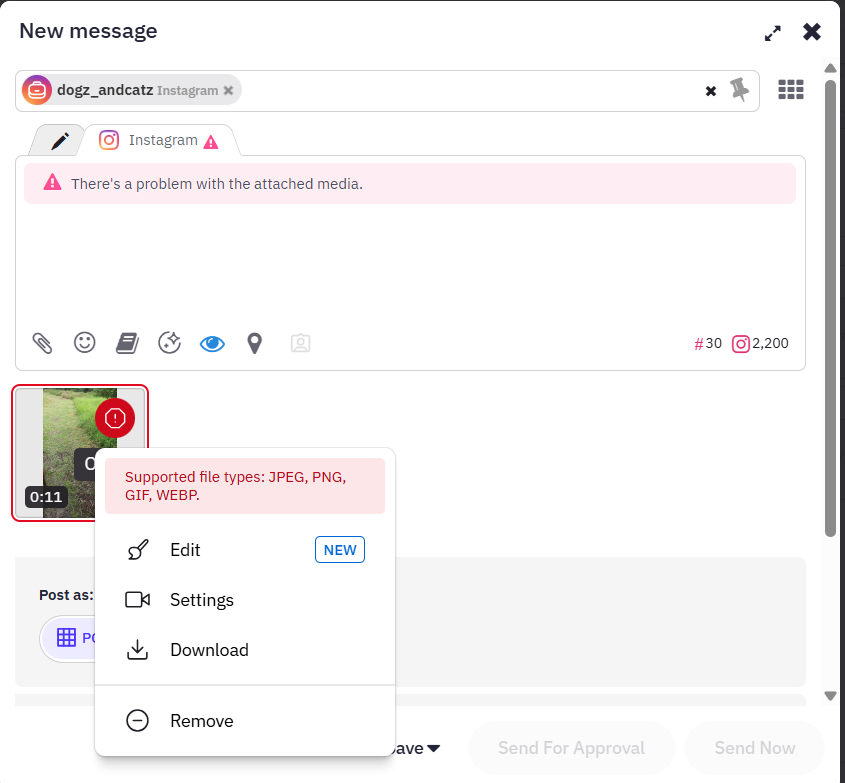
To access the video editor, click the Options icon on the video and select Edit.
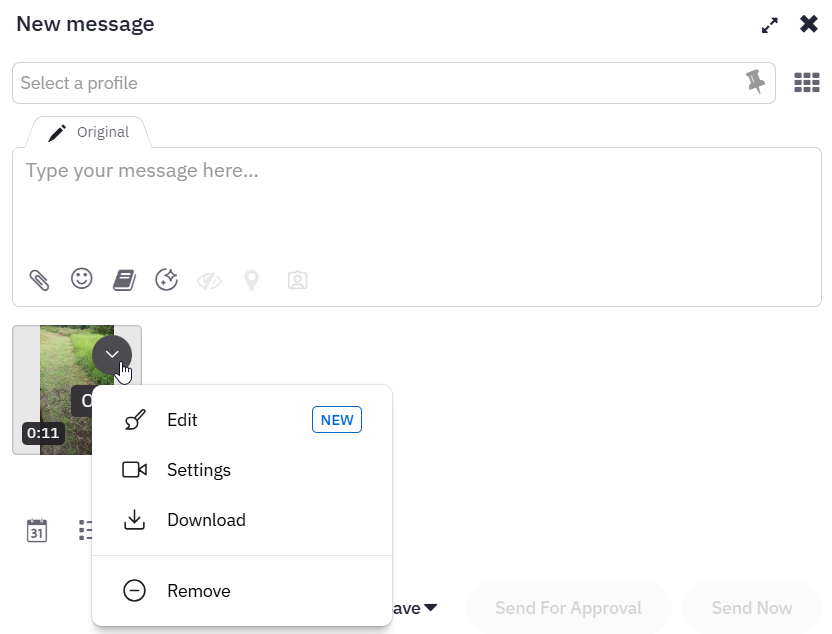
Editing options
A variety of editing features are available, including Crop, Text, Shapes, and Stickers. You can also trim the video, adjust the volume, or combine multiple clips into one video.
Crop
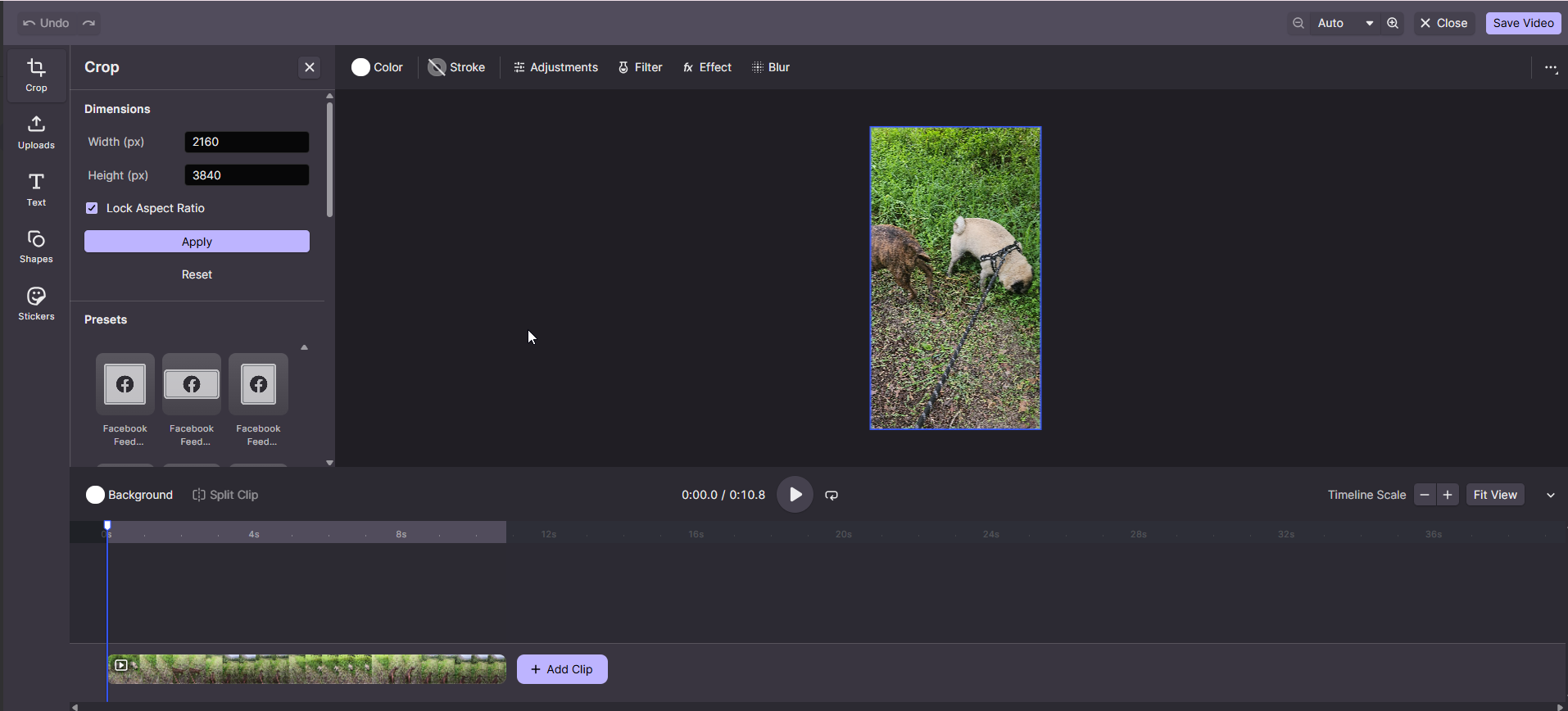
You can choose a preset for a social platform, go with a standard size, or adjust the width and height yourself.
Text
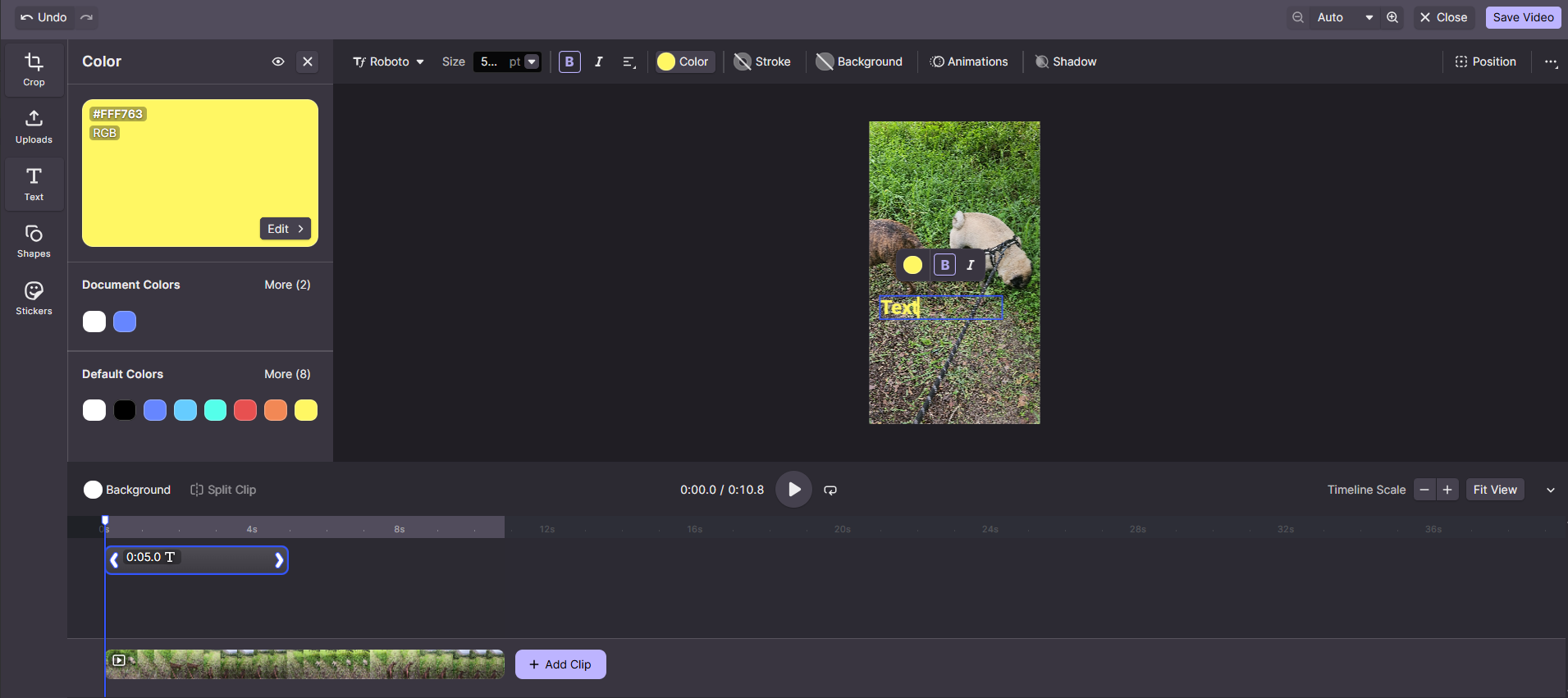
Add text to your image and refine it using formatting controls such as font, size, colour, spacing, and alignment.
Shapes
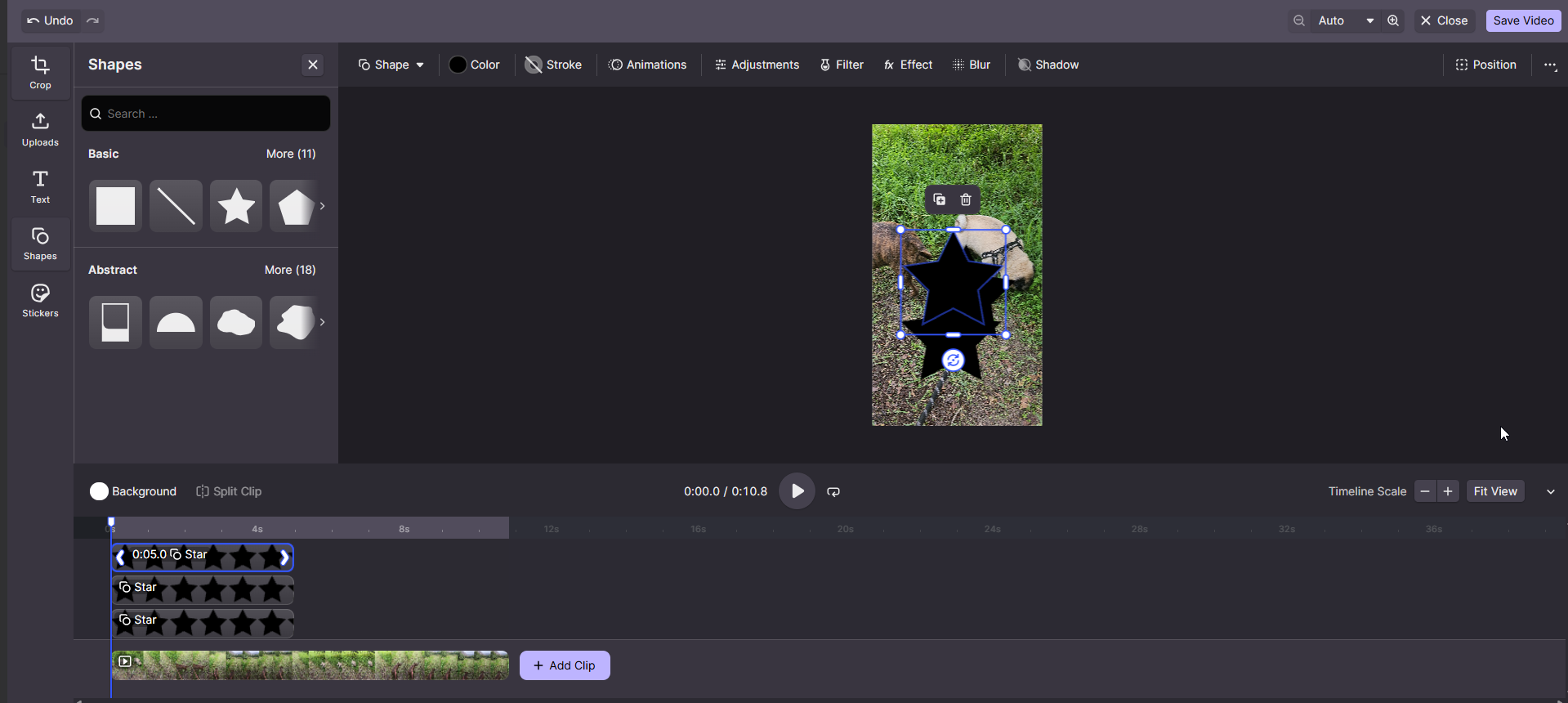
Browse through multiple shape options and customise their appearance with colour adjustments, filters, shadows, blur, and more.
Stickers
Browse through Doodle, Emoji, Emoticons, and Hands styles, and apply a shadow to enhance the look.
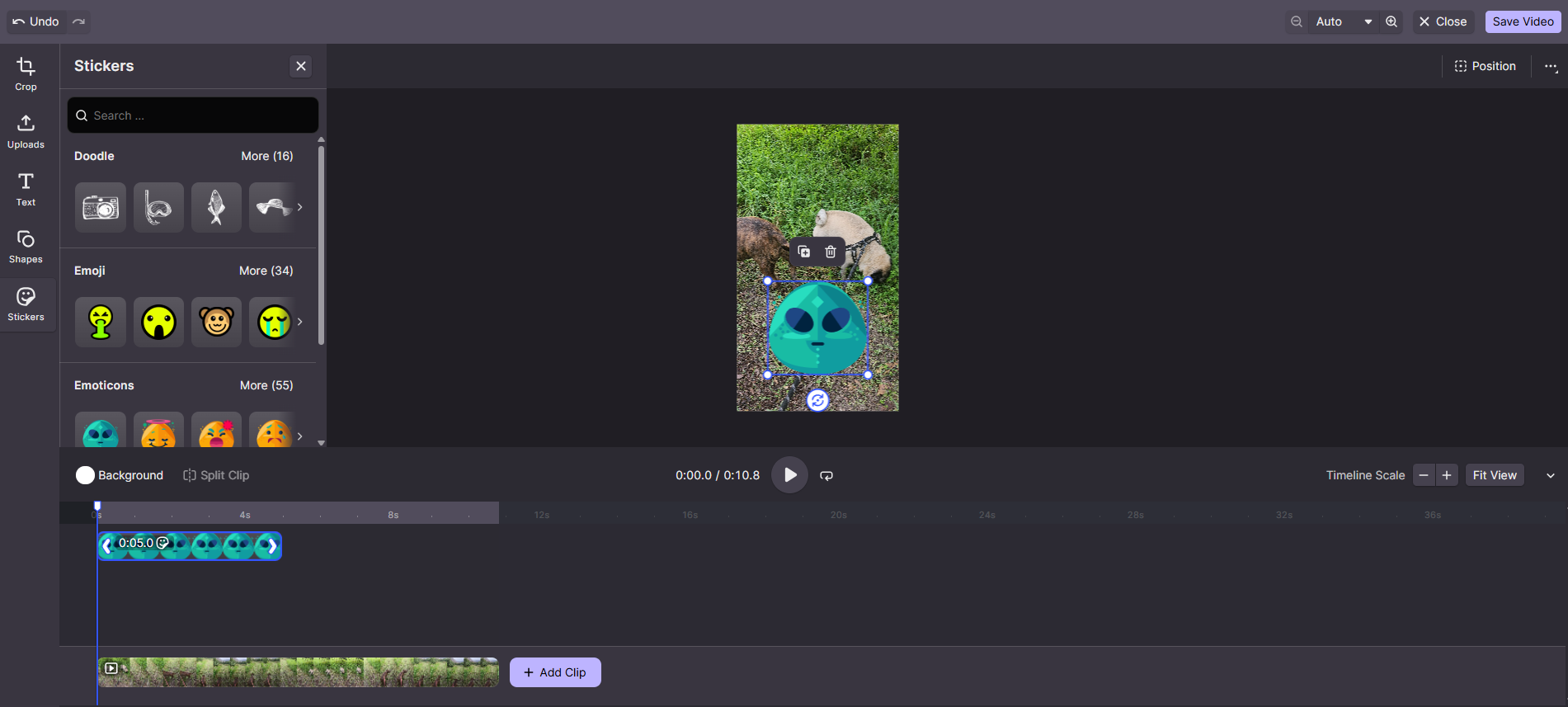
Click Undo in the top-left corner to reverse any changes. Click Save Video to exit the video editor and return to the Compose Box.
Important: After saving your video in the video editor, all elements (such as text and stickers) are merged, making them uneditable. If you wish to make further changes, you'll need to start over with the original video.
YouTube shorts
- To be published as a YouTube Short, the video must be 179 seconds or less with either a vertical or square aspect ratio. YouTube will automatically consider any video 179 seconds or less as Short.
- To add a caption to a YouTube Short, you need to edit the video in the Compose Box and add the title, which can be done from the Video Settings page.
Important: It is your responsibility to respect the copyright and other intellectual property rights of all third parties. Media provided through integrated services, except for GIPHY, are in the public domain. We cannot guarantee that GIPHY's media does not infringe any copyright.
Have more questions?
We'd be happy to help!
Please submit a support ticket to support@evolvedoffice.com with your questions. Providing screenshots or a video to explain what you expected or wanted will help get answers more quickly!