
Work with images in the Compose Box
How to edit images
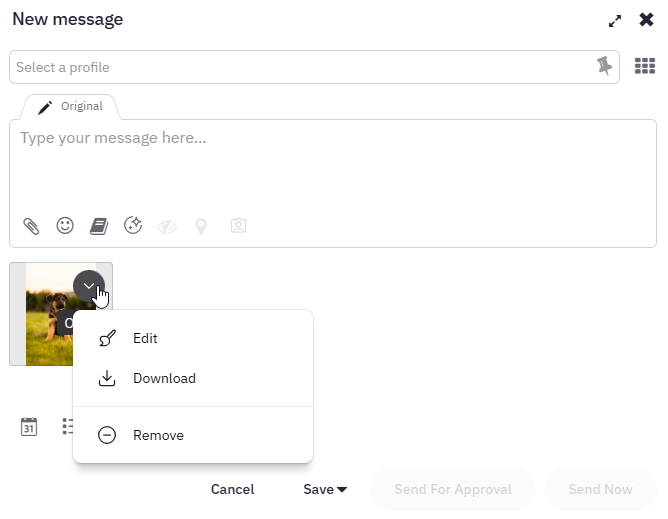
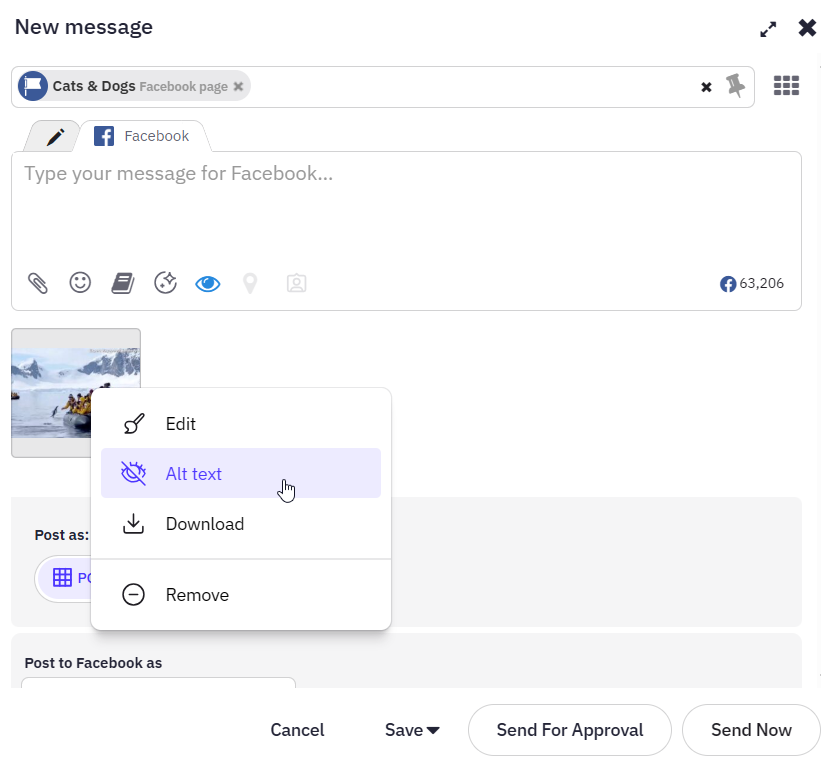
To access the image editor, click the Options icon on the image and select Edit.
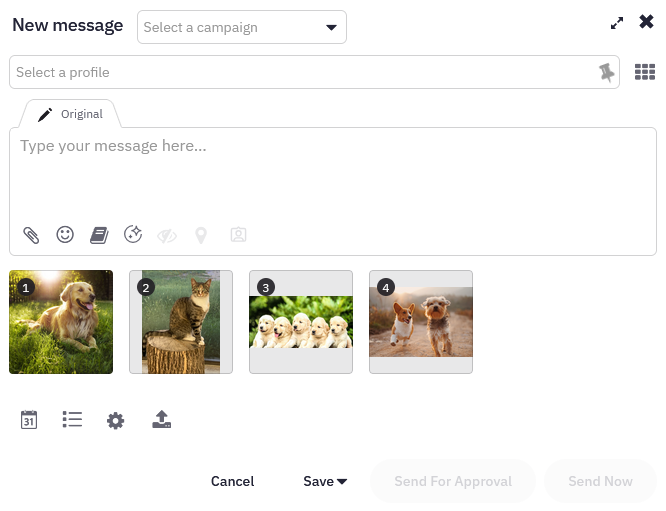
If you include multiple images or videos in your post, they will be numbered to indicate the order in which they will be published. You can drag and drop them to reorder them.
Caution: Mixed media posting (posts containing both images and videos) is not supported.
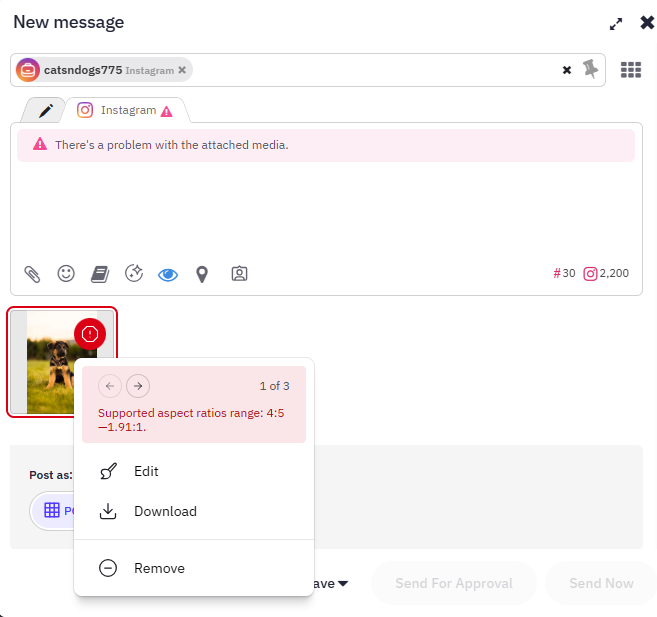
If there is a problem with an image, an error will appear and clicking on the icon will provide more information. Select Edit from the menu to make the needed adjustments.
Editing options
There are several editing options to choose from, including Crop, Adjust, Filter, Text, Shapes, and Stickers.
Crop
Browse through the options to select an aspect ratio tailored for a specific social network, a standard size, or customise the width and height to your preference.
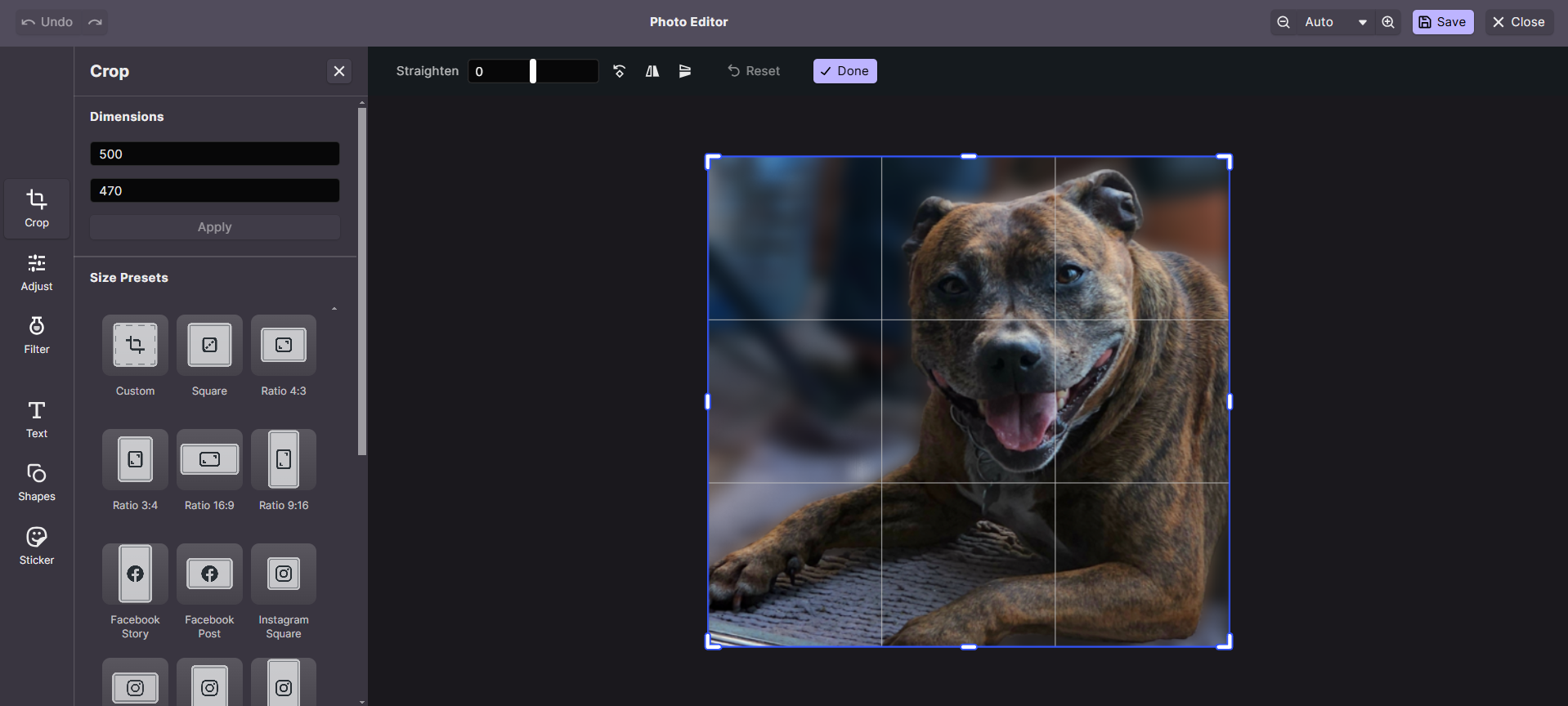
Utilize the flip and rotate options available at the top of the editing window to make additional adjustments to your image.
Caution: Enlarging image sizes is not supported. This can cause the image to appear pixelated and blurry. For example, if the image is 800 x 800 pixels, you can not enlarge it to 1200 x 1200 pixels; it will revert to its original size.
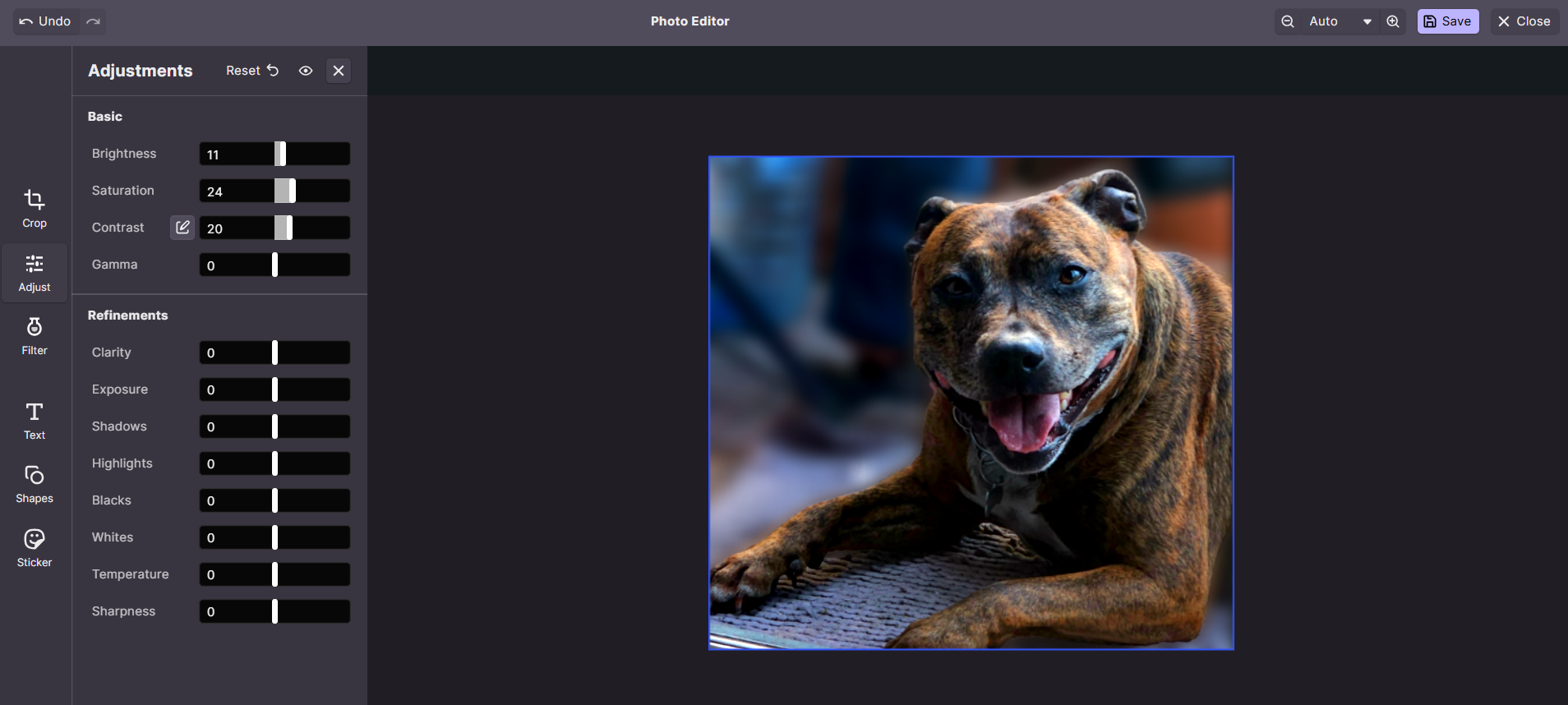
Adjust
Fine-tune image settings, such as brightness, saturation, contrast, and gamma, or make additional image adjustments.
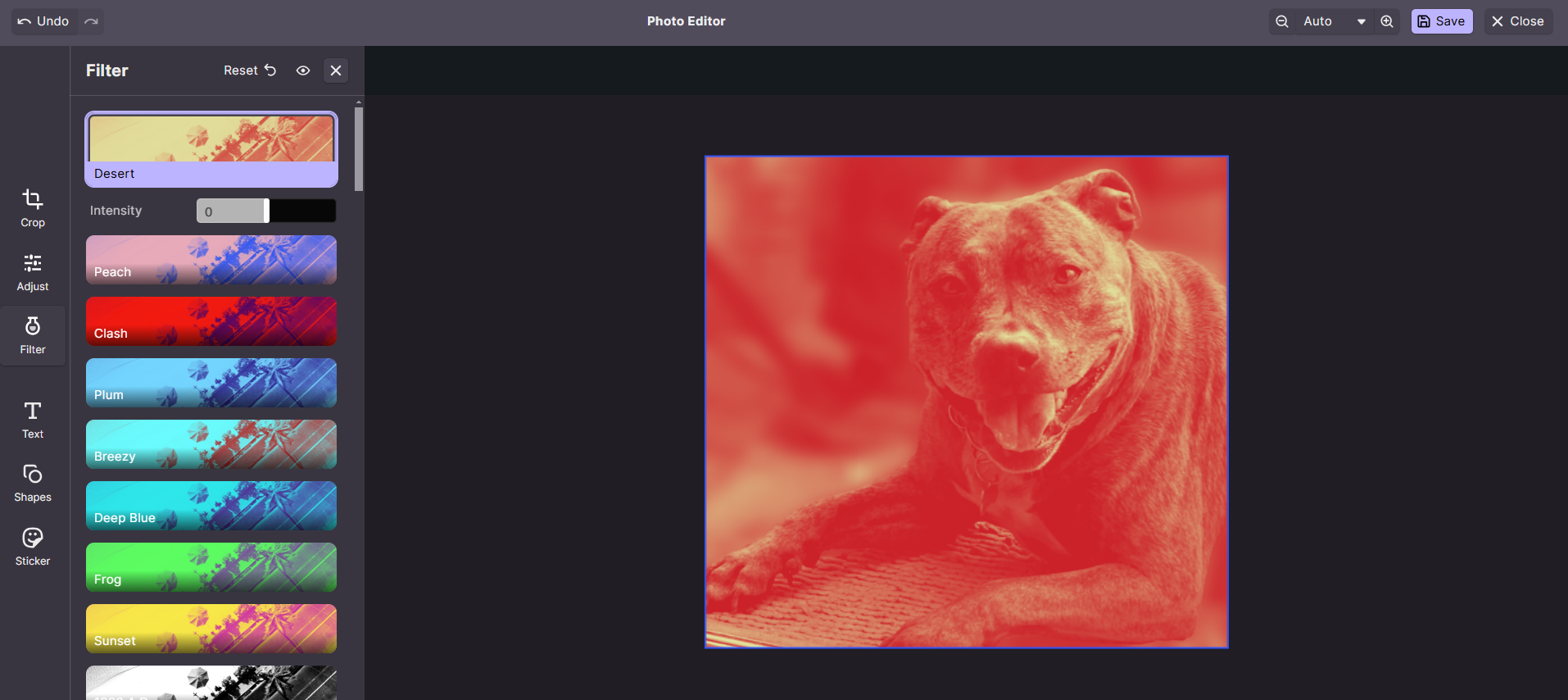
Filter
Choose a filter and adjust its intensity with the slider.
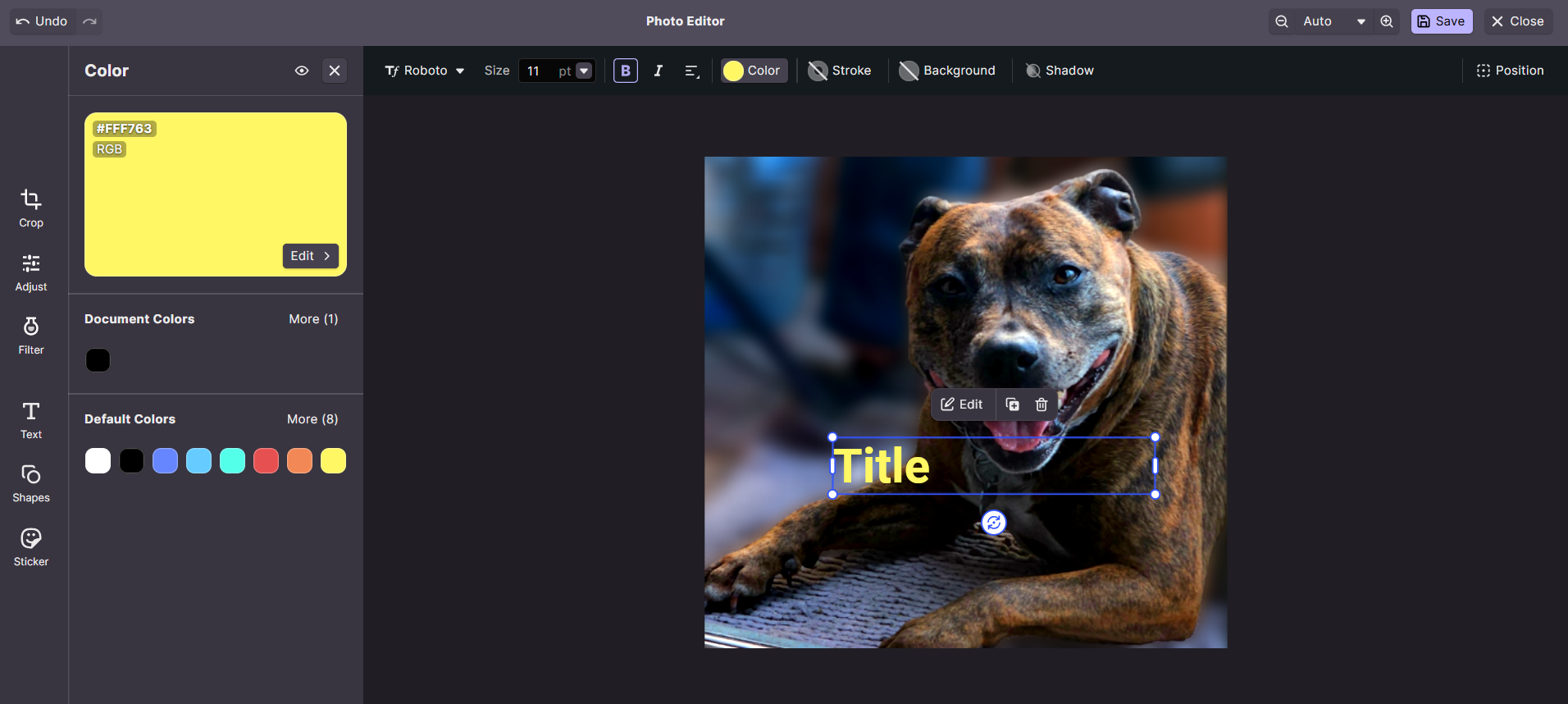
Text
Add text to your image, and customise it using formatting options for font, size, colour, spacing, and alignment.
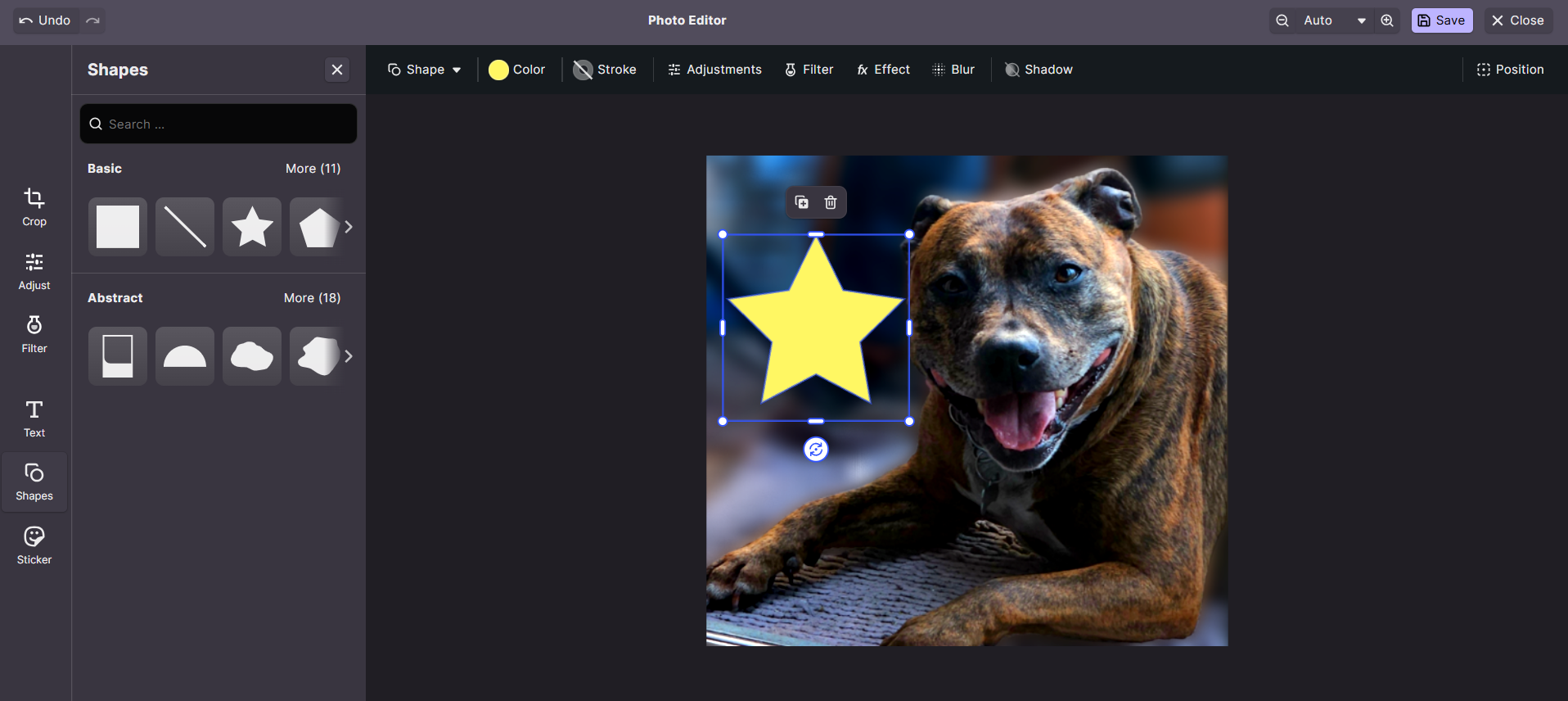
Shapes
Choose from a variety of shape options and make changes to the shape, including colour, border, filter, shadow, and blur, among others.
Sticker
Select from Doodle, Emoji, Emoticons, or Hands, and add a shadow if you choose.
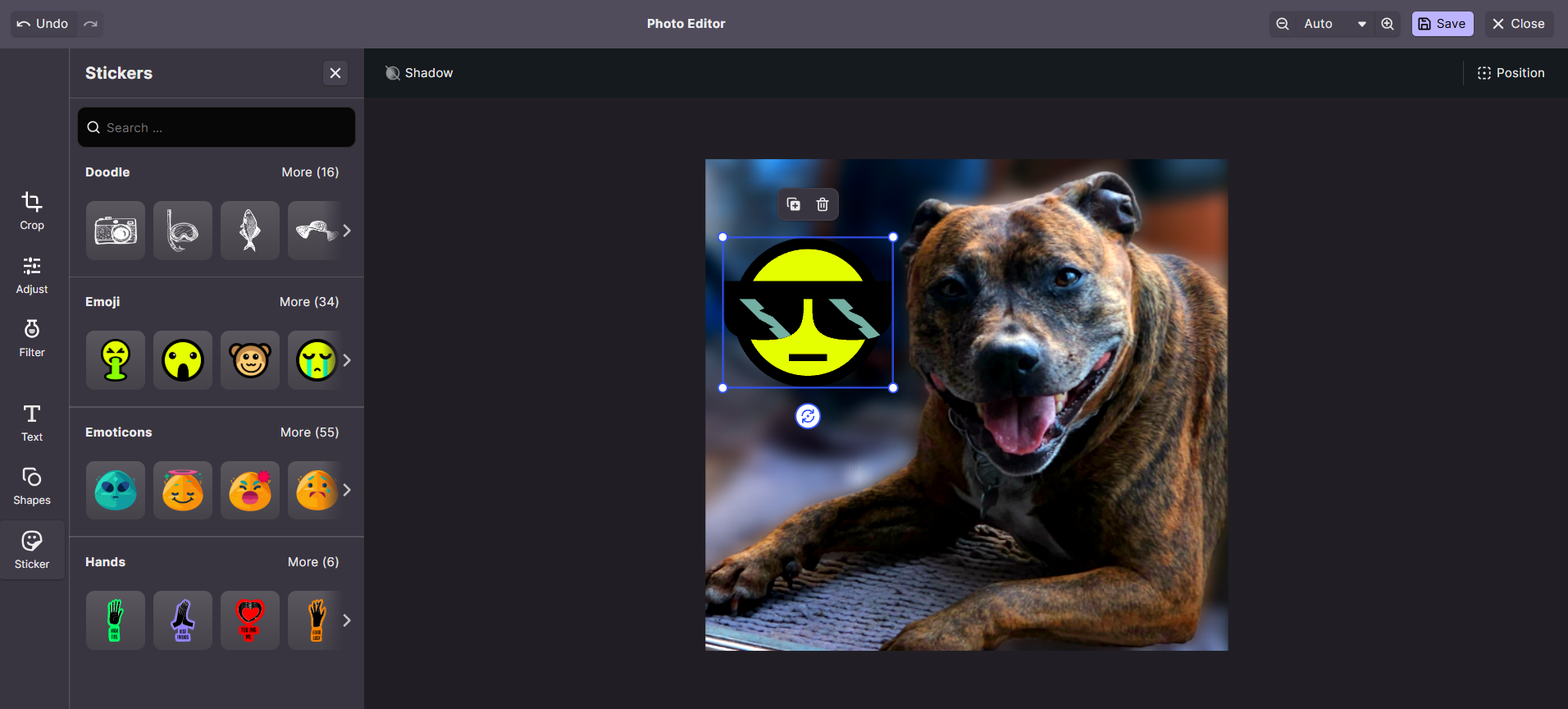
Click Undo in the top-left corner to reverse any changes. Click Save to exit the image editor and return to the Compose Box.
Important: After saving your image in the image editor, all elements (such as text and stickers) are merged, making them uneditable. If you wish to make further changes, you'll need to start over with the original image.
Add alt text to images
Caution: Alt text is only available for Facebook, Threads, or Bluesky posts.
- Attach your image, then switch to the Facebook, Threads, or Bluesky tab in the Compose Box.
- Click the Options icon and choose Alt text from the menu.
- Enter your alt text, giving a brief description of the information conveyed by the image and click Save when finished.

Important: It is your responsibility to respect the copyright and other intellectual property rights of all third parties. Media provided through integrated services, except for GIPHY, are in the public domain. We cannot guarantee that GIPHY's media does not infringe any copyright.
Have more questions?
We'd be happy to help!
Please submit a support ticket to support@evolvedoffice.com with your questions. Providing screenshots or a video to explain what you expected or wanted will help get answers more quickly!