
How to Schedule Social Media Posts Using eoSocial (Updated for EO Content)
In this guide, you’ll learn how to schedule social media posts using eoSocial—whether you’re sharing Evolved Office’s ready-to-go posts from EO Content or creating a brand-new post from scratch.
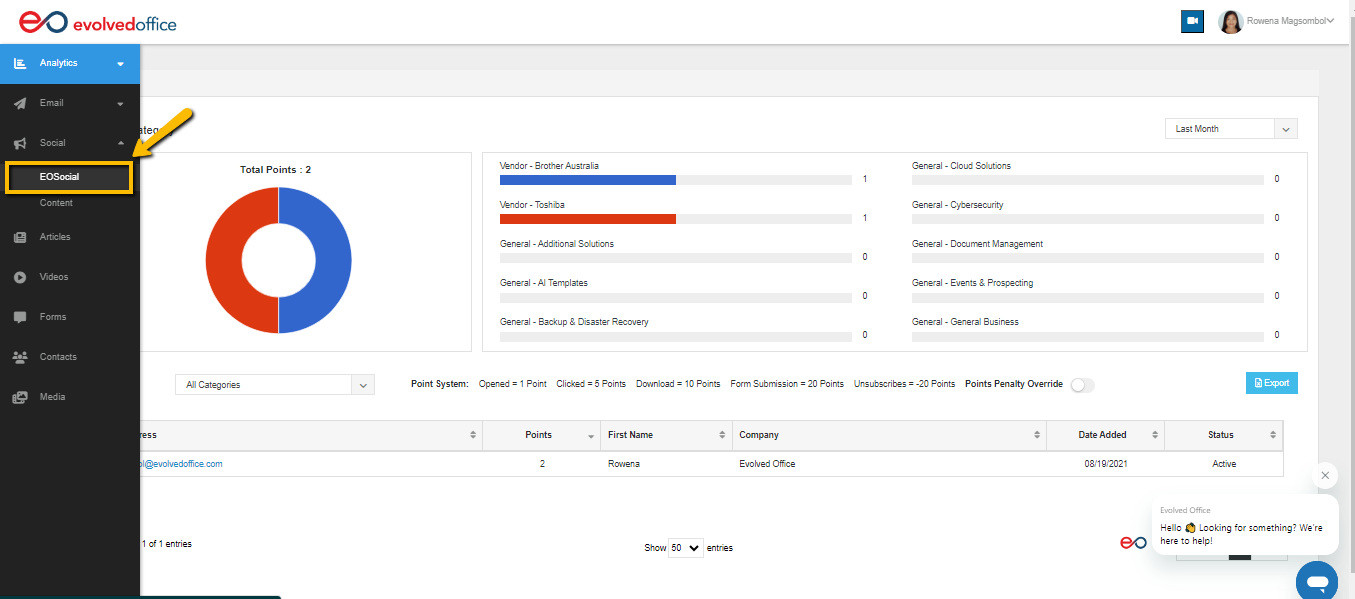
Step 1: Log into Your Account
- Navigate eoSocial on the left menu bar.
Step 2: Open the Content Area
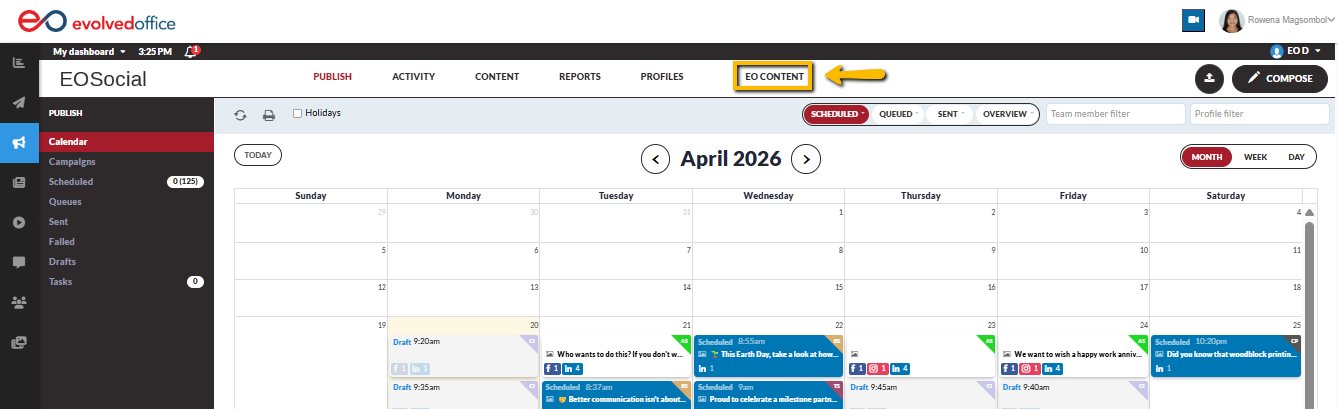
You can access EO’s ready-to-go social posts from the Content section in eoSocial.
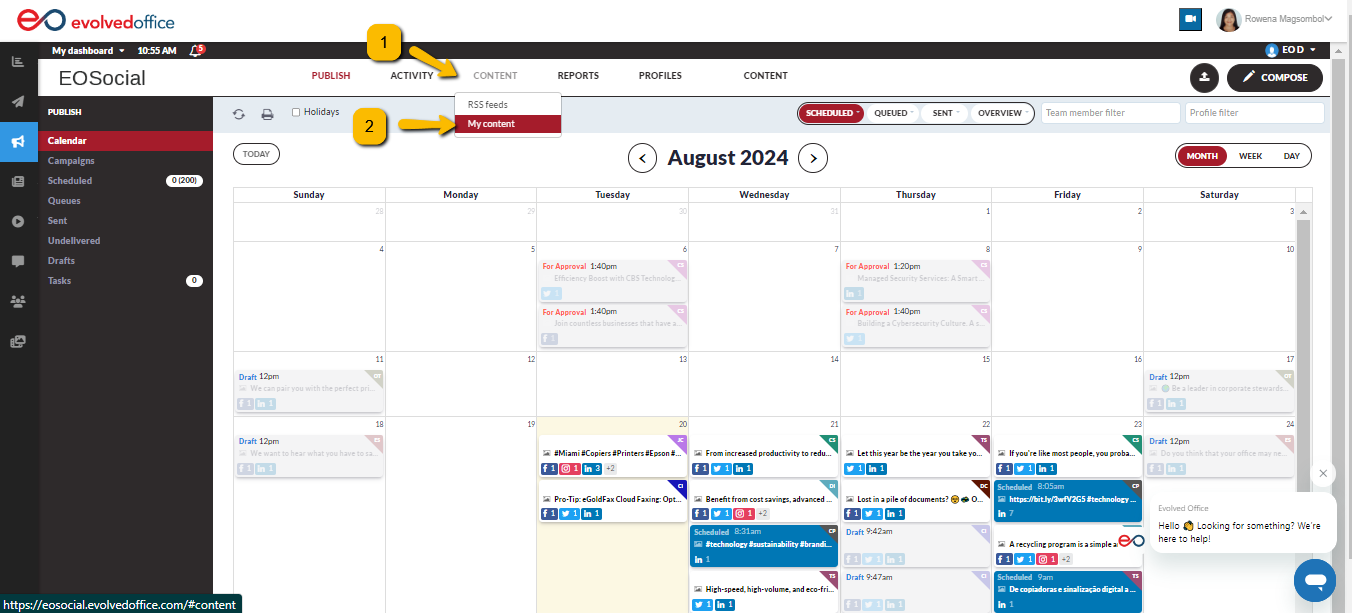
- In eoSocial, click CONTENT in the top navigation.
- Click EO CONTENT to open the ready-to-go content library.
What changed?
The ready-to-go social posts were previously accessed under Content > My Content. They are now accessed from EO CONTENT.
If you’d like a quick explanation of what moved (and why), review What Changed (Old vs. New Location)
Step 3: Choose Where You’re Posting From (Suggested vs Edited)
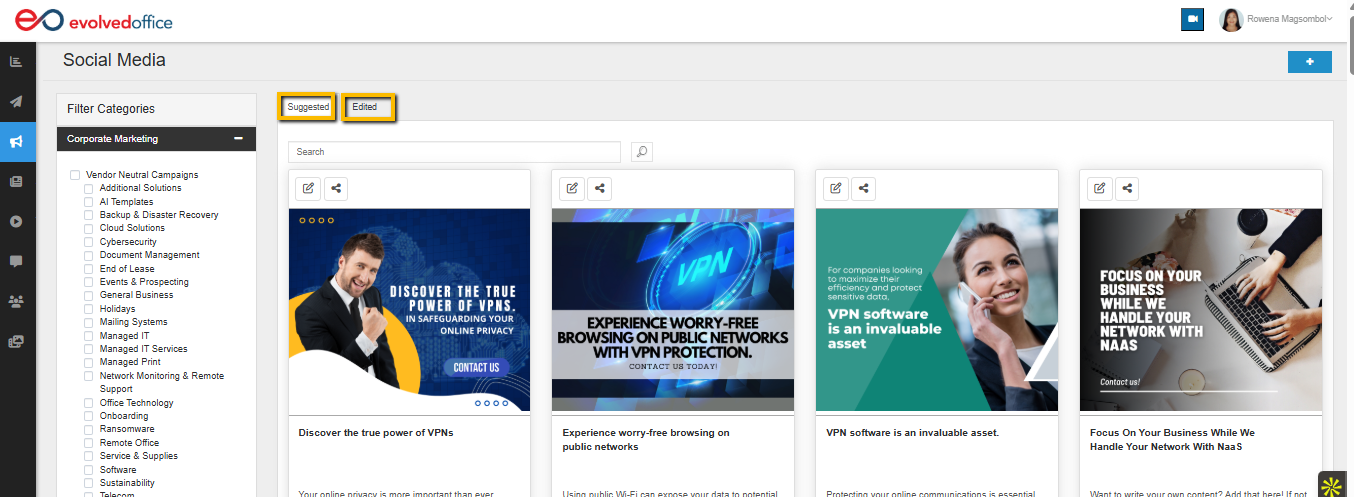
At the top of the EO Content library, you’ll typically see two tabs:
- Suggested: Evolved Office’s ready-to-go social posts.
- Edited: Posts you’ve edited from Suggested and any posts you’ve created from scratch (your customized library).
Tip: If you edited a suggested post and want to find it later, check the Edited tab first.
To understand exactly what belongs in each tab, see Understand the Content Library View (Suggested vs Edited).
Step 4: Share and Schedule a Suggested Post (Fastest Option)
If you want to post quickly, the Share option lets you use a suggested post right away and schedule it as usual.
For a complete walkthrough of the Share flow, see Option A: Share a Suggested Post Instantly (Schedule as Usual).
- In Suggested, find the post you want to use.
- Click the Share icon on the post tile/card.
- When the posting pop-up opens:
- Select the social profiles you want to post to.
- (Optional) Edit the text or image if needed.
- Choose one:
- Send Now to publish immediately, or
- Schedule (calendar icon) to pick a date/time, then confirm scheduling.
Step 5: Edit First (Optional) Before Scheduling
If you want to customize the suggested post (recommended for brand voice and personalization), edit it first—then schedule the updated version.
For the full editing workflow (including AI rewrite tools and image regeneration), see Option B: Edit a Suggested Post (Title/Image + AI Writing + AI Images).
- On the suggested post tile/card, click the Edit (pencil) icon.
- In the editor:
- On Name & Image, confirm or update the title, category, language, and image, then click Update.
- On Create/Edit Content, choose what you want to do:
- Generate New Content, Rephrase Content, or Summarize Content
- Add keywords, optionally enable Suggest Images and/or Suggest Hashtags, then enter your prompt and click Generate.
- (Optional) Expand Advanced AI Options to set Tone, Brand Voice, and Target Industry.
- If you generate a new image, Approve the image you want to keep (or regenerate if needed), then click Save.
- Return to the library and open the Edited tab to find your updated version.
- Use Share from the Edited version to schedule as normal.
Common confusion:
- Update saves changes to Name & Image.
- Save stores changes to the generated/edited Content/Hashtags.
Compose a New Post from Scratch (Plus Button)
Use this when you want to create a brand-new post (not based on suggested EO content).
If you need the full “start fresh” walkthrough, see Option C: Start a Fresh Post From Scratch (Plus Button).
- In the EO Content library, click the Plus (+) button (top-right).
- Add your text, image/media, and select the profiles you want to post to.
- Choose:
- Send Now, or
- Schedule using the calendar icon.
Where it’s saved: Newly created posts will appear under the Edited tab for easy reuse.
Tips / Best Practices
- Schedule in batches: Plan and schedule posts for the week or month in one session to stay consistent.
- Always personalize suggested posts: Use Rephrase Content + Brand Voice for quick, on-brand rewrites.
- Check Edited for your final version: If you customized anything, the version you’ll want to reuse is typically under Edited.