How to Install and Set Up the Evolved Office + AgentDealer Integration
This article provides step-by-step instructions for installing and configuring the Evolved Office Integration for Agent Dealer, including permissions, tab visibility, field mapping, custom buttons, dashboards, and workflow automation.
1. Installation
The first screen will allow you to select the user access level of the application.
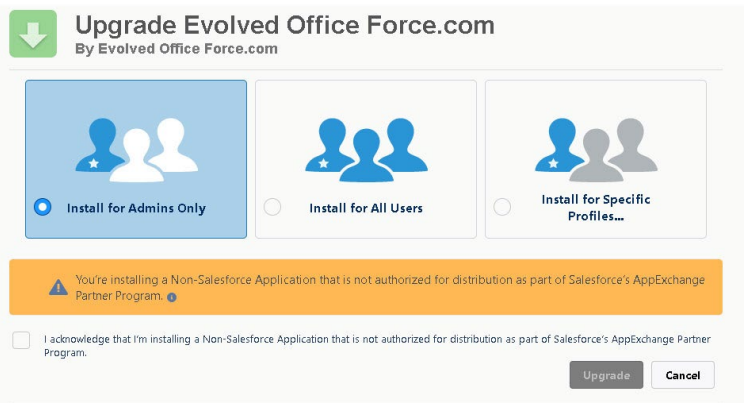
All installations should be for Admin only (this will grant system admin all tab permissions including EO Set Up for authentication). All other access will be done through the assignment of permission sets (tab and object access).
Be sure to check the box acknowledging that this is a third-party program.
Click Install / Upgrade (this will depend on whether this is a fresh installation of the app or an upgrade to a new version).
2. Permission Sets
Package tab access is assigned to any user who needs full or partial access to tab functions and data sent or returned to the EO system.
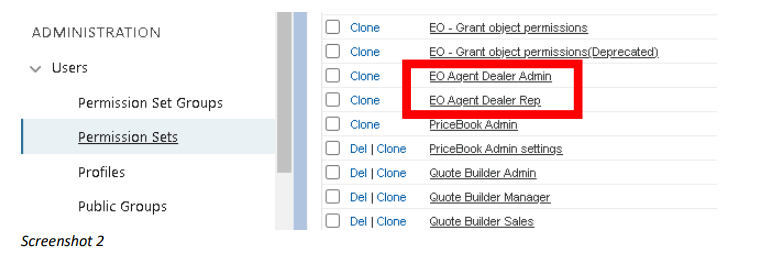
Available Permission Sets
- EO Agent Dealer Admin
This will grant access to all package-related tabs (excluding EO Set Up).
Filter Contacts will access all accounts and contacts. - EO Agent Dealer Rep
This will grant access to the Broadcast tab only.
3. Tab Visibility
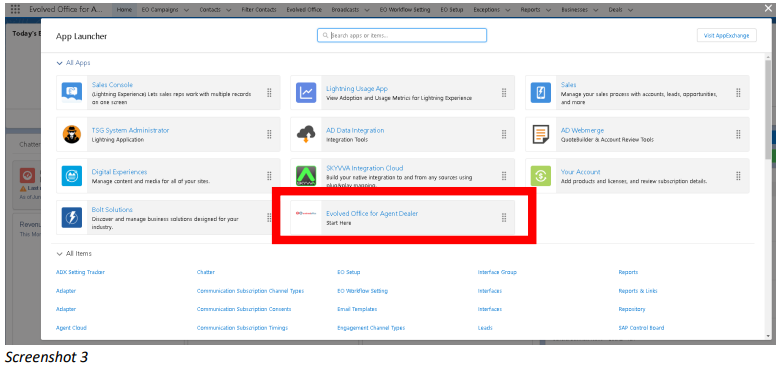
First, be sure you have the correct application selected.
From the left-hand application selection icon (nine dots), choose Evolved Office for Agent Dealer. This will load the application and the related tabs.
Once you have set the correct permissions, you must be sure that the proper application-specific tabs are available for the users indicated above.
Required Tabs
- Evolved Office
Allows users to auto-login to the webtools portal to create and broadcast content to selected marketing campaign targets. - EO Set Up
Provides the form to set up the application for data synchronization with the webtools platform account. - Filter Contacts
Contains the tool to perform detailed filtering of the customer base using primary Agent Dealer objects including Business, Contacts, Service Requests, Agreements, Equipment, and Deals. - Broadcasts
Contains the general view of all broadcasts sent by this account using the webtools platform. - EO Campaigns
Marketing targets that contain the specific contact subscribers to be pushed to the webtools system. - EO Workflows
Automated settings based on broadcast engagements to create and assign Deals and Tasks.
4. Set Up Licensing / Field Mapping
Once installation and permission setup are complete, proceed to the EO Set Up tab.
This is where you add your licensing information and configure field mapping for contact synchronization between Agent Dealer and the Evolved Office webtools platform.
Steps
- Add your Username and License Key as provided by the Evolved Office team.
- Check the Sync Enabled checkbox.
- Click Connect.
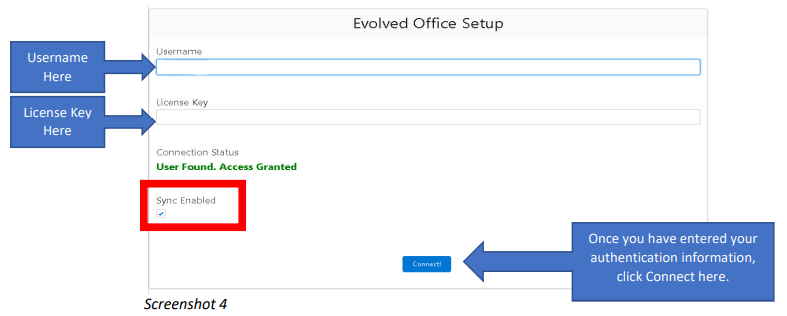
Once completed, a green User Found. Access Granted message will appear.
Contact Field Mapping
- Default fields map Salesforce fields to Evolved Office fields.
- Sync toggles indicate whether fields update in both systems.
- Fields such as Account Name and Owner update from Agent Dealer only.
- Click Save Mapping to complete configuration.

A future update will allow up to 10 additional custom fields to be added.
5. Custom Button and Layout Setup
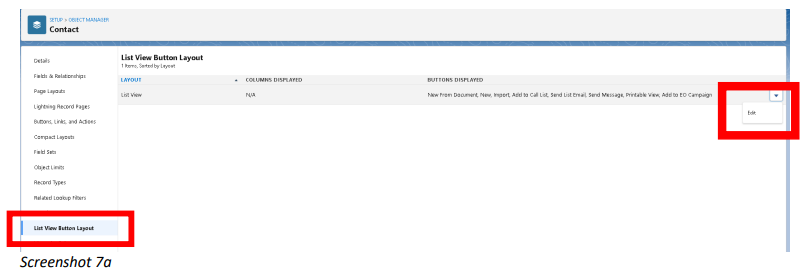
This allows users to add contacts to an Evolved Office campaign from a contact list view or layout.
Steps
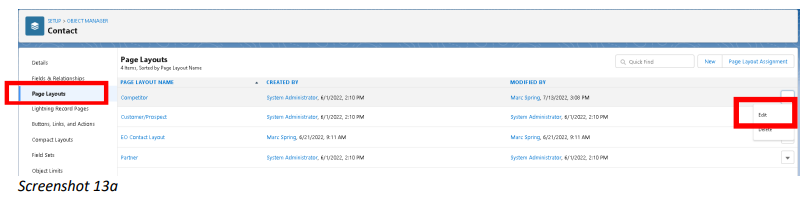
- Go to Setup
- Click Object Manager
- Select Contact
- Open List View Button Layout
- Add Add to EO Campaign under Selected Buttons
- Repeat the same steps under Search Layouts
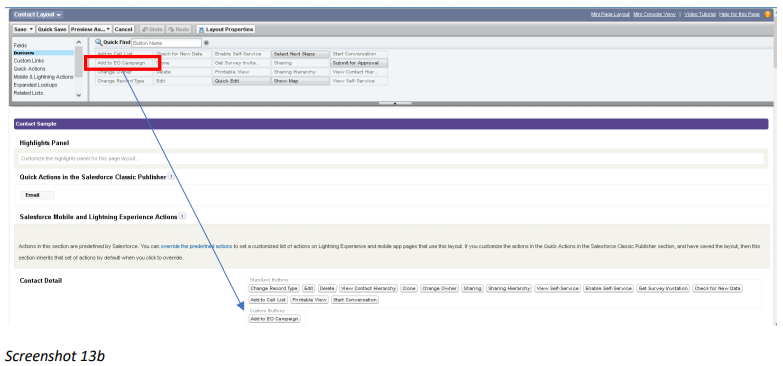
- Open Page Layouts and edit the active layout
- Drag Add to EO Campaign into the layout
- Click Save

Button Visibility
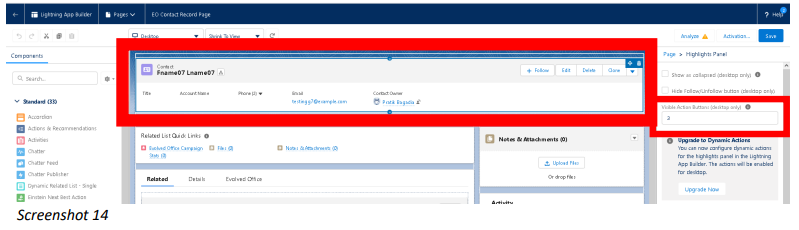
If buttons are hidden under a dropdown:
- Edit the Contact Lightning Page
- Select the header/button section
- Increase the Visible Action Buttons value
- Save the page
6. Set Up Frame for Contact History Dashboard (Evolved Office Portal)
This allows users to track marketing responses at the contact level.
Steps
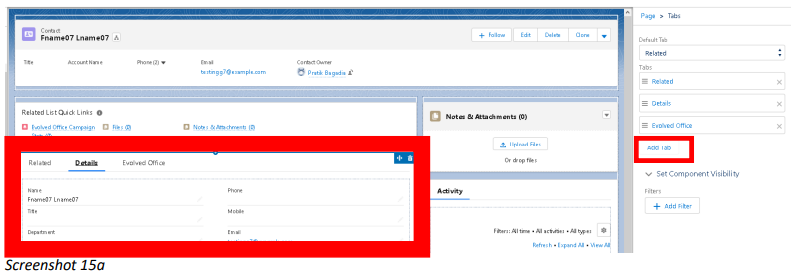
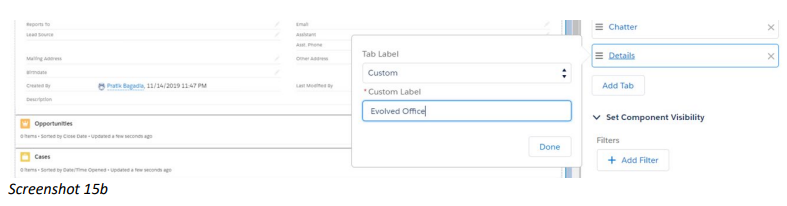
- Be sure you are selecting the tab section in the Page Editor. Click Add Tab button from right column.
- In the box that pops up, keep the tab type as Custom and add “Evolved Office” as the new tab name. Click Done.
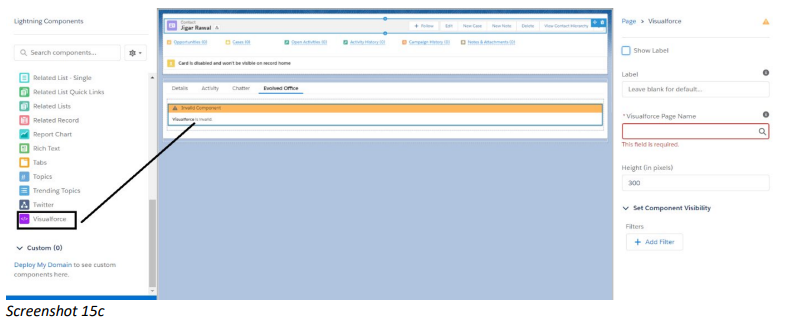
- After naming it in section (ii), click on the tab and it will ask you to drag-and-drop a component inside the empty space, drag the visualforce page component from the left side [can be found by searching for it in the top left side].
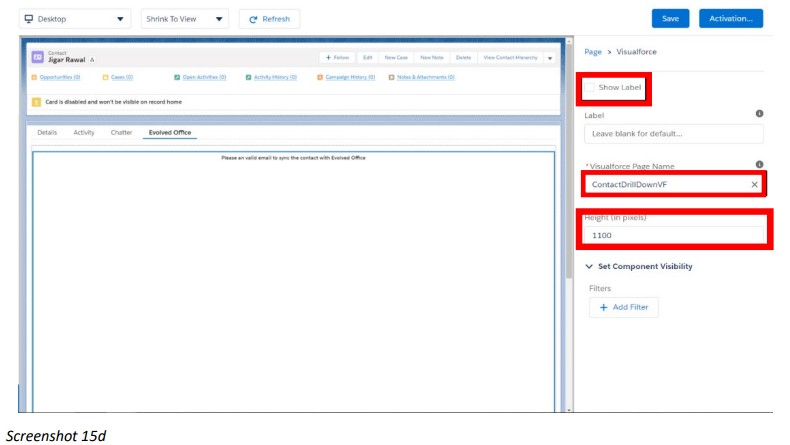
- After dragging the visualforce component in the empty section, click on the component to configure the details for that section. Uncheck the show label checkbox, In the visualforce page name search for ContactDrillDownVF and select it. Keep the height as 1100.
- Save the changes from the save button on the top of the page and you are ready to use the Evolved Office features on contact record.
7. Workflow Automation
The package allows the creation of Deals and Tasks based on broadcast response metrics set in the EO Workflow tab.
By default, a Business Name is required to create a prospect deal.
To allow contact-only deals:
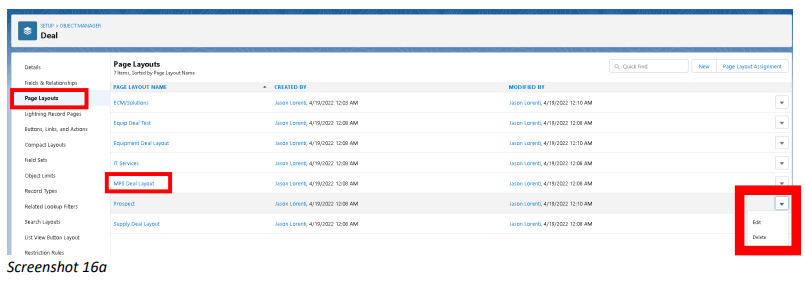
- Go to Setup (Gear icon)
- Open Object Manager → Deals
- Edit the Prospect Layout
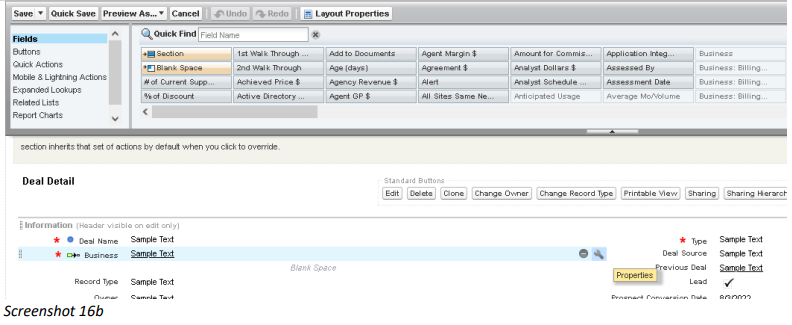
- Once in the layout, choose the business field and click the settings icon (wrench icon).
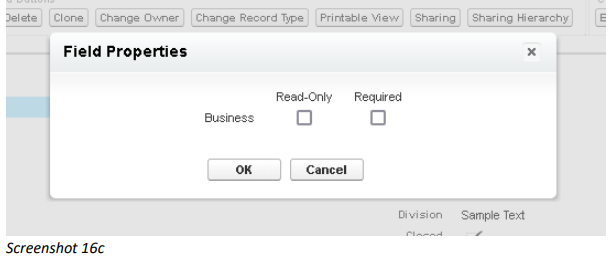
- Be sure to uncheck the required checkbox option and click OK. Then save layout (top left).
- Save the layout