
How to Create and Manage Brand Voices in Evolved Office
Learn how to create, customize, and manage Brand Voices to keep your AI-generated content aligned with your communication style.
What Is Brand Voice?
Your Brand Voice is the personality and communication style that makes your business recognizable.
It influences how you communicate with customers, whether your messaging is professional, conversational, informative, confident, or approachable.
With eoScribe, you can create a Brand Voice profile to help guide the way AI generates and rewrites marketing content.
Instead of repeatedly explaining how you want your content to sound, you can select a saved Brand Voice when using eoScribe.
Understanding Company and Personal Brand Voices
Evolved Office supports two types of Brand Voices.
Company Brand Voice
A Company Brand Voice represents your company's overall communication style.
It's useful for maintaining consistent messaging across marketing campaigns and other business communications.
For example, a Company Brand Voice might emphasize clear explanations, professional language, customer-focused benefits, and a friendly but confident tone.
Personal Brand Voice
A Personal Brand Voice represents an individual user's preferred communication style.
This can be useful for sales representatives, account managers, executives, or other team members who want their messages to reflect a particular personality or communication approach.
For example, an account manager might prefer a warm and conversational tone, while an executive might prefer concise, confident language.
How to Create a Brand Voice
Step 1: Open Brand Voice Settings
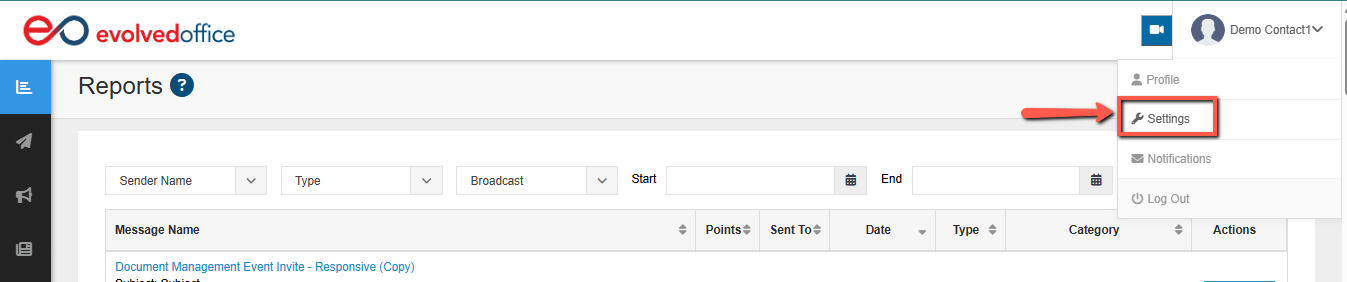
- Log in to your Evolved Office account.
- Navigate to Settings.
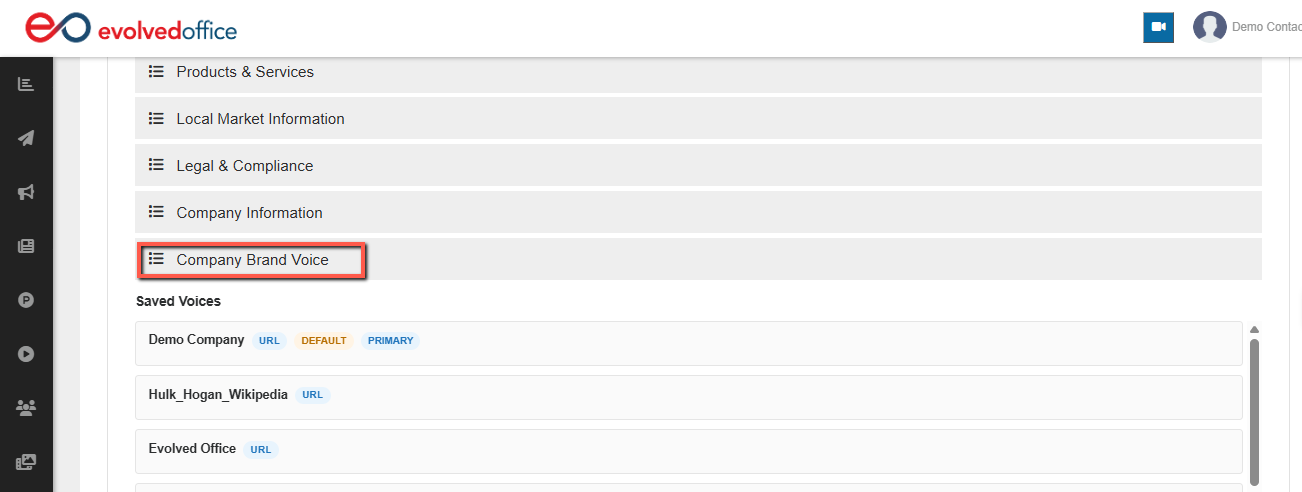
- Under the Branding tab, find the Company Brand Voice section.
- Locate the option to add a new Brand Voice.
- Click the + button.
Note: Available controls depend on your user role. Some users may be able to create a Personal Brand Voice through eoScribe rather than from Settings.
Step 2: Choose the Brand Voice Type
Choose whether you're creating a Company Brand Voice or a Personal Brand Voice, if the option is available to your user role.
Select the appropriate type based on how the voice will be used.
Step 3: Enter a Voice Name
Give your Brand Voice a descriptive name that will be easy to recognize.
Examples include:
- Company Marketing Voice
- Professional Sales Voice
- Friendly Customer Communications
- Executive Voice
Tip: Use names that describe the intended purpose rather than generic labels such as "Voice 1."
Step 4: Choose How to Create Your Brand Voice
eoScribe provides different ways to supply writing samples or communication preferences.
Pasted Content
Use this option if you already have examples of content that reflect your desired writing style.
You can provide sample marketing copy, website text, or other business writing.
Search URL
Use this option to provide a website URL as a source for Brand Voice analysis.
This is useful when your website already reflects your company's tone, personality, and messaging style.
Survey Form
Use this option to provide information about your preferred communication style through guided questions.
This can be helpful when you don't have existing writing samples available.
[Insert screenshot: Pasted Content, Search URL, and Survey Form options.]
Step 5: Create and Review Your Brand Voice
After providing the required information, start the Brand Voice creation process.
eoScribe analyzes the supplied information and develops a writing profile.
Review the generated profile or Tone Preview to see how eoScribe interprets your brand.
The profile may include details such as:
- Messaging style
- Personality
- Writing style
- Signature vocabulary and key terms
- Iconic catchphrases and messaging pillars
Step 6: Refine Your Brand Voice
Review the generated information carefully.
If the writing profile doesn't fully represent your company or personal style, make the available adjustments before finalizing it.
For example, you may want to make the voice more professional, reduce overly enthusiastic language, or place greater emphasis on customer benefits.
Step 7: Save Your Brand Voice
Save the Brand Voice once you're satisfied.
Your saved voice will be available in the appropriate Brand Voice section, subject to the account's available user settings and permissions.
How to Manage Saved Brand Voices
From the Brand Voice settings area, you can review existing Brand Voices and access their available management options.
Depending on the voice and your permissions, these may include:
Edit: Update an existing Brand Voice profile.
Default: Set a preferred Brand Voice as the default for its applicable scope.
Delete: Remove a Brand Voice that is no longer needed, when the option is available.
[Insert screenshot: Saved Brand Voices list with management controls.]
How to Use a Brand Voice in eoScribe
Once you've created a Brand Voice:
- Open the eoScribe AI Generator.
- Choose the content action you want to perform.
- Open the Brand Voice dropdown.
- Select your saved Brand Voice.
- Enter any additional instructions.
- Click Generate.
- Review the result to make sure it reflects your preferred communication style.
Important: Brand Voice influences writing style and messaging. It should not change factual information, product details, or your company's identity.
Best Practices for Creating Brand Voices
Use representative examples. Choose writing samples that genuinely reflect how you want your business to communicate.
Keep the profile focused. Avoid mixing conflicting communication styles in a single voice.
Review the generated guidance. Make sure the resulting profile accurately describes your brand.
Create different voices when useful. You may prefer separate writing styles for company marketing, customer communications, or individual users.
Update as your messaging evolves. Review saved Brand Voices when your company's communication guidelines change.
Related Articles
- Understanding Content Do's and Don'ts
- How to Customize Content Using Industry, State/Province, Tone, and Brand Voice
- How to Write Effective Prompts in eoScribe
Back to: Getting Started with eoScribe
Frequently Asked Questions About eoScribe
If you have any further questions, feel free to contact our support team at support@evolvedoffice.com. We're here to help!