
How to Generate Images with eoScribe
Bring your marketing ideas to life with AI-powered image generation in Evolved Office.
Overview
Creating engaging marketing visuals doesn't always have to start with designing an image from scratch.
With the eoScribe AI Image Generator, you can create images using written instructions, explore different visual styles, and generate graphics that support your marketing content.
You can also use existing content within a marketing template as context for image generation.
Step 1: Open the AI Image Generator
- Log in to your Evolved Office account.
- Open the eSHOT or supported marketing content editor.
- Locate the image you want to create or replace.
- Open the eoScribe AI Image Generator using the available image editing control.
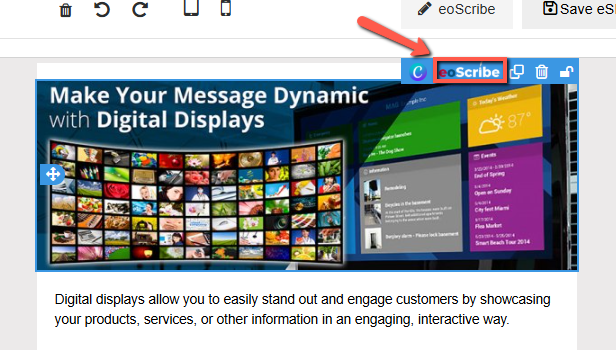
Step 2: Choose Your Starting Point
Depending on the image and existing content, eoScribe may use the current image or template as the starting point.
You can also choose to start with a custom image request.
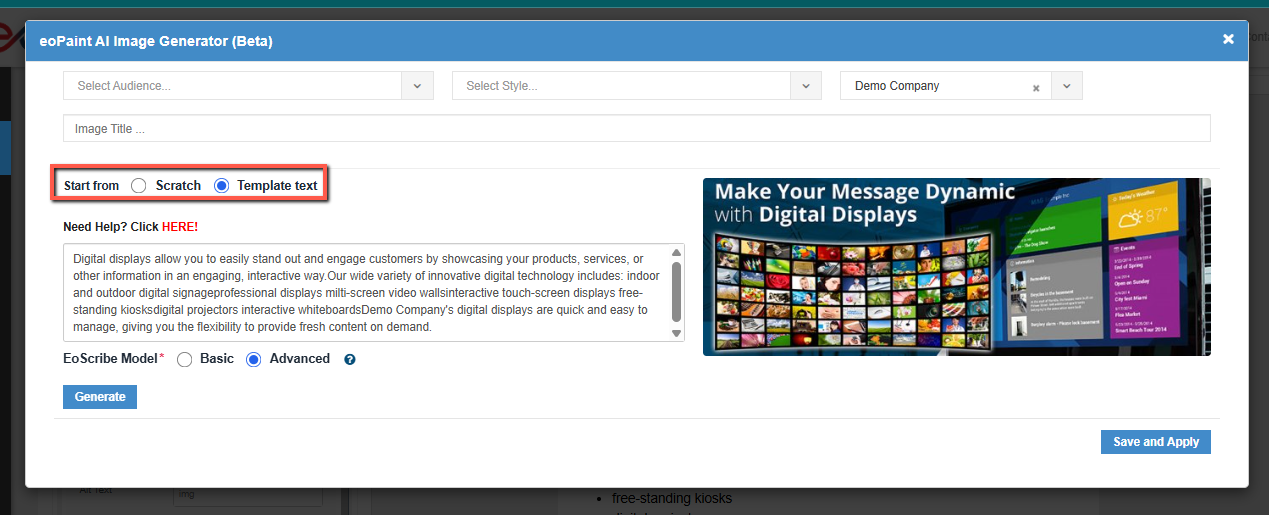
Using Existing Template Content
When you're working with an existing marketing template, eoScribe can use the available image and relevant template text to help generate an image that matches the topic.
For example, if your eSHOT discusses cloud-based phone systems, eoScribe can use that context when creating a related visual.
This is useful when you want the generated image to complement your existing marketing message.
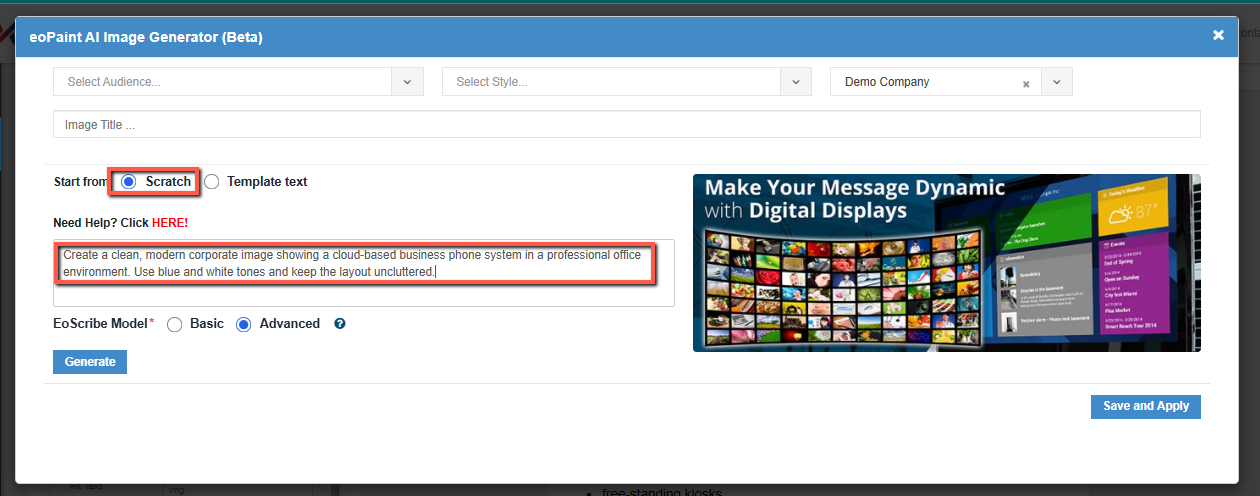
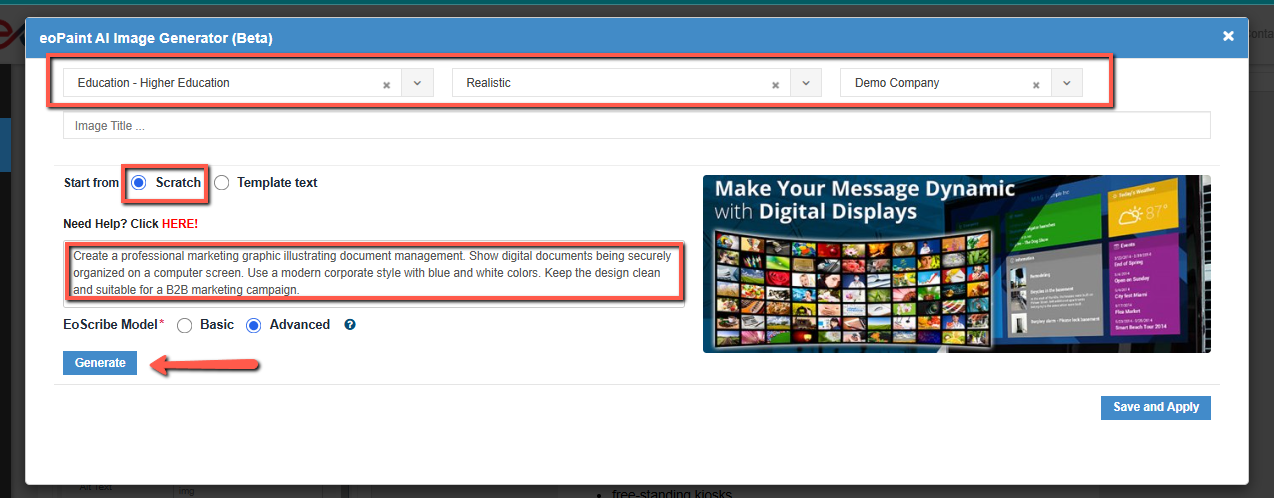
Starting from Scratch
Choose Start from Scratch when you want to provide your own creative direction instead of relying on the existing template.
For example:
"Create a clean, modern corporate image showing a cloud-based business phone system in a professional office environment. Use blue and white tones and keep the layout uncluttered."
This gives eoScribe a specific visual concept to work with.
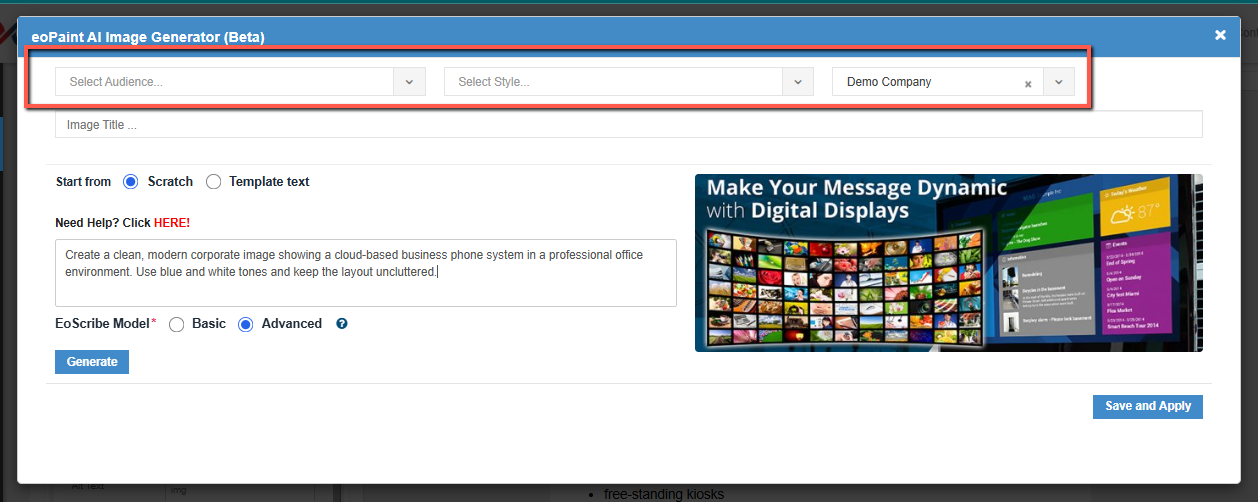
Step 3: Customize Your Image Settings
Depending on the available options, you can provide additional context before generating an image.
Audience/Industry
Select the industry or audience relevant to your graphic.
Style
Choose the visual style you want eoScribe to consider.
Available styles may include approaches such as Minimalist, Vintage Poster, or Abstract Art.
Brand Voice
If a Brand Voice selection is displayed in the image generator, you can choose an available profile.
Note: Brand Voice is primarily designed to guide written content. Its effect on image generation should be verified against the current version of eoScribe.
eoScribe Model
The image generator may offer Basic and Advanced model options.
Choose the available option that best fits your image-generation task.
Step 4: Enter Your Image Instructions
In the message or prompt field, describe the image you want eoScribe to create.
A useful prompt should include:
- Main subject or visual concept
- Desired style
- Preferred colors
- Background or environment
- Overall mood or appearance
- Objects or elements to include or avoid
Example:
"Create a professional marketing graphic illustrating document management. Show digital documents being securely organized on a computer screen. Use a modern corporate style with blue and white colors. Keep the design clean and suitable for a B2B marketing campaign."
Step 5: Generate Your Image
Click Generate.
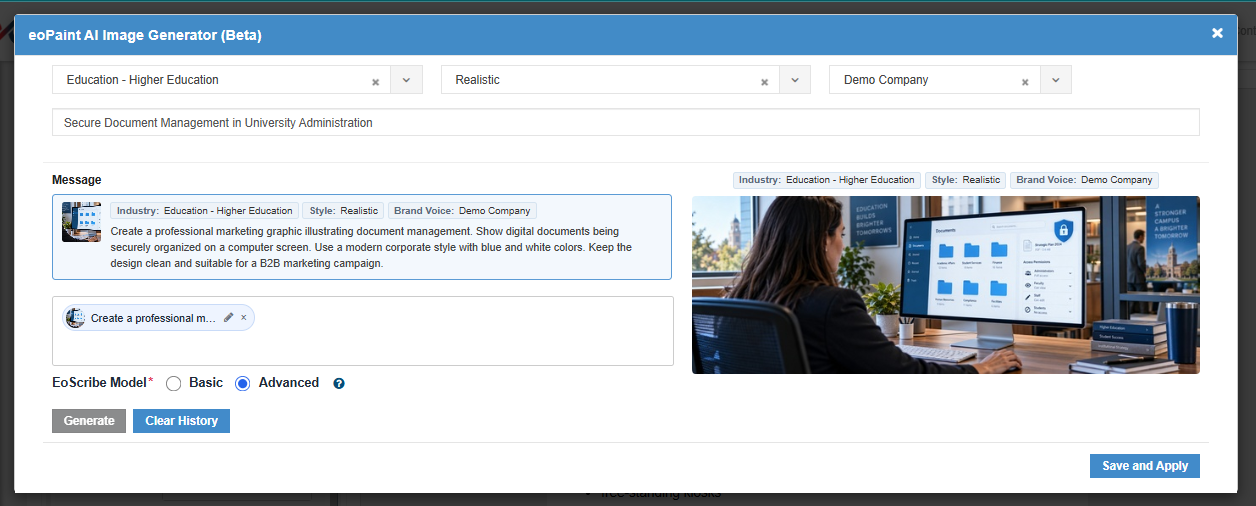
eoScribe will process your instructions and settings to produce an image.
Review the generated result and determine whether it matches your intended message and visual direction.
Step 6: Review and Refine
If the image isn't quite right, you can provide additional instructions.
For example:
"Make the background simpler and remove the people."
Or:
"Keep the same overall composition but use a more minimalist style."
You can continue refining the image until you achieve a result suitable for your campaign.
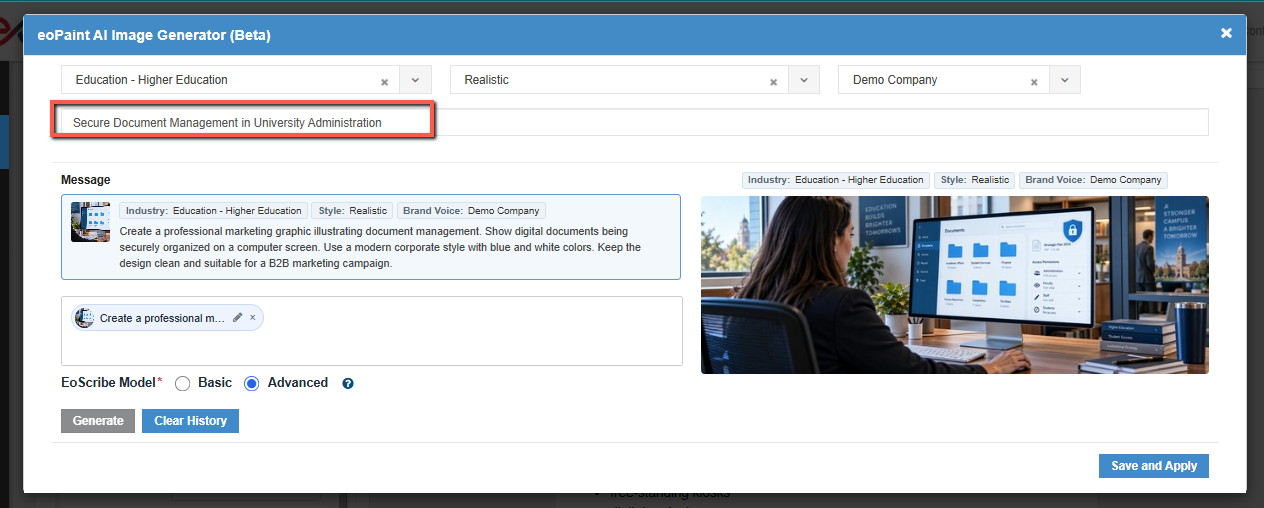
Step 7: Review the Image Title
eoScribe can automatically generate an image title when one is not provided.
You can review and edit the title to make it easier to identify the image later.
Using a descriptive title can help you organize your marketing assets.
Step 8: Save and Apply Your Image
Once you're satisfied:
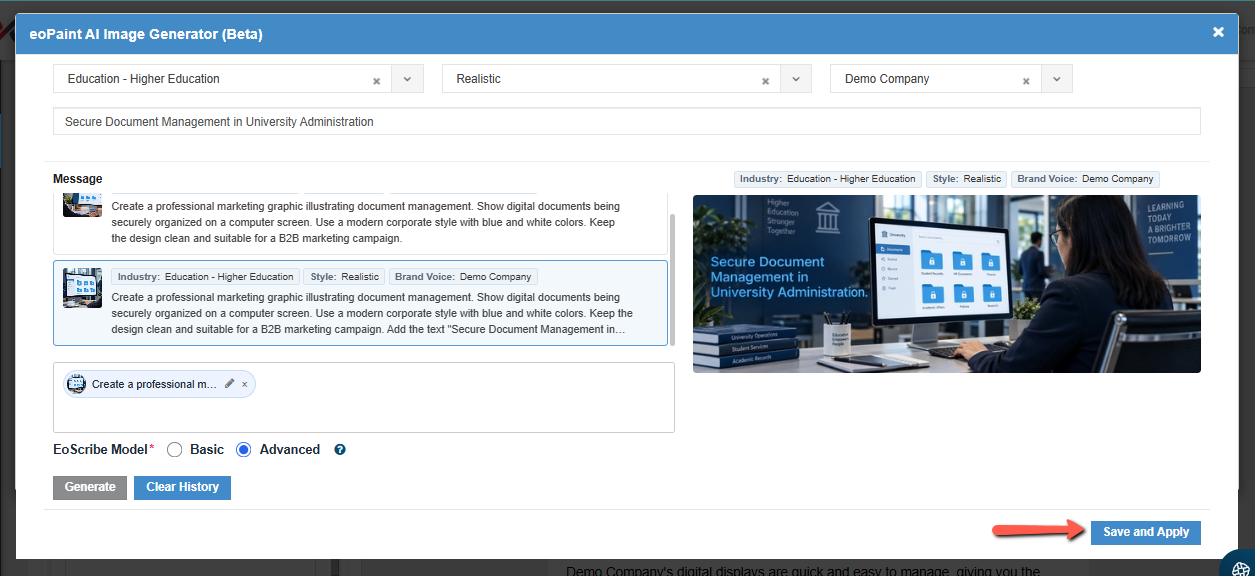
- Review your preferred generated image.
- Select the available Save & Apply option.
- Confirm that the image appears in the marketing content editor.
- Make any necessary adjustments.
- Save or update your marketing material.
Best Practices for AI-Generated Images
Keep your instructions focused. A clear visual concept often produces a more useful result than a long list of unrelated elements.
Use relevant imagery. Choose visuals that support your marketing message.
Avoid unnecessary clutter. Simple compositions are often easier to understand.
Check product accuracy. If you're generating an image of a specific copier, printer, scanner, or other equipment model, verify that the generated image accurately represents the product.
Review any generated text. AI-generated graphics may contain misspellings or inaccurate labels.
Use appropriate image dimensions. Make sure the final image fits the space where it will be displayed.
Related Articles
Back to: Getting Started with eoScribe
Frequently Asked Questions About eoScribe
If you have any further questions, feel free to contact our support team at support@evolvedoffice.com. We're here to help!