
How to Manage Chat History and Apply Generated Content in eoScribe
Learn how to review previous instructions, refine content, and apply your preferred AI-generated result to your marketing materials.
Overview
Creating content with eoScribe is an interactive process.
You can submit instructions, review AI-generated results, and make additional changes before choosing which version to use.
Chat History helps you keep track of your interactions with eoScribe while you work.
Understanding Chat History
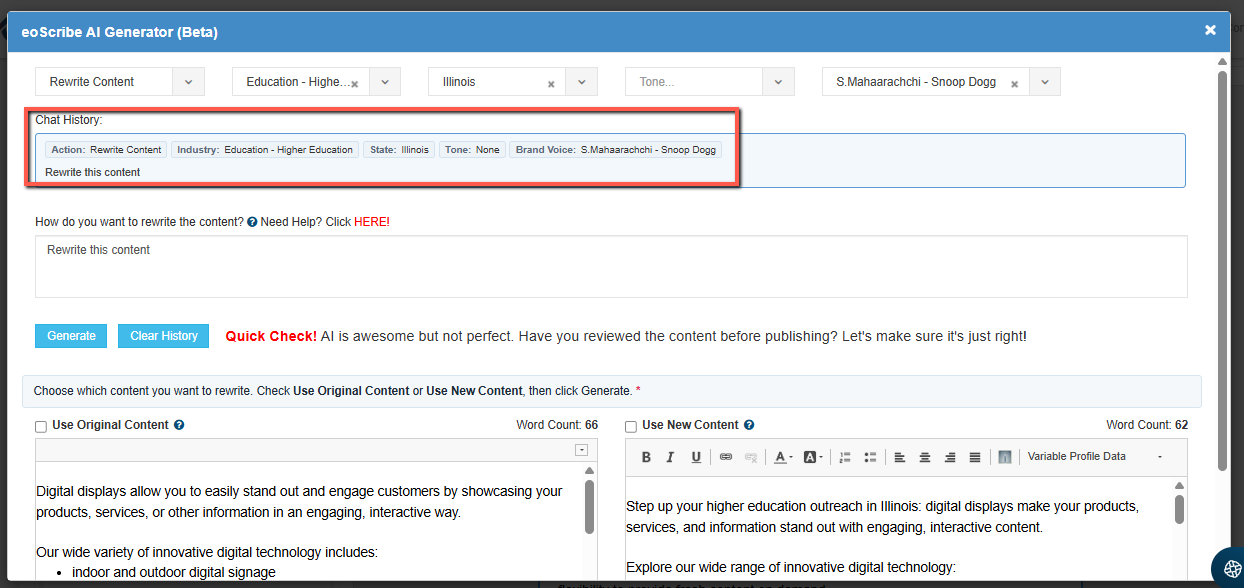
Chat History displays a record of instructions used during your content creation session.
These records can include information such as:
- The action you selected
- Your written prompt
- Industry selections
- State/Province selections
- Tone settings
- Brand Voice selections
This can help you understand what instructions were used when generating different versions of your content.
How to Review Previous Instructions
Step 1: Open eoScribe
Open the relevant marketing content and launch the eoScribe AI Generator.
Step 2: Locate Chat History
Find the Chat History area within the generator.
Step 3: Review Previous Requests
Review the available history entries to see your earlier instructions and selected settings.
This can help you decide what to change in your next request.
How to Refine Your Generated Content
If your first result needs improvement, you can continue the conversation by entering another instruction.
For example:
First instruction:
"Rewrite this content to sound more professional."
Second instruction:
"Make it more customer-focused and add a stronger call to action."
Third instruction:
"Shorten the final paragraph."
Each new instruction gives eoScribe additional direction.
Remember to review the output after every revision to make sure the important information remains accurate.
Understanding Original Content and New Content
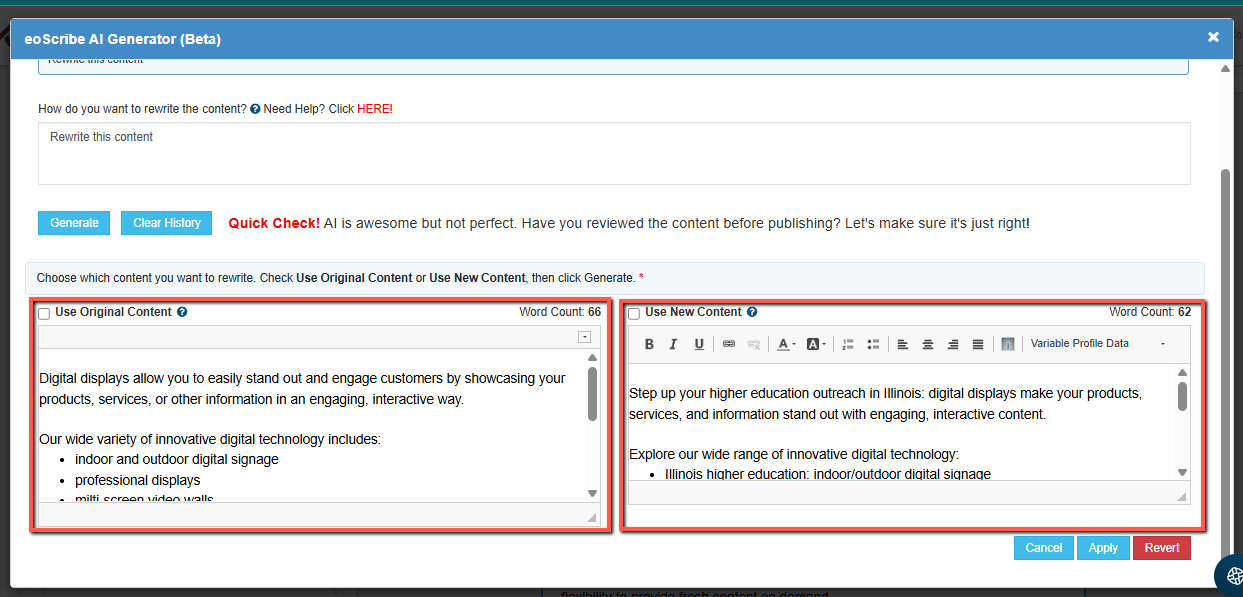
When working with existing text, eoScribe may display two content areas.
Original Content
This contains the existing text from your marketing material.
Use it as a reference when comparing the original message with the AI-generated version.
New Content
This contains the generated result.
Review and make available adjustments to the New Content before applying it.
Choosing Which Content to Use
Before applying your changes, select the content you want to use.
Depending on the available options, you may be able to choose between:
Use Original Content: Keep the existing text.
Use New Content: Apply the AI-generated version.
Make sure you've selected the correct option before proceeding.
How to Apply Generated Content
Step 1: Review Your Preferred Version
Check the wording, accuracy, formatting, and tone.
Step 2: Select the Content
Choose Use New Content if you want to apply the generated result.
Step 3: Click Apply
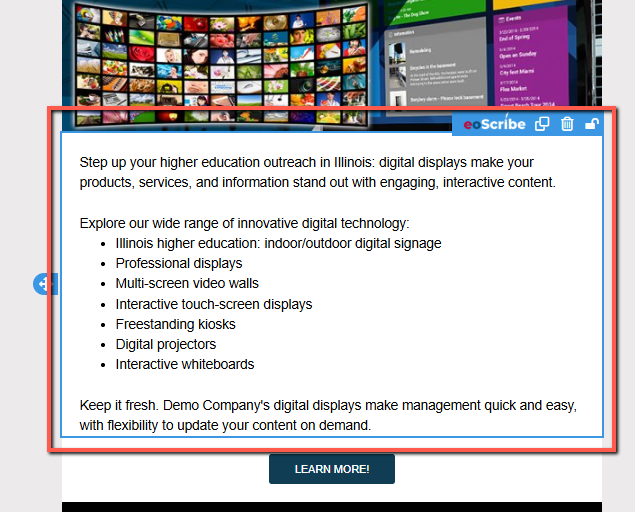
Click Apply to place the selected content into your marketing editor.
Step 4: Review the Content in Your Editor
Check that the content fits the existing structure.
Review:
- Paragraph spacing
- Bullet points
- Bold and underlined text
- Headline formatting
- Text alignment
- Calls to action
Make any necessary adjustments in the editor.
Step 5: Save or Update Your Marketing Material
Use the editor's normal save or update controls to keep your changes.
How to Clear Chat History
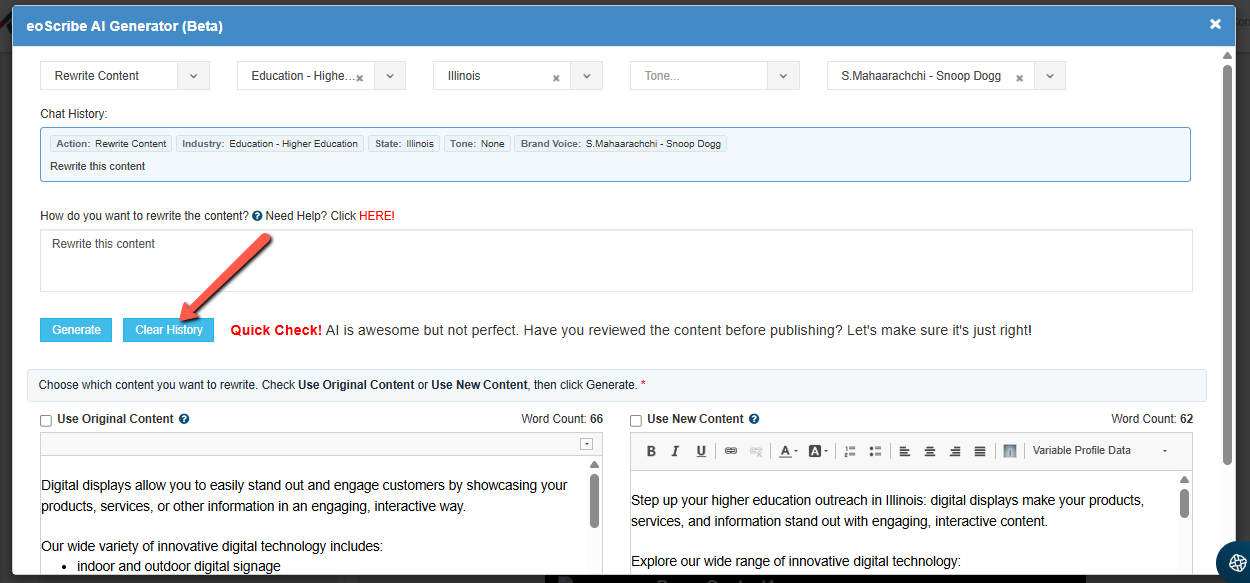
When you want to begin a fresh interaction, use the available Clear History option.
This can be useful when you want to start a different content request without relying on the previous conversation.
Before clearing history, make sure you've reviewed and applied any content you want to keep.
Important Reminders
AI-generated content should always be reviewed. Check facts, product descriptions, brand names, and marketing claims.
Review the final formatting. Text may require adjustments after it is applied to the editor.
Check your selected settings. Make sure the intended Industry, State/Province, Tone, and Brand Voice are active when generating another version.
Save your work. Applying content in eoScribe is not a substitute for using the normal save or update controls in your marketing editor.
Related Articles
- How to Use eoScribe for Content Creation
- How to Rewrite, Rephrase, and Summarize Content
- How to Generate New Content with eoScribe
- How to Edit and Refine AI-Generated Images
Back to: Getting Started with eoScribe
Frequently Asked Questions About eoScribe
If you have any further questions, feel free to contact our support team at support@evolvedoffice.com. We're here to help!