
How to Generate New Content with eoScribe
Create fresh marketing content using AI, whether you're starting with a blank structure or replacing an existing message.
Overview
The Generate New Content feature allows you to create original marketing copy based on your instructions.
This is useful when you want to develop a completely new message rather than simply rewrite existing text.
For example, you might want to introduce a new service, highlight a product, promote an upcoming event, or create an educational marketing message.
Step 1: Open eoScribe
- Log in to Evolved Office.
- Open the eSHOT or supported content editor.
- Select the text structure you want to work with.
- Launch the eoScribe AI Generator.
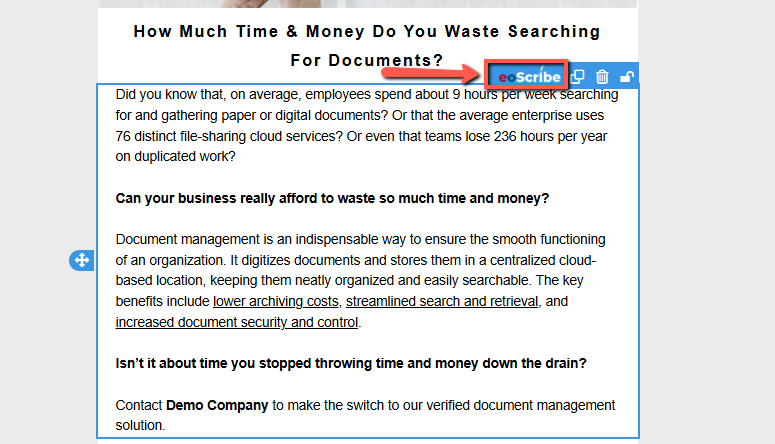
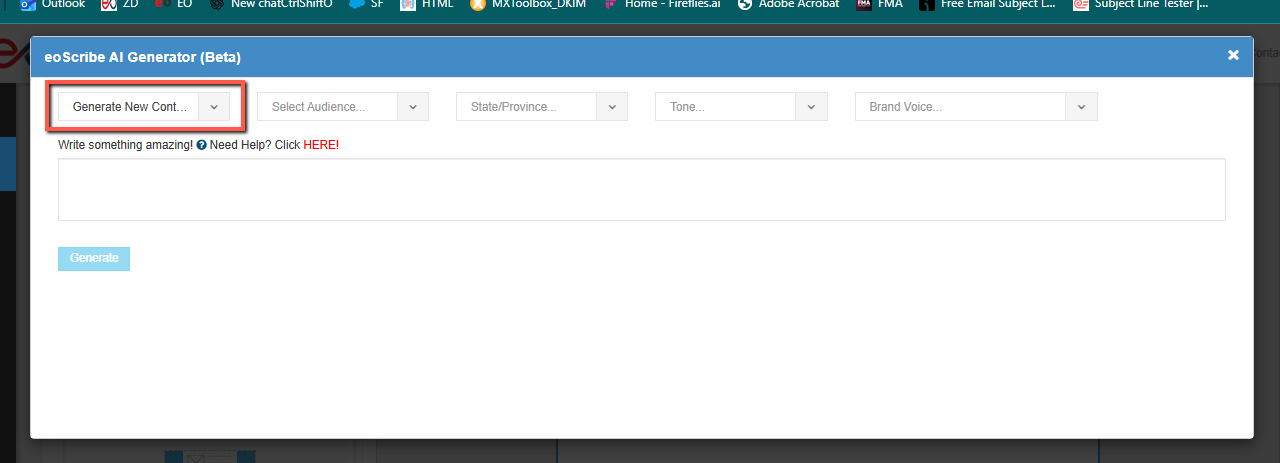
Step 2: Select Generate New Content
From the What do you want to do? dropdown, select Generate New Content.
This tells eoScribe that you want to create new messaging rather than revise the existing wording.
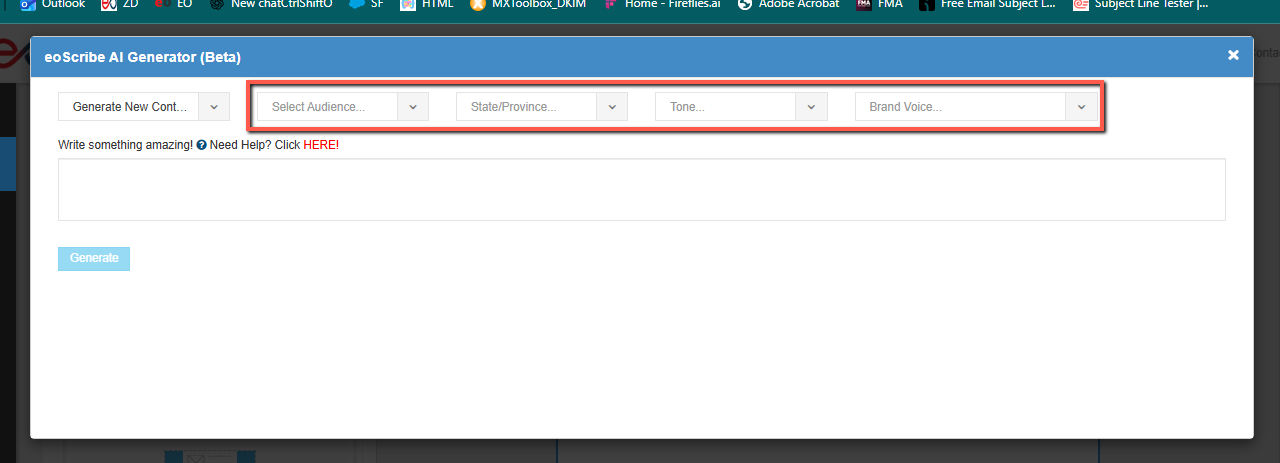
Step 3: Set Your Content Preferences
You can customize your content using the available dropdowns.
For example:
- Industry: Healthcare
- State/Province: Florida
- Tone: Professional
- Brand Voice: Your saved Company Brand Voice
These selections help guide the direction of the generated content.
You can leave optional settings unselected when they aren't needed.
Step 4: Enter Your Prompt
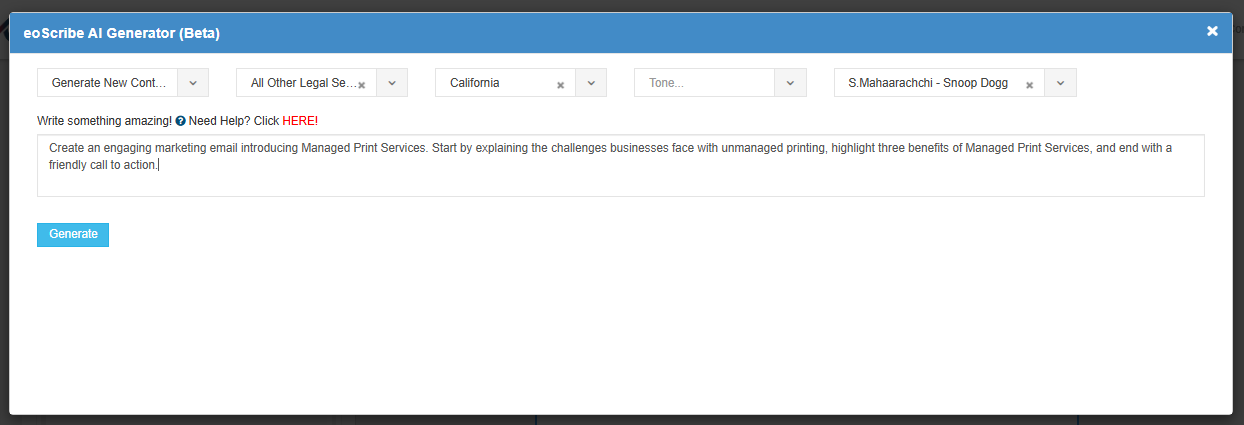
Describe the content you want eoScribe to create.
Example:
"Create an engaging marketing email introducing Managed Print Services. Start by explaining the challenges businesses face with unmanaged printing, highlight three benefits of Managed Print Services, and end with a friendly call to action."
Important: When Working with Existing Content
If you're generating new content from a text structure that already contains meaningful content, eoScribe is designed to keep the output's layout, formatting, and character count very close to the original content.
This helps ensure the new content fits within the existing structure without significantly changing its layout.
For example, if the original content contains two short paragraphs and three bullet points, eoScribe will generally follow a similar structure and approximate length, even when generating a completely new message.
Selecting Generate New Content does not automatically mean eoScribe will ignore the existing text structure's layout and length.
When Starting from Scratch
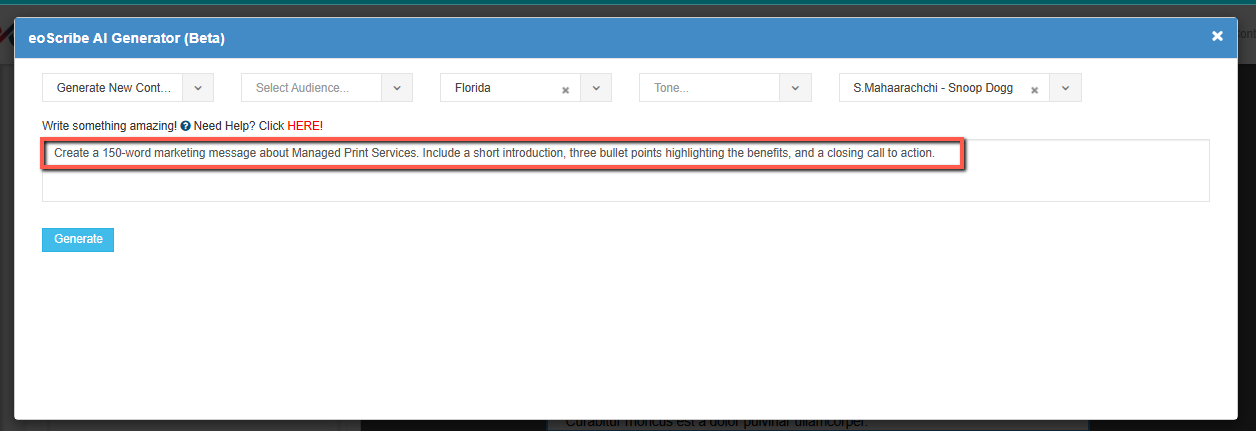
If the text structure is empty or contains only placeholder text, such as Lorem Ipsum, there is no meaningful original content to follow.
In this case, the generated content's layout, length, and formatting depend largely on the prompt you provide.
You can specify the desired word count, paragraph structure, bullet points, and other formatting preferences.
Example:
"Create a 150-word marketing message about Managed Print Services. Include a short introduction, three bullet points highlighting the benefits, and a closing call to action."
Tip: When working with existing content, review the generated result to ensure it fits the original structure. When starting from scratch, provide more detailed formatting instructions to help eoScribe create the layout you want.
Step 5: Add Reference URLs (Optional)
If you want to provide additional context, use the Add URL References field.
You can enter up to three webpage URLs.
This is particularly useful when creating content about a specific product or service.
For example, you might provide a manufacturer's product webpage when developing a marketing message about a copier or printer.
Step 6: Generate Your Content
Click Generate.
eoScribe will use your instructions and selected settings to create a new version of the content.
The result appears in the New Content area.
Step 7: Review and Make Adjustments
Review the generated content carefully.
Pay attention to:
- Whether the message matches your objective
- Whether the selected audience is addressed appropriately
- Whether product or service descriptions are accurate
- Whether the content fits the available space
- Whether the call to action is relevant
If you want a different result, provide additional instructions.
Example:
"Keep the same message but make it more concise and add three bullet points highlighting the benefits."
You can continue refining the content until you're satisfied.
Step 8: Apply the New Content
Once you've reviewed the result:
- Select Use New Content, if the content selection is shown.
- Click Apply.
- Review how the new content appears in your eSHOT or editor.
- Make any final formatting adjustments.
- Save or update your marketing material.
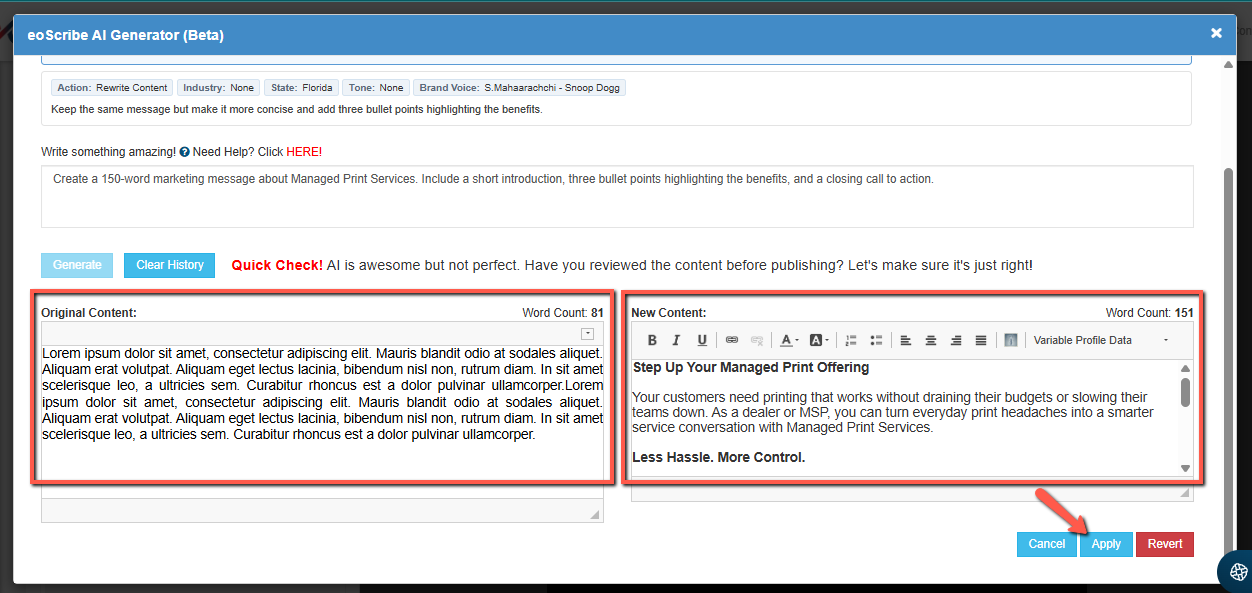
Generating Content in a New Structure
If you're working with a newly added structure containing placeholder text, eoScribe can be used to create actual marketing content.
Describe the topic and desired format clearly.
For example:
"Create a short email section about cybersecurity awareness, including a headline, introductory paragraph, three tips, and a closing statement."
Placeholder text such as Lorem Ipsum should not be treated as meaningful information about your business.
Important: One Text Structure at a Time
eoScribe generates content for the text structure you're currently working with.
If your eSHOT contains multiple text structures, you'll need to generate or update each one separately.
Related Articles
- How to Generate New Content with eoScribe
- How to Rewrite, Rephrase, and Summarize Content
- How to Customize Content Using Industry, State/Province, Tone, and Brand Voice
Back to: Getting Started with eoScribe
Frequently Asked Questions About eoScribe
If you have any further questions, feel free to contact our support team at support@evolvedoffice.com. We're here to help!