
Getting Started with Canva in Evolved Office
Evolved Office connects directly with Canva, giving you access to a full design editor without leaving your workflow. Use it to add logos, edit text, resize images, and trim videos — all from within Evolved Office.
How It Works
Wherever you see an Edit in Canva button — on an image, video, or design — clicking it opens that item in Canva's editor. When you're done editing, you publish your changes back, and the updated file automatically appears in the original location and in your Asset Manager.
First-Time Setup
Before editing anything, you'll need to connect your account:
- Go to your Media Library / Asset Manager.
- Click Connect to Canva.
- Log in with your Canva credentials when prompted. Both free and paid (Pro) Canva accounts work with this integration.
- Once connected, Evolved Office remembers this connection — you won't need to log in again on future visits.
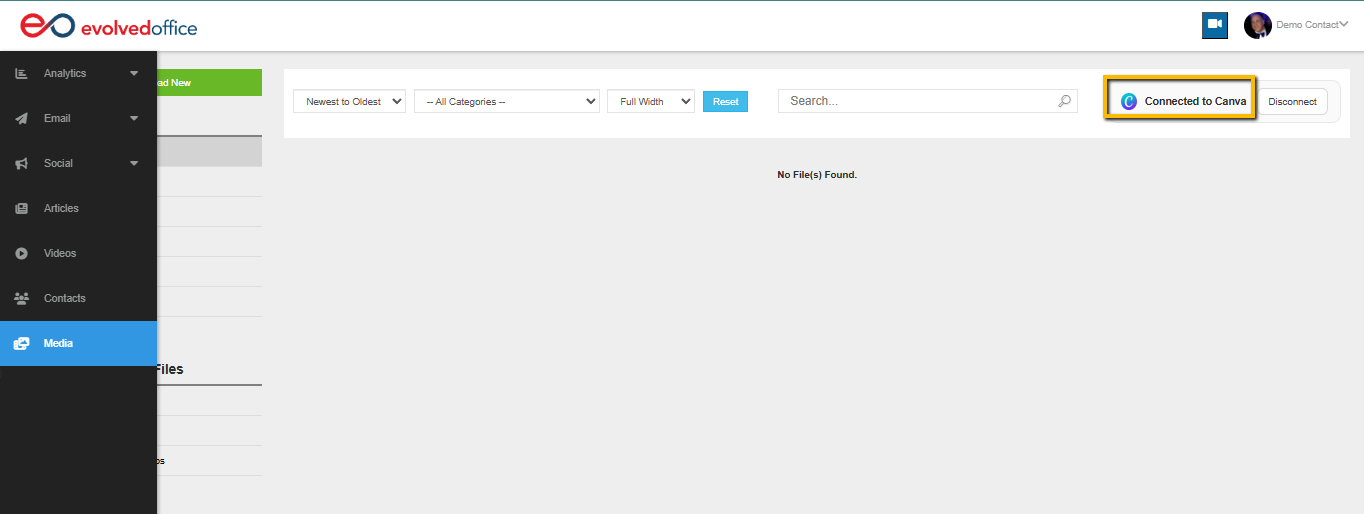
The first time you click Edit in Canva on an item, Canva will also ask you to authorize the Evolved Office app. Approve this once, and it's set for future edits too.
Note: Some advanced Canva tools (such as background remover, Magic Studio features, and premium templates) are only available on paid Canva plans. If you're on a free account and don't see a certain tool, that's likely why.
What You Can Edit
Click a topic below for step-by-step instructions:
- How to Edit an Image with Canva from the Asset Manager — general image editing from the Asset Manager
- How to Edit an Image in an Email Template with Canva
- How to Edit an Image in an Article
- How to Edit a Product Image
- How to Edit a Social Media Image
- How to Create a New Design in Canva — start from scratch instead of editing an existing image
- How to Edit a Video with Canva:
A Few Tips
- Saving your work: When you publish, you can choose to save as a new copy or overwrite the original — pick whichever fits your situation.
- Reusing existing designs: While in the Canva editor, you can browse your Evolved Office image library and pull in a different image or switch to an entirely different design without leaving Canva — see How to Browse Your Evolved Office Library from Within Canva for details.
- New designs need a type: If you're creating a brand-new design (not editing an existing image), you'll be asked to choose an image type so the size validates correctly. See the table below for valid dimensions.
Valid Dimensions by Image Type
Type | Required Dimensions |
|---|---|
Article | 754 x 300 (variable), 360 x 200 (variable), 189 x 253 (variable) |
Banner | 754 x 300 |
Icon | 80 x 80 |
Images | Variable |
Product | 360 x 360 |
Social Media | 1080 x 1080 |
Learn More About Canva's Editing Tools
Once you're in the Canva editor, you have access to Canva's full design toolkit. For help using specific tools, see Canva's own guides:
- Editing and Designing Basics — designing with templates, photos, text, videos, and more
- Getting to Know the Canva Editor — navigating the toolbar and edit panel
If you have any further questions, feel free to contact our support team at support@evolvedoffice.com. We're here to help!